Generating a HPE GreenLake Cloud Platform Token
This section is a quick start guide to generating tokens for GreenLake Cloud Platform REST API. You'll be up and running in a jiffy!
Introduction
In order to get started using the HPE GreenLake Cloud Platform REST API, you must create a token in the GLCP user interface. Follow these steps to create the necessary credentials and generate your first Token for this platform!
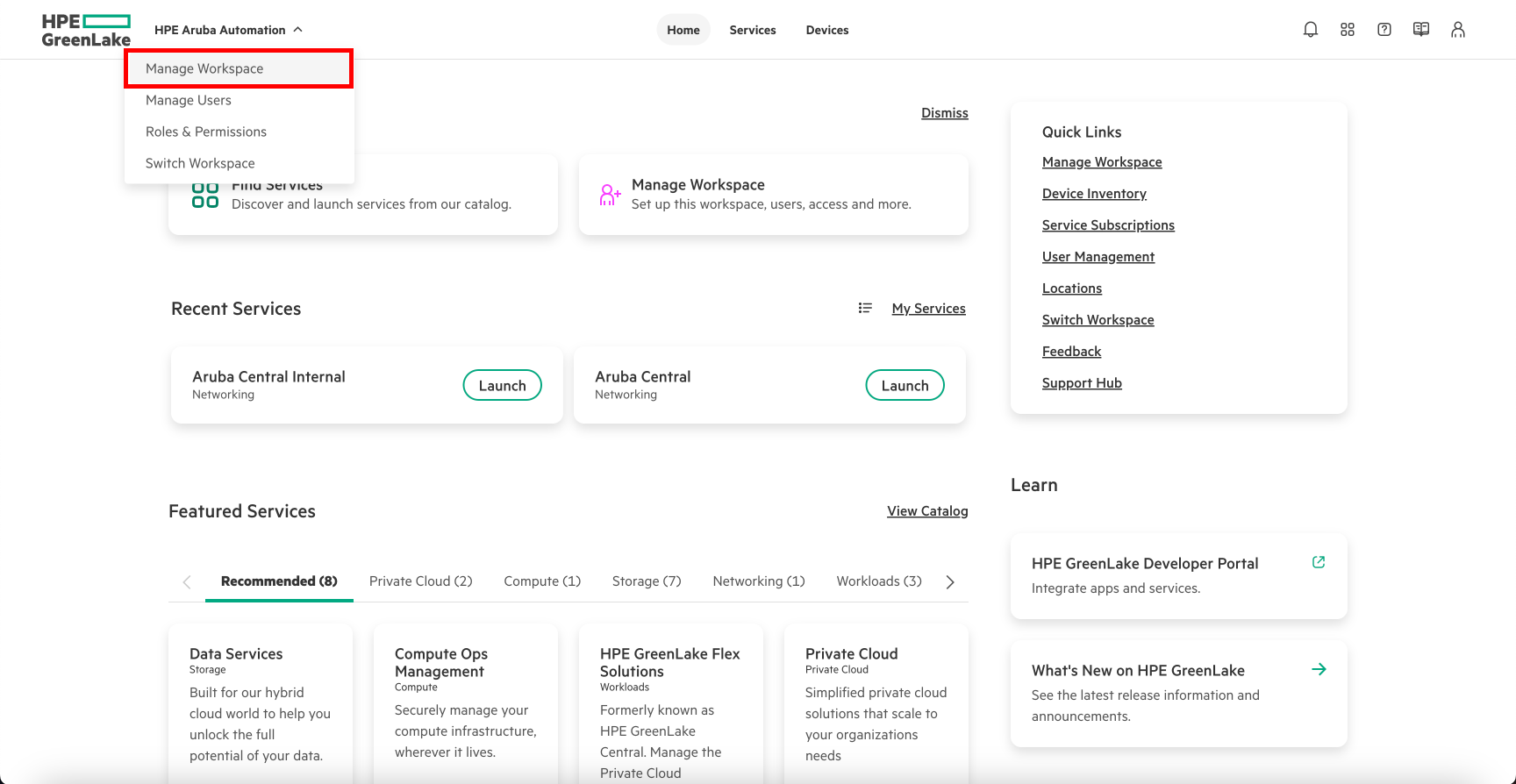
Select Manage Workspace
Token management falls under the manage workspace link highlighted in red here.
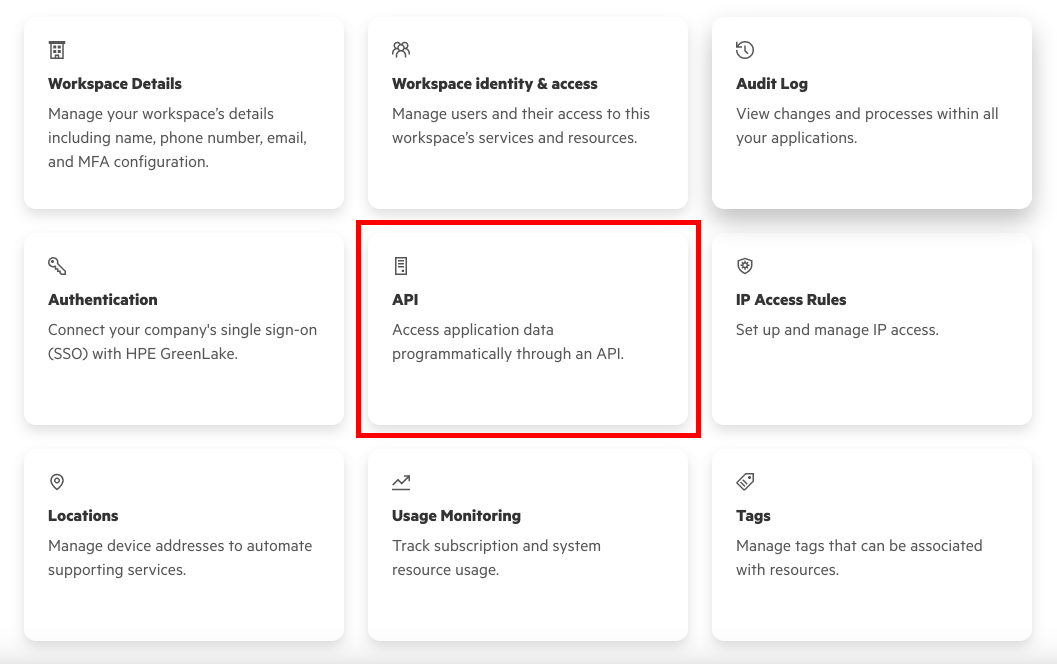
Select API
The API category within manage workspace is where you can access your Token credentials for the HPE GreenLake Cloud Platform.
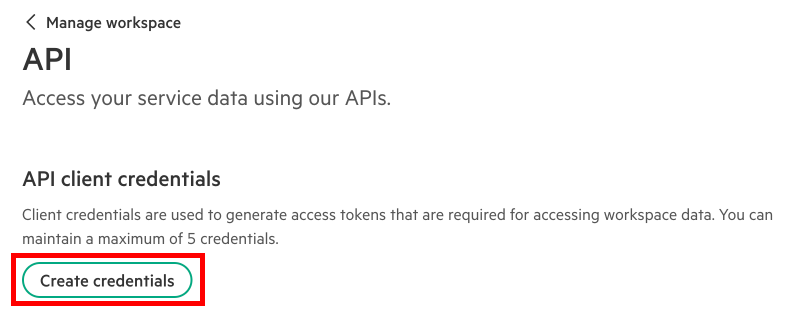
Begin Process to Create Credentials
Click the create credentials button to begin making credentials that will allow you to generate Tokens.
Select Service Manager
Provide a credential nickname ex. "greenlake-tutorial-token" and choose HPE GreenLake Cloud Platform from the service manager dropdown menu.
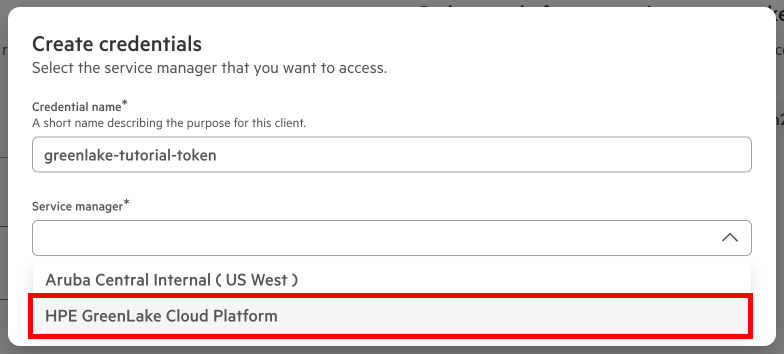
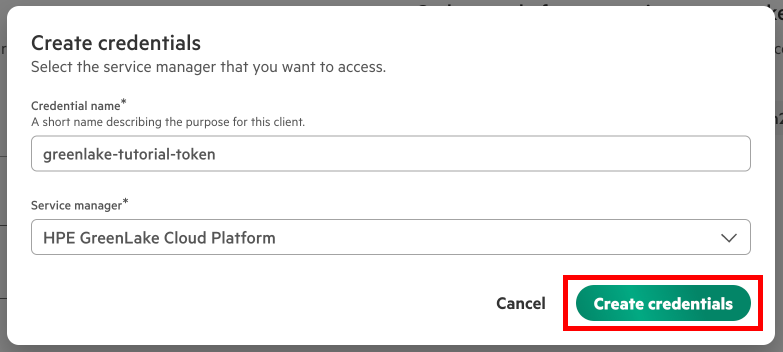
Create Credentials
Create a set of token credentials for the HPE GreenLake Cloud Platform.
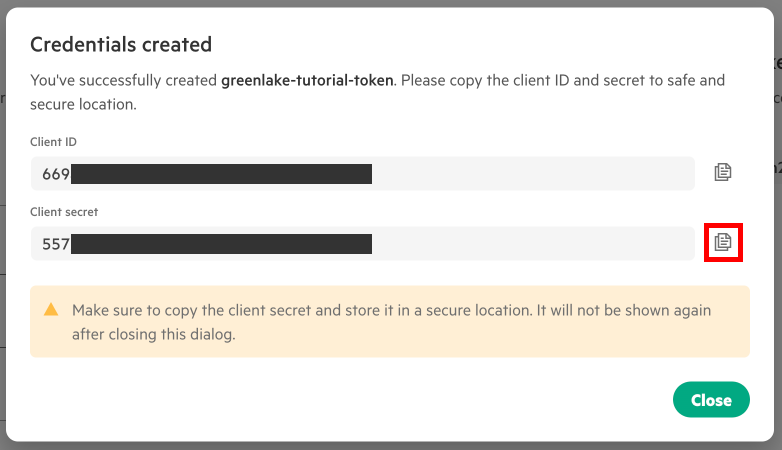
Save Client Information
After creating credentials you should copy to the Client ID and Client Secret to a safe place. You will need to use this credential information in the future to generate tokens and automate token generation. After saving this information elsewhere, you will want to have your Client Secret handy for the next step. Note* we do not store the Client Secret in any location for you, after closing this window it will disappear.
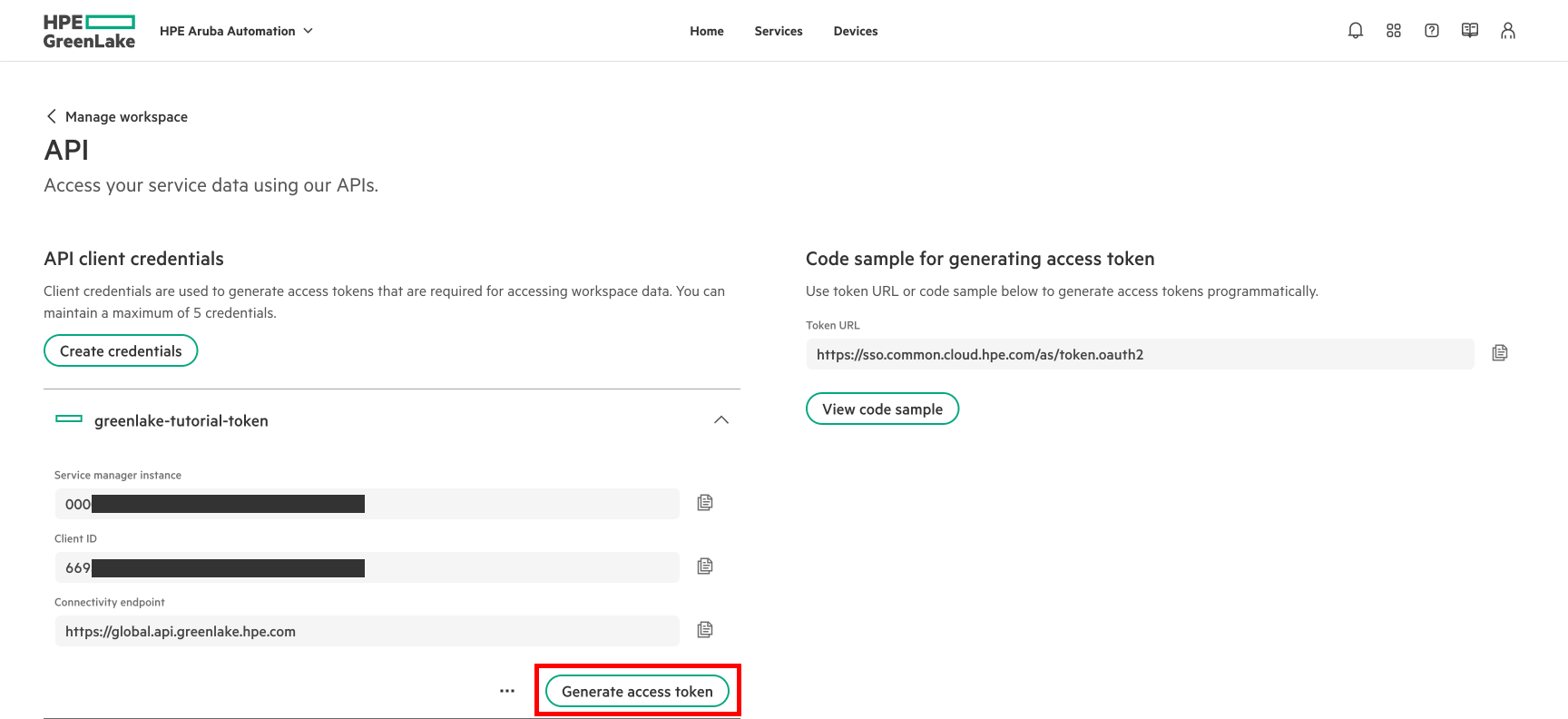
Generate Access Token
Once you have saved the required information, select the set of credentials you've made and click the credential name to expand the accordion component. Click Generate Access Token.
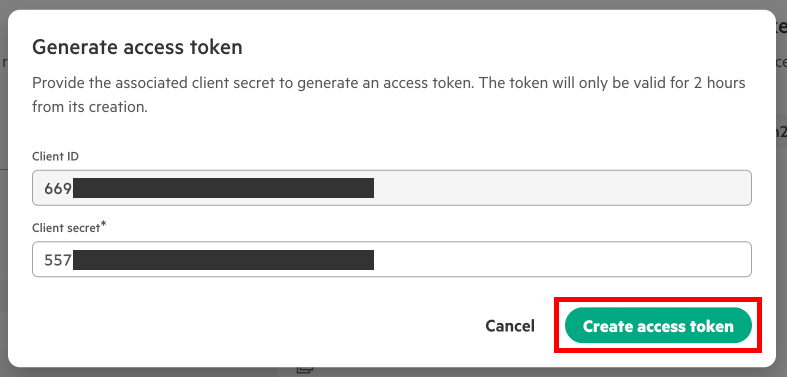
Use Client Secret to Create Access Token
Copy your Client Secret from its safe location into this input to then create an access token for the HPE GreenLake Cloud Platform. Note* the token you've just made will only be valid for 2 hours. You will need to repeat this token generation process each time your token expires. This is why it is important to remember the location of your Client Secret as well.
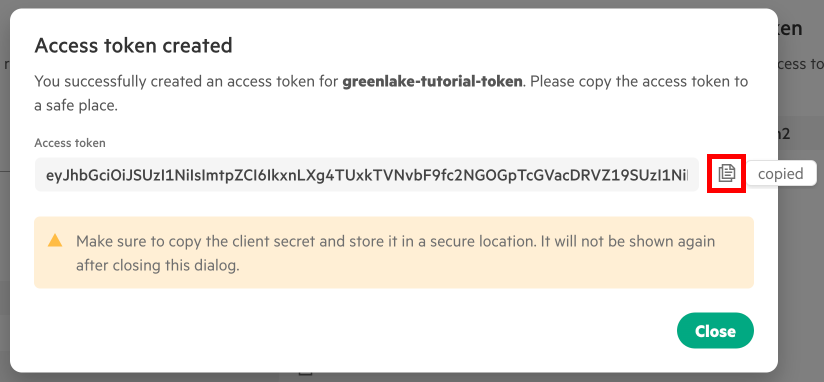
Copy the Access Token
Now you can copy the access token and use it to make API calls to the HPE GreenLake Cloud Platform. You can access more documentation for the HPE GreenLake Cloud Platform APIs on the HPE GreenLake Developer Portal here.
Updated 3 months ago