
Client Disconnection
Source CodeYou can find the full source code and documentation for this workflow on GitHub: Client Disconnection
This workflow automates the process of disconnecting a client device from a network managed by HPE Aruba Networking Central.
The user provides a client MAC address, and the workflow:
- Fetches the client's details (site, connected device, connection state) directly using the client's MAC address
- Sends a disconnect request to the device the client is connected to
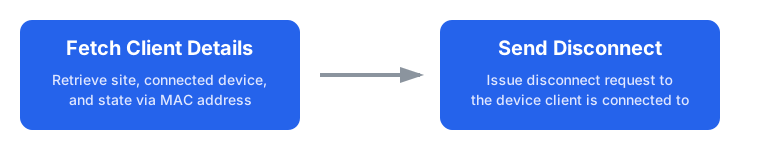
Client Disconnect Workflow Overview
Prerequisites
The following conditions must be met before running this workflow:
- API credentials must have sufficient permissions for client management operations
- Client devices must be currently connected to the network managed by Central
- Client MAC addresses must be known and valid
Installation
Set up a Python virtual environment, activate it, and install dependencies from requirements.txt.
- Clone the repository and navigate to this workflow folder
git clone -b v2 https://github.com/aruba/central-python-workflows.git
cd central-python-workflows/pycentral-workflows-beta/client-disconnection- Create and activate a virtual environment, then install dependencies
- On macOS/Linux: source venv/bin/activate
- On Windows (PowerShell): venv\Scripts\Activate.ps1
python3 -m venv venv
source venv/bin/activate  # On Windows use: venv\Scripts\activate
pip install -r requirements.txt
This workflow is tested on the pycentral SDK (version: 2.0a14). Please check compatibility before executing on older/newer versions as there may be changes
Configuration
Credentials Configuration (account_credentials.yaml)
For API operations in HPE Aruba Networking Central:
central:
    cluster_name: <cluster-name>  # or base_url: <central-api-base-url>
    client_id: <new-central-client-id>
    client_secret: <new-central-client-secret>
Sample Input: See account_credentials.yaml in this repository for an example credential file.
Important Links
Workflow Input Data (workflow_variables.yaml)
client_macs:
  - aa:bb:cc:dd:ee:ff
- 11:22:33:44:55:66| Parameter | Type | Required | Description |
|---|---|---|---|
client_macs | list of strings | Yes | List of client MAC addresses to disconnect |
Sample Input: See workflow_variables.yaml in this repository for an example input file structure.
Execution
When you run the script, it processes clients listed in the input file concurrently (up to --max_workers at a time, default: 5) and performs the following operations for each client:
- Client Detail Fetch: Retrieves the client's connection details (site, connected device, and connection state) directly using the client's MAC address.
- Connection State Check: If the client is not currently connected, the disconnection is skipped and recorded as
SKIPPED. - Disconnection Request: Sends a disconnection command to the corresponding device (Access Point or Gateway) managing that client.
- Results Export: Generates a comprehensive report summarizing the disconnection request status and related details for all processed clients.
python client_disconnect.py -vars workflow_variables.yaml -c account_credentials.yamlCommand Line Options
Describe the expected inputs, their formats, and any validation rules.
| Name | Type | Description | Required |
|---|---|---|---|
-c, --credentials | string | Path to YAML/JSON file with Central credentials | Yes |
-vars, --variables_file | string | Path to YAML/JSON file containing client MAC addresses | Yes |
--max_workers | int | Maximum number of clients to process concurrently (default: 5) | No |
Output
The workflow produces detailed results both in terminal output and CSV export:
Terminal Output
- Real-time progress updates for each client
- Tabulated summary showing disconnection results
- Error messages and troubleshooting information
- Colored Rows indicating status of client disconnection.
- Green indicates that the client disconnection was initiated successfully.
- Yellow indicates that the client disconnection was skipped. The reason for skipping (for example, client not currently connected) is shown in the Errors column.
- Red indicates that the client disconnection failed. The detailed error or failure reason is displayed in the Errors column.
Sample Output: See below for a sample terminal output of the script.

Sample Terminal output
CSV Export
A timestamped CSV file (client_disconnect_results_YYYYMMDD_HHMMSS.csv) containing:
| Column | Description |
|---|---|
| Client MAC | MAC address of the client |
| Client Name | Name of the client |
| Connected Site | Site where the client was connected |
| Connected Device | Device (AP/Gateway) the client was connected to |
| Disconnect Status | SUCCESS/FAILED/SKIPPED for disconnection attempt |
| Errors | Error messages if any step failed |
| Overall Status | SUCCESS/FAILED overall workflow result |
Sample Output: See client_disconnect_results_sample.csv in this repository for an example output file.
Verification of Disconnection
NoteThe disconnection attempt is initiated by the workflow but not guaranteed to complete automatically. The workflow sends a disconnect command to the device managing the client, but depending on network conditions, device response, and client type, the action may not always take effect immediately.
To confirm a successful disconnection, verify the client’s status in the Central UI. See the screenshot below for an example of how a successful disconnection event appears in the Client's Event tab in Central UI.
To confirm that the disconnection request was successful, follow these steps:
- Navigate to the site where the client was associated.
- Go to the Clients section and check the client’s current connection status.
- If the client is disconnected, the action succeeded.
- In some cases, the client may still appear as connected in the list due to network delays or UI refresh intervals.
- Regardless of the connection state, you can confirm the action by navigating to the Event tab of the client in Central. A successful disconnection event will be recorded here, as shown in the example below.
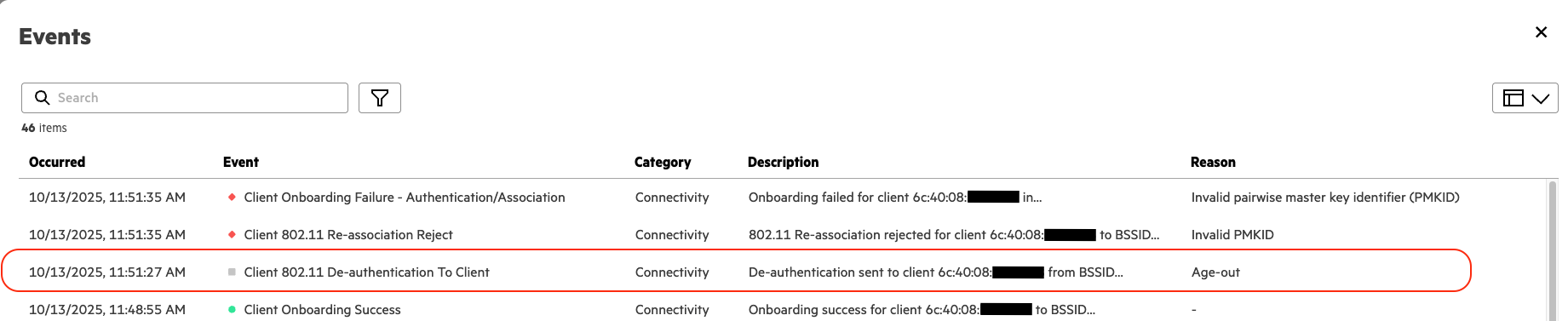
Successful Client Disconnect Event
Troubleshooting
- Verify API credentials are valid and not expired
- Check that the cluster name or base URL is correct
- Verify client MAC addresses are correct and properly formatted
- Ensure clients are currently connected to the network
Support
- Automation Team: [email protected]
- Workflow Issues: GitHub Issues
- PyCentral Library: PyCentral Issues
Updated 3 months ago