
Generating & Managing Access Token
This section is a quick start guide to generating & managing tokens for HPE Aruba Networking Central REST API
Introduction
To get started with using the Central REST API, you need an access token from HPE GreenLake Cloud Platform(GLP). A token generated using Central API credentials is valid for 2 hours, while a token generated using GLP credentials is valid for 15 minutes. This guide will walk you through how to:
Compatibility with Product Versions(Central vs Classic Central)The tokens generated through the steps mentioned in this guide are only compatible with Central.
If you need to make API calls to Classic Central, follow the steps outlined in Access Token Management. Tokens for Central will not work with Classic Central, and vice versa.
What is an access token?
Access Token is a string that identifies a user, app, or web page and is used to access an API. The access token provides a temporary and secure access to the APIs. This token is a "bearer token", which means the bearer of this token is granted access into the system.
The token you generate will have the same rights and permissions as your user role for the Central app. Every Central API request must include this token in the Authorization header.
Without a valid token, your API calls will fail with a 401 Unauthorized Error.
Create Client Credentials
Before you can generate tokens, you need to create client credentials. This is a one-time step that provides you with a client ID and client secret which can be used to generate access tokens.
NoteYou can also use API credentials scoped to the GLP platform (than a specific Central instance) to request access tokens and make API calls to Central. The creation steps are the same, except you select GLP instead of your Central instance in the service manager dropdown (Step 4).
If you already have GLP API credentials, you can skip this section and proceed directly to Using GLP Credentials.
1. Select Manage Workspace
Token management falls under the Manage Workspace link highlighted in red here.

2. Select Personal API clients category
The Personal API clients category within the Manage Workspace page is where you can access your Token credentials for GLP and your installed applications in this platform like Central.

3. Create Credentials
Click the Create Personal API client button to create API credentials that will allow you to generate access tokens.

4. Select Service Manager
Provide a credential nickname ex. "new-central-tutorial-token" and choose your Central Instance from the service manager dropdown menu.
NoteAlternatively, you can select HPE GreenLake Platform instead of your Central instance to create GLP-scoped credentials. Note that the token endpoint URL differs for GLP credentials. See Using API Credentials for GLP for details.

5. Create & Save Credentials
Click on the Create personal API client button to create API token credentials for the Central Instance.

After creating credentials you should copy the client ID and client secret to a safe location. You will need to use this credential information to generate tokens and automate token generation.

WarningHPE GreenLake platform does not store your client secret. If lost, you need to reset your client secret .
Generate Access Token
Once you created your client credentials, you can use them to generate an access token. You can generate access token via HPE GreenLake UI or API.
Using HPE GreenLake UI
In the Personal API clients section, select the set of credentials you've created and click the credential name to expand the accordion component. Click Generate Access Token.

Paste your client secret into this input to generate an access token for your Central Instance.

Now you can copy the access token and use it to make API calls to your Central Instance.

Using HPE GreenLake API
You can also request an access token programmatically by sending a POST request to the GLP token endpoint with your client ID and client secret. The endpoint URL depends on the type of API credentials you are using.
Using API Credentials for Central
If you created credentials scoped to your Central instance (as described in Create Client Credentials), use the following token endpoint:
NoteEnsure you replace all placeholders (e.g.
<CLIENT_ID>,<CLIENT_SECRET,<GLP_WORKSPACE_ID>) with your actual values before running the code samples below.
curl -X POST https://sso.common.cloud.hpe.com/as/token.oauth2 \
  -H "Content-Type: application/x-www-form-urlencoded" \
  -d "grant_type=client_credentials&client_id=$CLIENT_ID&client_secret=$CLIENT_SECRET"
from oauthlib.oauth2 import BackendApplicationClient
from requests_oauthlib import OAuth2Session
client = BackendApplicationClient('CLIENT_ID')
oauth = OAuth2Session(client=client)
body = 'grant_type=client_credentials&client_id=<CLIENT_ID>&client_secret=CLIENT_SECRET'
token = oauth.fetch_token(token_url='https://sso.common.cloud.hpe.com/as/token.oauth2', body=body)
print(token["access_token"])Using API Credentials for GLP
If you are using API credentials scoped to the GLP platform (rather than a specific Central instance), the token endpoint requires your GreenLake Workspace ID. Your Workspace ID is available in the GLP UI:
- Navigate to Manage Workspace.
- Your Workspace ID is displayed in the workspace details panel.
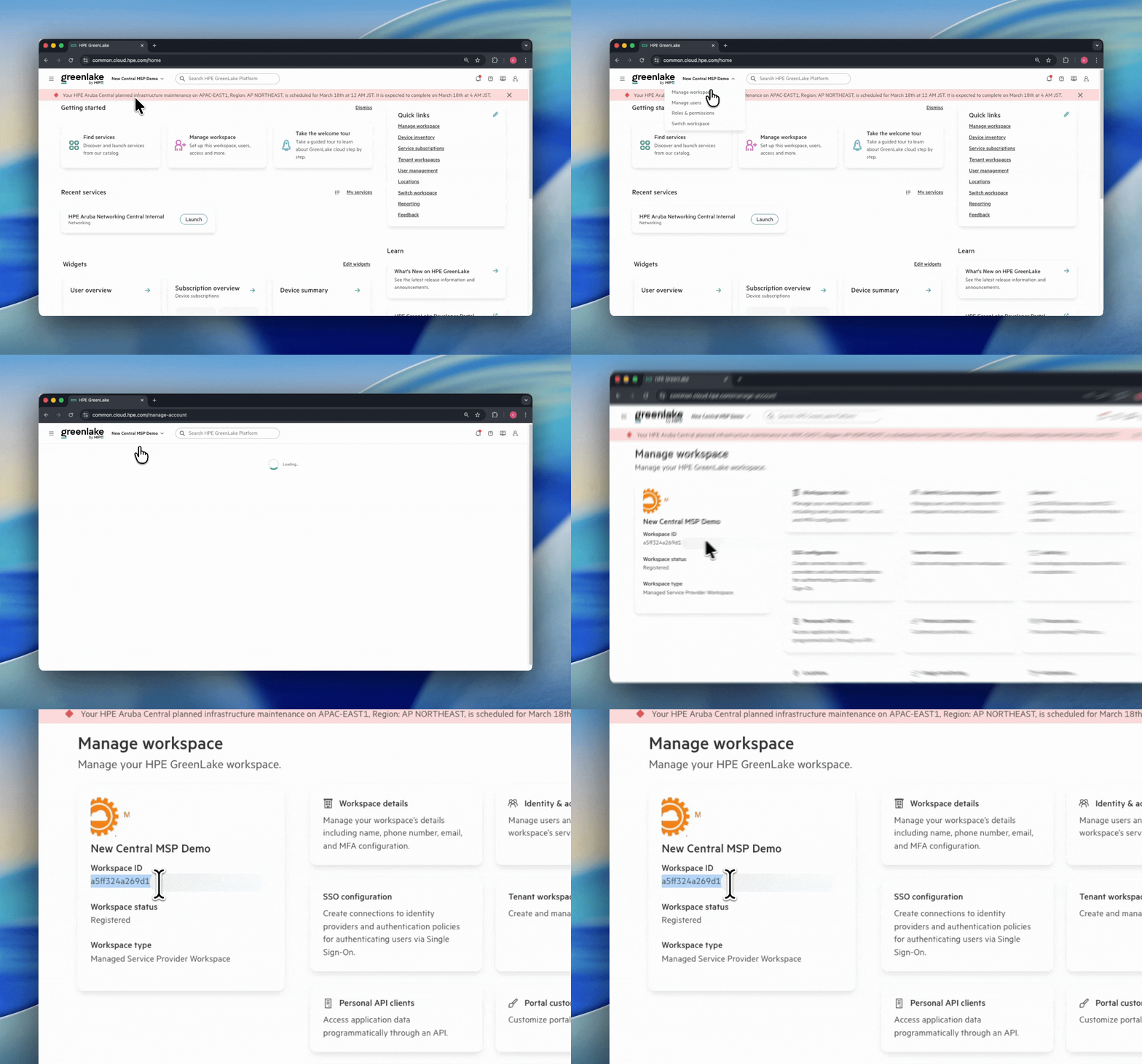
How to find your GLP Workspace ID
Once you have your Workspace ID, use the following code samples to generate an access token:
curl -X POST https://global.api.greenlake.hpe.com/authorization/v2/oauth2/$GLP_WORKSPACE_ID/token -H "Content-Type: application/x-www-form-urlencoded" -d "grant_type=client_credentials&client_id=$CLIENT_ID&client_secret=$CLIENT_SECRET"from oauthlib.oauth2 import BackendApplicationClient
from requests_oauthlib import OAuth2Session
client = BackendApplicationClient('CLIENT_ID')
oauth = OAuth2Session(client=client)
body = 'grant_type=client_credentials&client_id=CLIENT_ID&client_secret=CLIENT_SECRET'
token = oauth.fetch_token(token_url='https://global.api.greenlake.hpe.com/authorization/v2/oauth2/GLP_WORKSPACE_ID/token', body=body)
print(token["access_token"])Upon successfully generating a token, both approaches return a response in the following format:
{
    "access_token": "<access_token>",
    "token_type": "Bearer",
    "expires_in": 7199
}
{
"access_token": "<access_token>",
"token_type": "Bearer",
"expires_in": 899
}The following table provides details of the keys in the API response shown above:
| Key | Type | Description |
|---|---|---|
| access_token | String | The token you can use to make API calls to Central |
| token_type | String | Indicates the type of token issued |
| expires_in | Int | The duration (in seconds) for which the generated token is valid. |
Token Validity & Expiry
How long your token lasts depends on which type of API credentials were used to generate it:
| Token Generated Using | Token Lifetime | expires_in Value |
|---|---|---|
| Central credentials | 2 hours | 7199 seconds |
| GLP credentials | 15 minutes | 899 seconds |
There is no automatic token renewal or refresh mechanism. After a token expires, you must request a new one using your API client credentials via GLP's UI or API.
Manage Client Credentials
- Reset Credentials : If you have forgotten your client secret, you can reset your client credentials through GLP UI to get a new client secret.
- Delete Credentials: If you no longer need a set of credentials, you can delete them to reduce security risks
ImportantResetting or deleting your client credentials will invalidate all access tokens associated with those credentials.
Security Best Practice
- Never hard-code tokens in your script. Use environment variables or secure storage solutions.
- Generate new tokens regularly to maintain security.
- Reset credentials if you suspect your token has been compromised.
With your access token ready, you can now start making API calls to interact with Central. The next guide will walk you through the process of making your first API call using our API Reference Guide
Updated 4 months ago