
Overview
Connect AI assistants to your HPE Aruba Networking Central instance and query live network data through conversation.
Unofficial Community ProjectThis is not an officially supported product of HPE. It is provided as-is, with no warranty or guarantee of fitness for any purpose. Review your organization's corporate device and data policies before connecting this server to any AI assistant.
Link to source repository - Central MCP Server
The Central MCP Server wraps the Central REST APIs and exposes them as MCP (Model Context Protocol) tools. Once configured, an AI assistant in a supported client like Claude Desktop, VS Code with GitHub Copilot Chat, or Claude Code can answer network questions by calling these tools and reporting the live results.
What is MCP?The Model Context Protocol (MCP) is an open standard that defines how AI models connect to external tools and data sources. It provides a uniform interface for any MCP-compatible AI client (Claude, GitHub Copilot). These clients can connect to any MCP server without custom integration work. The Central MCP Server implements this protocol so that any supported client can call Central's APIs through the same connection setup.
Learn more at modelcontextprotocol.io.
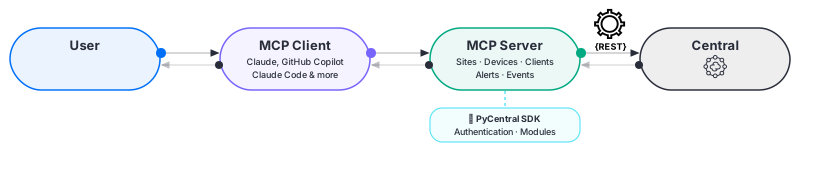
Central MCP Architecture -> AI Clients communicates with the MCP server, which communicates with Central via REST APIs on your behalf
What You Can Ask
Once connected, you can ask your AI assistant questions like:
- "Which sites have poor health scores right now?"
- "Show me all failed wireless clients at site HQ in the last 24 hours."
- "What events happened on switch SW-CORE-01 yesterday?"
- "Are there any critical alerts active on the Boston campus?"
- "Compare the health of Site A and Site B."
- "How many clients are connected at the Chicago office right now?"
The assistant retrieves live data from Central to answer each question. It does not draw from cached or static snapshots.
What It Cannot Do
The MCP server is read-only. It exposes only GET operations against the Central API. It cannot:
- Modify device configuration or apply templates
- Provision or deprovision devices
- Trigger firmware upgrades or reboots
- Create, acknowledge, or clear alerts
- Write to or modify any data in Central
NoteThis constraint is intentional. The server is scoped to monitoring and diagnostics use cases. Any action that changes network state must be performed directly in Central.
What the Server Exposes
Tools
The server exposes 25 tools across 10 categories. These tools reach 85+ distinct Central REST API endpoints:

| Category | Tools |
|---|---|
| Sites | central_get_sites, central_get_summary |
| Devices | central_get_devices, central_find_device |
| AP Monitoring | central_get_aps, central_get_ap_details, central_get_ap_trends |
| Switch Monitoring | central_get_switches, central_get_switch_details, central_get_switch_trends |
| Gateway Monitoring | central_get_gateways, central_get_gateway_details, central_get_gateway_trends, central_get_gateway_cluster, central_get_cluster_capacity_trends |
| WLAN | central_get_wlans, central_get_wlan_stats |
| Clients | central_get_clients, central_find_client |
| Alerts | central_get_alerts |
| Events | central_get_events, central_get_events_count |
| Troubleshooting | central_run_network_test, central_run_show_commands, central_bounce_port |
Tools are invoked automatically by the AI assistant in response to your questions. You do not call them directly.
Optional: Dynamic ToolsBy default, the server exposes all 25 tools directly to your AI client. If you are running multiple MCP servers and want to reduce context window usage, you can enable Code Mode by setting
DYNAMIC_TOOLS=truein your server config. In Code Mode, the full tool catalog is replaced with three meta-tools:
- Search — finds relevant tools by keyword
- GetSchemas — fetches parameter details for tools it needs
- Execute — runs code that chains multiple tool calls in a single request
When Code Mode is active, you won't see
central_*tool names in your client's tool picker, that's expected. See the setup guide for your client for configuration details.
Guided Prompts
The server also includes 12 built-in guided prompts. These are pre-built investigation workflows that instruct the AI to run a specific sequence of tool calls and return a structured analysis. These cover common monitoring tasks like site troubleshooting, failed client investigation, and network-wide health reviews.
Data and Security
All queries go directly from your machine to your Central instance via the Central REST API. No network data passes through the MCP server itself or to any third party.
Your AI assistant does receive the API responses, the same data you would see in the Central UI. Before connecting, confirm that your organization's security policies permit AI assistant access to this data.
WarningNever type or paste credentials directly into the AI chat window. Anything typed into chat is sent to the AI provider. See How credentials stay secure for how config file credentials are protected.
Prerequisites
Before you configure the server, you need:
- A Central account with API access enabled
uvinstalled on your machine- One of the supported MCP clients like Claude Desktop, VS Code with GitHub Copilot Chat, or Claude Code
Supported Clients
The Central MCP Server works with any MCP-compatible client. The guides below cover three common setups — if you're using a different client, follow its MCP server configuration instructions and use the same uvx --prerelease=allow central-mcp-server command.
| Client | Setup Guide |
|---|---|
| Claude Desktop | Setup: Claude Desktop |
| Claude Code CLI | Setup: Claude Code CLI |
| GitHub Copilot in VSCode | Setup: GitHub Copilot in VSCode |
Updated 4 months ago