
Token Exchange
Overview
A single GreenLake Platform credential grants access to both Central and GreenLake APIs. You do not need separate Central credentials. Managing API access across multiple tenants requires a structured token exchange process. This guide walks through the full flow:
- Create an API credential — one-time setup
- Generate an MSP access token
- List your managed tenants (to retrieve tenant workspace IDs)
- Exchange for a tenant-scoped token (repeated per tenant)
- Make Central APIs (using the tenant token)
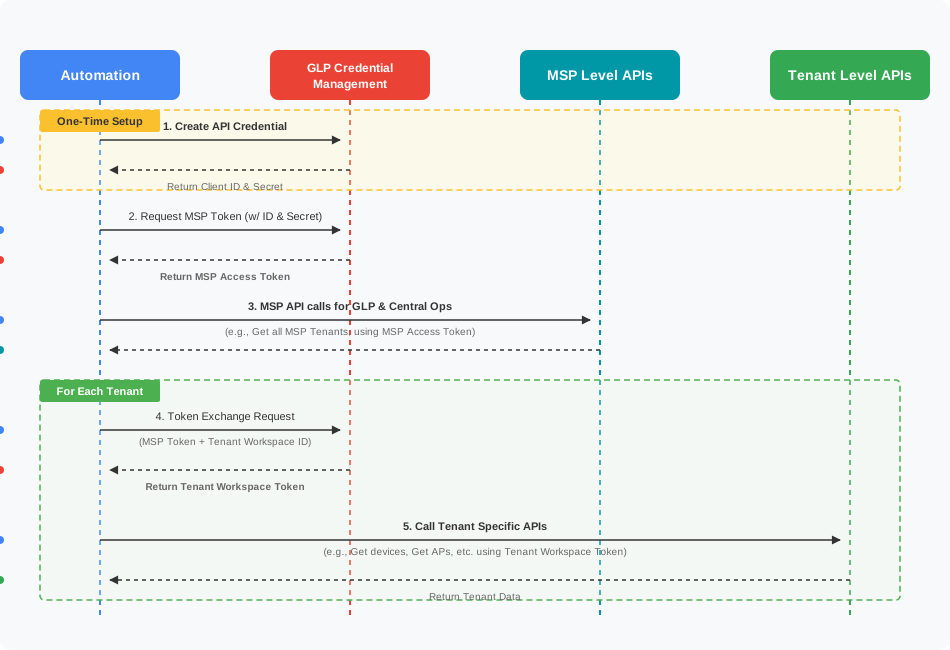
The process is divided into two phases:
- One-Time Setup (Step 1): Create your API credential. This is done once and reused across all sessions.
- Recurring Operations (Steps 2-5): Generate a fresh MSP token every session, then use it for MSP-level and tenant-specific API calls.
PyCentralIf you are planning to automate this flow with Python, you can use PyCentral's MSP features to automates the below-mentioned token exchange flow, handling token expiry, and tenant connections reuse for you.
Prerequisites
Before you begin, ensure you have:
- Access to the HPE GreenLake Platform with MSP administrator privileges
- A GreenLake MSP account with one or more managed tenants
- Your New Central Base URL. (Click here for steps to find your Base URL )
One-Time Setup
Step 1: Create an API Credential for the GreenLake Platform
ImportantWhen creating an API credential for MSP use cases, create it for the GreenLake platform rather than for Central. A GreenLake Platform credential allows you to make API calls to both Central and GreenLake with a single token, eliminating the need to manage and refresh two separate credentials.
How to Create an API Credential
- Log in to your MSP GreenLake Platform account at https://common.cloud.hpe.com
- Navigate to Manage Workspace > Personal API Clients (or your workspace’s credential management section).
- Click Create Personal API Client and provide a name and description.
- Provide a name for the credential & select HPE GreenLake Cloud Platform as the service. Do not select any Central instance.
- Submit and securely store the returned values:
Client ID,Client Secret
ImportantThe Client Secret is only shown once. Store it in a securely.
Finding Your MSP Workspace ID
Your Workspace ID is the unique identifier for your MSP workspace on the GreenLake Platform. You only need to look this up once.
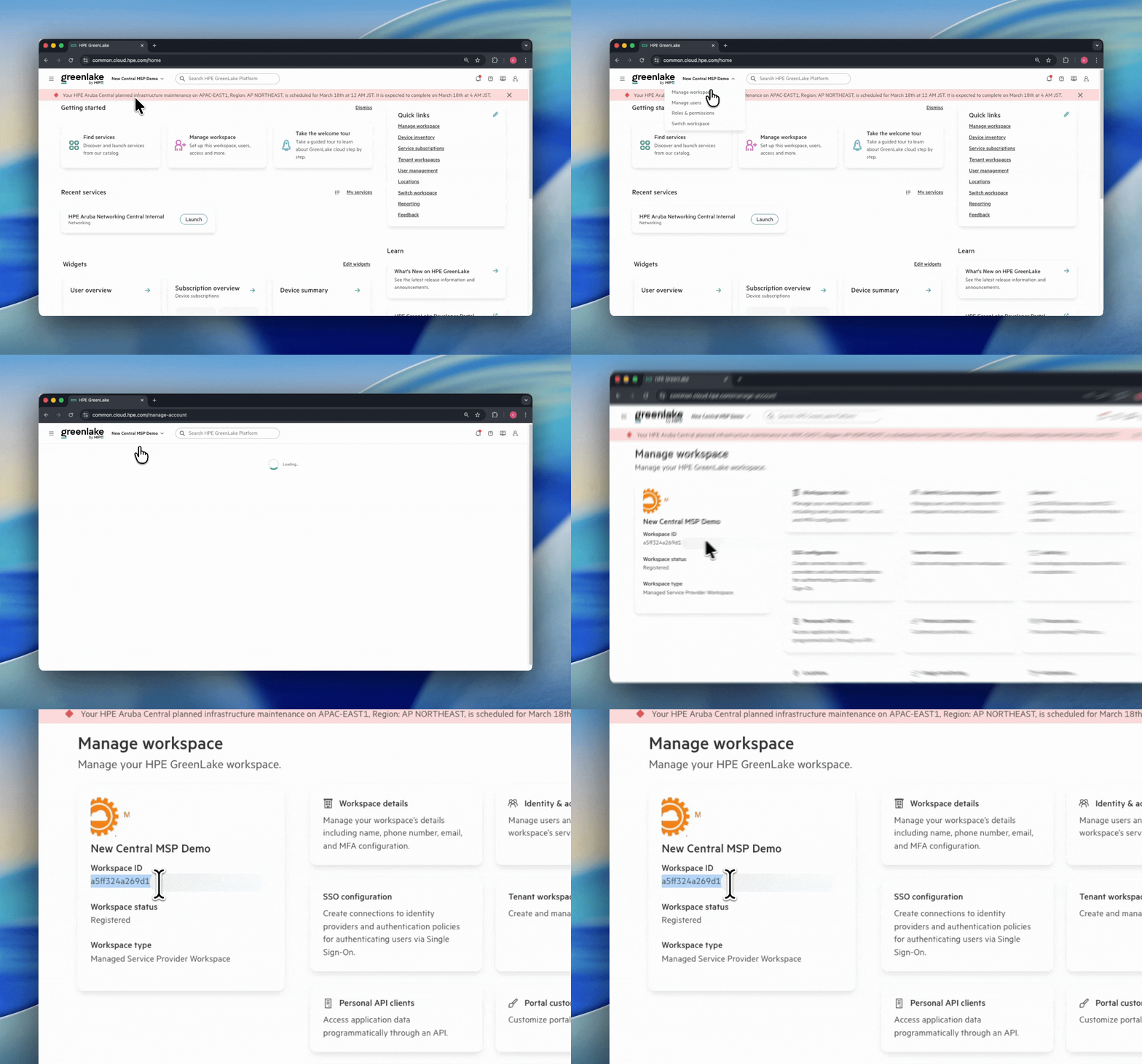
- Log in to https://common.cloud.hpe.com
- Navigate to Manage Workspace
- Copy the Workspace ID value shown on the page
Storing Your Credentials Securely
Your Client ID, Client Secret, and Workspace ID are long-lived secrets used to generate short-lived access tokens. Keep them secure and never commit them to source control.
Your automation should read these credentials from secure storage at runtime and use them to generate a fresh token as needed.
MSP-Level Operations
Step 2: Generate an MSP Access Token
ImportantAccess Tokens are valid for only 15 minutes. This is a recurring step. Your automation flow must request a fresh token before each session or whenever the current token has expired. Never hardcode tokens.
Manual Token Request
If you are not using the pycentral SDK, generate a token manually using the request below. Repeat this step each time your MSP token expires.
curl -X POST https://global.api.greenlake.hpe.com/authorization/v2/oauth2/$MSP_WORKSPACE_ID/token -H "Content-Type: application/x-www-form-urlencoded" -d "grant_type=client_credentials&client_id=$MSP_CLIENT_ID&client_secret=$MSP_CLIENT_SECRET"
Response
{
  "access_token": "eyJhbGciOiJSUzI1NiIsInR5...",
  "token_type": "Bearer",
  "expires_in": 900
}
Use the returned access_token as your MSP Access Token in all subsequent steps. With a 15-minute window (expires_in: 900), proactively refresh the token in any long-running automation before it expires.
For additional details, refer to the existing HPE GreenLake API Authentication Guide .
Step 3: Retrieve Tenant Workspace IDs
The MSP Access Token can be used directly for MSP-level operations against both Central and GreenLake Platform APIs. Some of the supported MSP-level operations include:
- Retrieving a list of all managed tenants
- Viewing MSP-level subscription and licensing data
- Managing MSP-wide configurations in GreenLake or Central
A common MSP-level operation is listing your managed tenants to retrieve the workspace_id values needed for Step 4.
Example: Get All MSP Tenants (GLP)
curl -s -X GET \
  https://global.api.greenlake.hpe.com/workspaces/v1/msp-tenants \
  -H 'Authorization: Bearer <MSP_ACCESS_TOKEN>'
Example Response (excerpt)
{
  "offset": 0,
  "count": 1,
  "total": 1,
  "items": [
    {
      "id": "497f6eca-6276-4993-bfeb-53cbbbba6f08",
      "type": "string",
      "generation": 0,
      "createdAt": "2019-08-24T14:15:22Z",
      "updatedAt": "2019-08-24T14:15:22Z",
      "workspaceName": "string",
      "createdBy": "[email protected]",
      "resourceUri": "string",
      "inventoryOwnership": "MSP_OWNED_INVENTORY"
    }
  ]
}
NoteRecord the
idfor each tenant you intend to manage. This value is required for the token exchange in Step 4.
Example: Get All MSP Tenants (Central)
curl --request GET \
     --url 'https://<CENTRAL_API_BASE_URL>/network-msp/v1/list-tenants?limit=10' \
     --header 'accept: application/json' \
     --header 'authorization: Bearer <MSP_ACCESS_TOKEN>'
Per-Tenant Operations
The following steps are repeated for each tenant you need to interact with.
Step 4: Exchange the MSP Token for a Tenant Workspace Token
To make API calls within a specific tenant’s workspace, you must exchange your MSP Access Token for a Tenant Workspace Token. This exchange is scoped to a single tenant using their workspace_id. You can find this attribute using the List Tenants API mentioned here
NoteFor token exchange, if the TENANT_WORKSPACE_ID contains hyphens (-), they must be removed before making the request. Including hyphens can result in a token exchange failure.
For example, if the tenant workspace id is
123e4567-e89b-12d3-a456-426614174000, for the API call, you should pass it as123e4567e89b12d3a456426614174000.
Request
curl --request POST https://global.api.greenlake.hpe.com/authorization/v2/oauth2/$TENANT_WORKSPACE_ID/token \
    --header 'Content-Type: application/x-www-form-urlencoded' \
    --data-urlencode 'grant_type=urn:ietf:params:oauth:grant-type:token-exchange' \
    --data-urlencode "subject_token=$MSP_ACCESS_TOKEN" \
    --data-urlencode \
    'subject_token_type=urn:ietf:params:oauth:token-type:access_token'
Response
{
  "access_token": "eyJhbGciOiJSUzI1NiIsInR5...",
  "token_type": "Bearer",
  "expires_in": 900
}
This new access_token is the Tenant Workspace Token. It is scoped exclusively to the specified tenant’s workspace and cannot be used to access other tenants’ data.
ImportantTenant Workspace Tokens are also valid for only 15 minutes. If you need to make multiple API calls to the same tenant over an extended period, monitor token expiration and perform a fresh token exchange (Step 4) when needed.
Step 5: Make Tenant-Specific API Calls
With the Tenant Workspace Token, you can now make API calls within the tenant’s environment. All data returned is scoped to that specific tenant.
Examples of tenant-specific operations:
- Get all devices registered in the tenant workspace
- Get Access Points (APs) and their status
- Pull tenant-specific audit logs or alerts
Example: Get Devices for a Tenant
curl --request GET \
     --url 'https://<CENTRAL_API_BASE_URL>/network-monitoring/v1/device-inventory' \
     --header 'accept: application/json' \
     --header 'authorization: Bearer <TENANT_WORKSPACE_TOKEN>'
Example: Get Access Points for a Tenant
curl --request GET \
     --url 'https://<CENTRAL_API_BASE_URL>/network-monitoring/v1/aps' \
     --header 'accept: application/json'
 	   --header 'Authorization: Bearer <TENANT_WORKSPACE_TOKEN>'
ReminderEach Tenant Workspace Token is valid only for the tenant it was issued for. To interact with a different tenant, repeat Steps 4-5 using that tenant’s
workspace_id.
Troubleshooting
401 Unauthorized on MSP token request
- Verify your
Client IDandClient Secretare correct and have not been rotated. - Ensure the credential was created at the GreenLake platform level, not Central only.
- Your tokens may have expired. Generate a fresh token to resolve this issue.
403 Forbidden on tenant API call
- Confirm you used the Tenant Workspace Token (not the MSP token) for tenant-scoped calls.
- Verify the
workspace_idused in Step 4 matches the intended tenant.
Updated 4 months ago