
Cutover Validation
Source CodeYou can find the full source code and documentation for this workflow on GitHub: Cutover Validation
This script is intended to run a predefined set of troubleshooting show commands across Central devices.
In scenarios such as onboarding to Central, migrating from AOS 8 to AOS 10, migrating from Classic Central to Central or other environment transitions, it is common to run the same operational checks across multiple devices, often scoped to a site or a specific device list.
The script automates this process by allowing you to execute those show commands consistently and repeatedly without manually logging into individual devices.
Commands are executed only on online devices, and results are collected for review and analysis. The output can be generated in multiple formats, including JSON, HTML, and Markdown, making it suitable for programmatic consumption, documentation, or sharing with others.

Workflow Overview
Features
- Command Validation - Validates commands against device capabilities before execution
- Batched Command Execution - Executes up to 20 commands per device in a single
run_show_commandsAPI call - Multiple Input Formats - Support for both YAML and CSV device lists
- Flexible Configuration - Separate troubleshooting commands from device lists
- Comprehensive Reporting - Generates JSON, HTML, and Markdown reports with timestamps
- Site-Based Filtering - Select devices by site for targeted troubleshooting
- Detailed Logging - Real-time execution status and error tracking
Prerequisites
- Python 3.10 or higher
- API credentials for HPE Aruba Networking Central (JSON or YAML format)
Installation
Set up a Python virtual environment, activate it, and install dependencies from requirements.txt.
- Clone the repository and navigate to this workflow folder
git clone -b v2 https://github.com/aruba/central-python-workflows.git
cd central-python-workflows/cutover-validation- Create and activate a virtual environment, then install dependencies
- On macOS/Linux: source venv/bin/activate
- On Windows (PowerShell): venv\Scripts\Activate.ps1
python3 -m venv venv
source venv/bin/activate  # On Windows use: venv\Scripts\activate
pip install -r requirements.txt
This workflow is tested on the pycentral SDK (version: 2.0a23). Please check compatibility before executing on older/newer versions as there may be changes
Configuration
Credentials Configuration (account_credentials.yaml)
For API operations in HPE Aruba Networking Central:
new_central:
    cluster_name: <cluster-name>  # or base_url: <central-api-base-url>
    client_id: <new-central-client-id>
    client_secret: <new-central-client-secret>
Sample Input: See account_credentials.yaml in this repository for an example credential file.
Important Links
Workflow Input Data
The script requires a troubleshooting commands file and provides three flexible ways to select devices.
Troubleshooting Commands File (Required)
The troubleshooting commands file specifies which show commands will be executed on the selected devices. This file is always required.
troubleshooting_commands.yaml
commands:
  - show ap debug lldp neighbor
  - show ap bss-table
  - show ap association
  - show network
Sample Input: See troubleshooting_commands.yaml in this repository.
ImportantThis workflow supports a maximum of 20 troubleshooting commands per run.
Device Selection Methods
You have three ways to select which devices to run troubleshooting commands on:
Method 1: No Device File - Site-Based Selection (Easiest)
Don't provide any device file. The script will display all available sites and let you select one. It will then run troubleshooting commands on all online APs at the selected site.
When to use: Quick troubleshooting of all APs at a specific site location.
Method 2: Device YAML File - Specific Device List
Provide a YAML file with a list of device serial numbers. Only these specific devices will be used.
devices.yaml
devices:
  - SERIAL123456
  - SERIAL789012
  - SERIAL345678
Sample Input: See devices.yaml in this repository.
When to use: Targeting specific devices across multiple sites or groups.
Method 3: CSV File - Valid8 Tool Output
Provide a CSV file in the format output by the Valid8 tool. The script will automatically extract device serial numbers and run troubleshooting commands on devices that are online.
Example CSV format (valid_8_output.csv):
Serial_No,MAC_Address,tag:name1,tag:name2,Location_Name (Optional),Contact_Id
SERIAL123456,1x:28:xx:xx:xx:xx16,,,,
SERIAL789012,3x:xx:xx:xx:xx:xx,,,,
SERIAL345678,9x:xx:xx:xx:xx:xx,,,,
Sample Input: See valid_8_output.csv in this repository.
The script automatically detects the serial number column. Supported column names:
Serial_No,serial,serial_number,device_serial,serialnumber,serial number
If no matching column is found, it uses the first column.
When to use: You have Valid8 tool output and want to troubleshoot those specific devices.
Execution
Once you have setup the configuration files, you can run troubleshooting commands on your devices by running the following command:
python3 main.py -c account_credentials.yaml -t troubleshooting_commands.yamlThe script processes each device through these steps:
- Input Validation - Validates configuration file structure and credentials
- Device Discovery - Fetches devices from Central (optionally filtered by site)
- Command Validation - Validates commands against each device's capabilities
- Command Execution - Executes valid commands in a single batch per device using
run_show_commands(up to 20 commands), processing up to 5 devices in parallel - Report Generation - Generates JSON, HTML, and Markdown reports
If something fails: The script skips invalid commands for that device and continues with the next command/device to avoid cascading failures.
Command Line Options
Describe the expected inputs, their formats, and any validation rules.
| Name | Type | Description | Required |
|---|---|---|---|
| credentials_file | string | Path to file with Central credentials | Yes |
-t, --troubleshooting_commands | string | YAML file with commands to run on all devices | Yes |
-d, --devices | string | YAML or CSV file containing device serial numbers | No |
--max-workers | int | Maximum number of devices to process concurrently (default: 5) | No |
Usage Examples
Example 1: Site-based troubleshooting (no device file)
NoteThe script will display available sites for you to select, then run commands on all online APs at that site.
python3 main.py \
  -c account_credentials.yaml \
  -t troubleshooting_commands.yaml
Example 2: Run troubleshooting on specific devices from YAML
python3 main.py \
  -c account_credentials.yaml \
  -d devices.yaml \
  -t troubleshooting_commands.yaml
Example 3: Run troubleshooting on devices from Valid8 CSV output
python3 main.py \
  -c account_credentials.yaml \
  -d valid_8_output.csv \
  -t troubleshooting_commands.yaml
Output
On-Screen Output
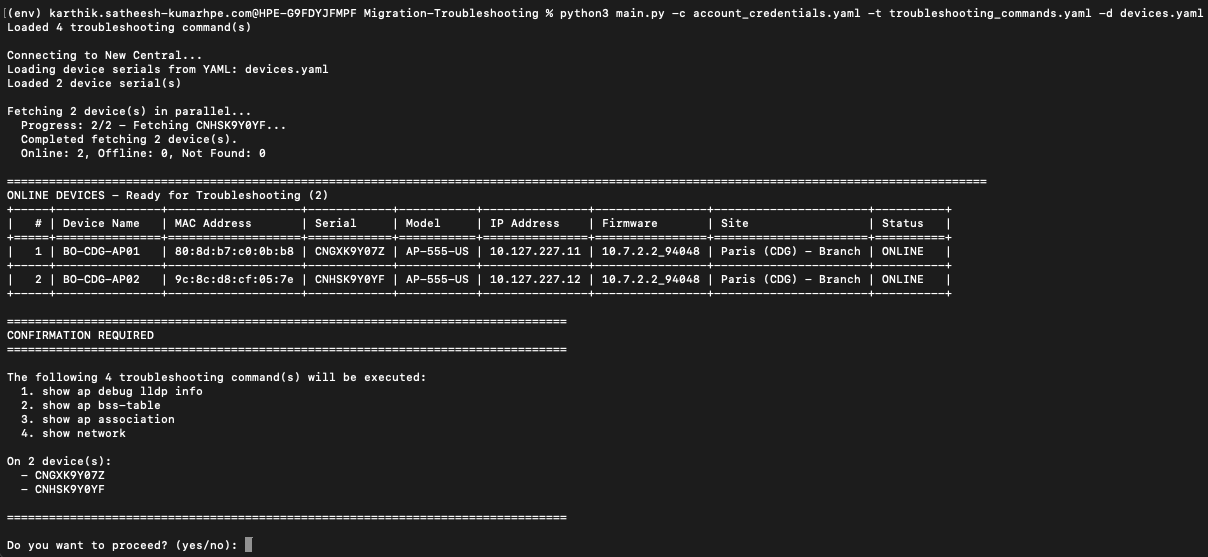
The tool provides clear, structured terminal output to help users understand what will run, what is running, and what was generated.
1. Execution Preview & Confirmation
Before any troubleshooting commands are executed, the tool displays:
- Devices identified for troubleshooting
- A summary table with device details
- The list of commands that will be executed
User confirmation is required before execution proceeds.
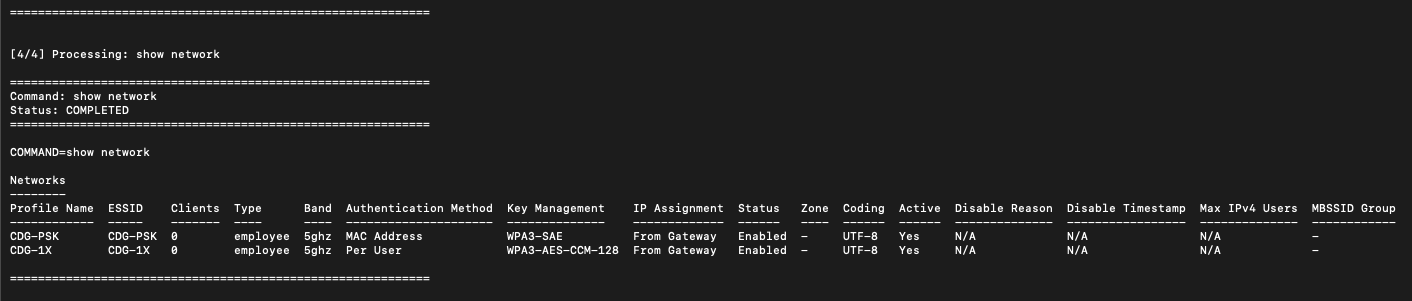
2. Command Execution
Once confirmed, the tool executes the selected commands and shows:
- Live execution progress
- Per-device command status
- Success or failure indicators
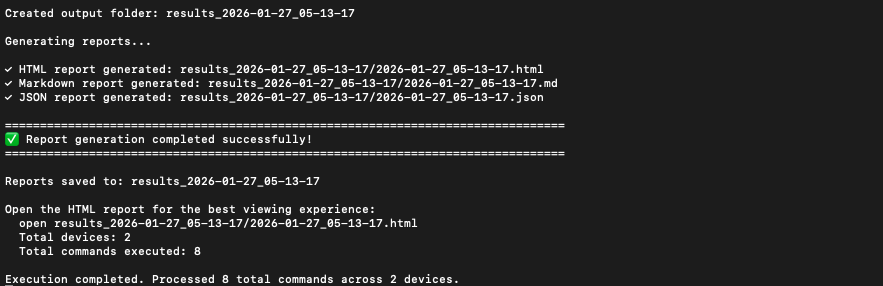
3. Report Generation Summary
After execution completes, the tool:
- Generates reports in multiple formats
- Displays the output directory
- Provides direct paths to generated reports
Report Files
All outputs are saved in a timestamped directory.
- HTML – Interactive report for review and validation
- Markdown – Documentation-friendly format
- JSON – Structured output for automation and parsing
Sample Report Files
Example reports are available to help understand the structure and content of each format:
- HTML: sample_result_output/
.html - Markdown: sample_result_output/
.md - JSON: sample_result_output/
.json
These samples reflect real execution output and include device details, executed commands, and collected responses.
Troubleshooting
| Problem | Fix |
|---|---|
| Bad credentials | Check your API client ID, client secret & base_url in account_credentials.yaml |
| Device not found | Verify device serial numbers are correct and devices are in your Central account |
| Command validation failed | Commands may not be supported by the device type/model |
| Connection timeout | Ensure devices can reach Central and are online |
| File errors | Check YAML syntax in your configuration files (use a YAML validator) |
Support
- Automation Team: [email protected]
- Workflow Issues: GitHub Issues
- PyCentral Library: PyCentral Issues
Updated 3 months ago