
Postman
Overview
This guide is intended for users who want to quickly start consuming Streaming API data using Postman.
A ready-to-use Postman collection is provided, allowing you to fork the collection and begin streaming events with minimal setup.
The collection includes preconfigured WebSocket requests for supported events, enabling you to:
- Establish a streaming connection using your existing access token
- Subscribe to Streaming API events
- View live event data directly in Postman
Prerequisites
Before you begin, ensure the following have been completed:
- Install the Postman desktop or web app (download link)
- Identify the API Gateway Base URL of your Central account (Table of Central API GW Base URLs).
- Ensure you have valid Central Access Token (Steps to generate access token).
Postman Setup
- In Postman, fork the Streaming APIs collection to your workspace.
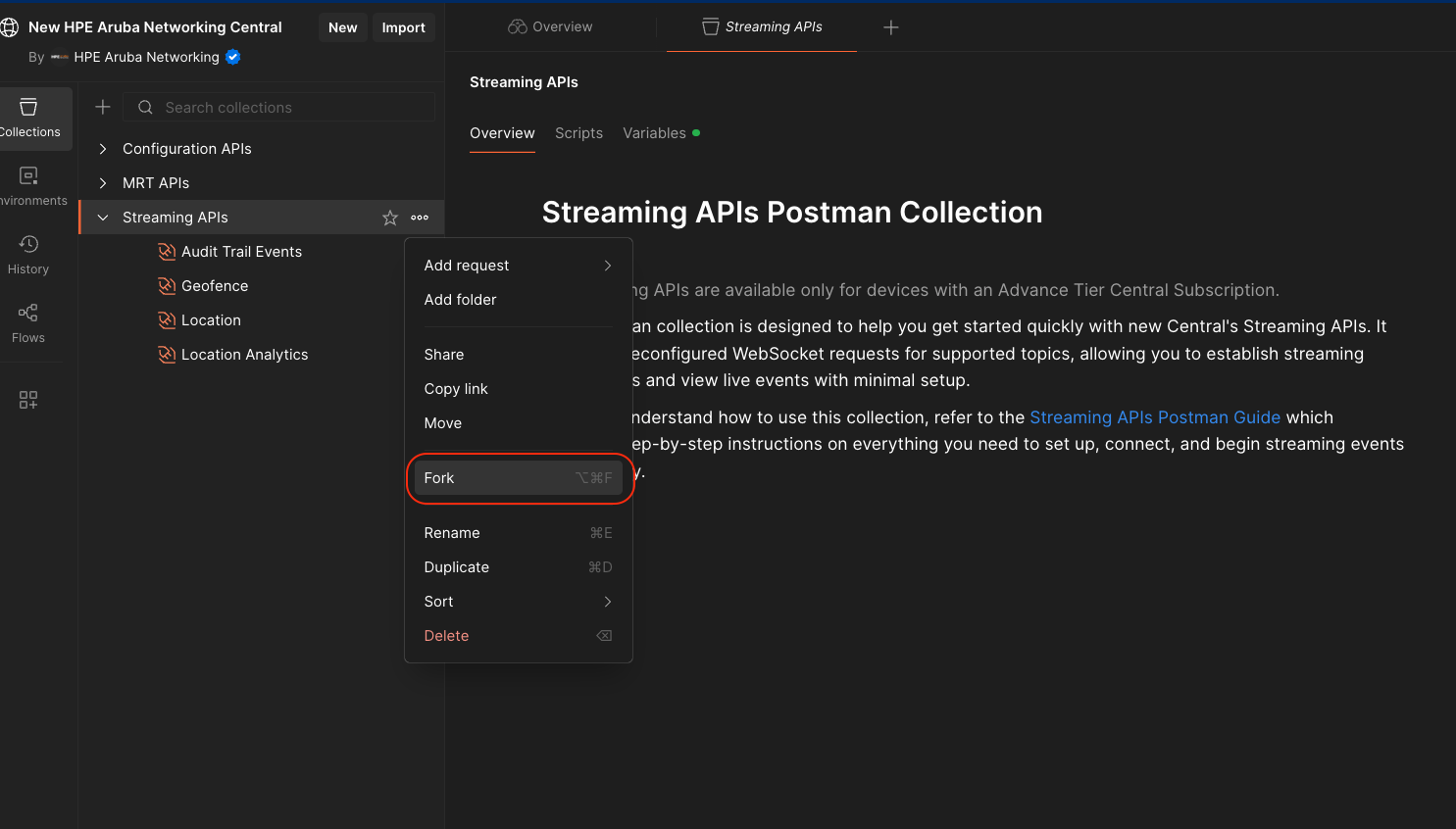
NoteForking creates a personal copy of the official Postman collections and environment in your own workspace.
This lets you safely test APIs, change variables, and make changes without affecting the shared workspace.
-
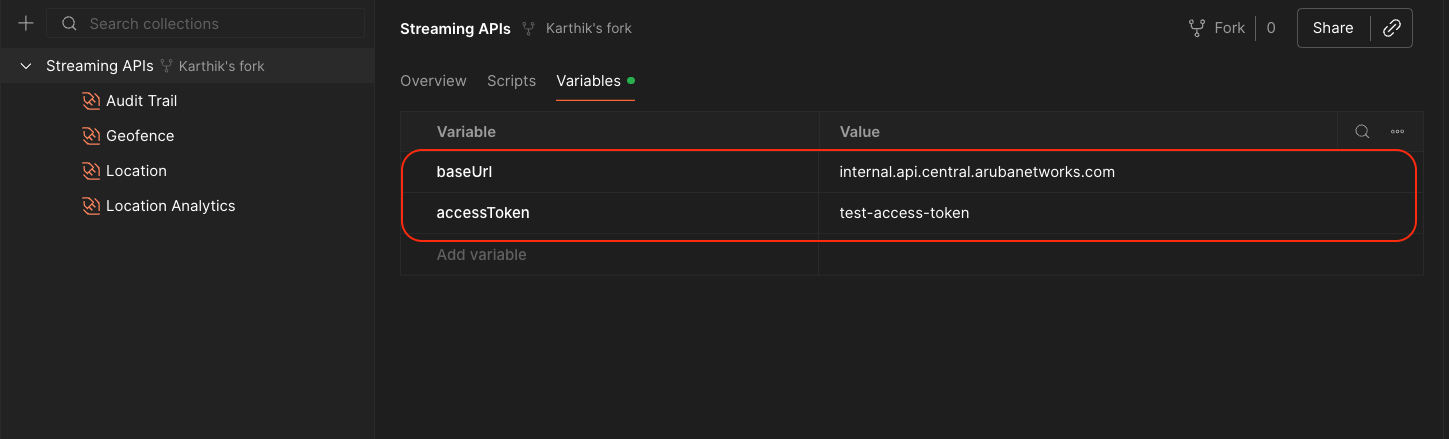
Once the collection has been forked, navigate to the Variables tab in the collection
-
Update the values for the following variables:
Variable Name Description baseUrlThis URL will be based on the geographical cluster in which your Central account is provisioned. You can find the base URLs for all the Central clusters in this table. bearerTokenEnter your Central Access Token. The access token is required for authentication to securely stream data HPE Aruba Networking Central API Gateway. You can find steps to generate access token here.
WarningA
403error may occur if the access token was generated using outdated API client credentials. Regenerate the token using a new API client credentials for new Central and retry the connection.
Connecting
Once the required variables are configured, you can begin streaming data for any supported Streaming API event using the Postman collection.
For this guide, Audit Trail Events are used as the example event, as they are one of the simplest ways to validate a successful streaming connection. The same connection flow applies to all other events.
To start streaming:
- Select a event-specific request from the Postman collection.
- Click Connect to initiate the WebSocket connection.
- Once authenticated, streaming events are delivered automatically and appear in the Response section.
No additional input is required after the connection is established.
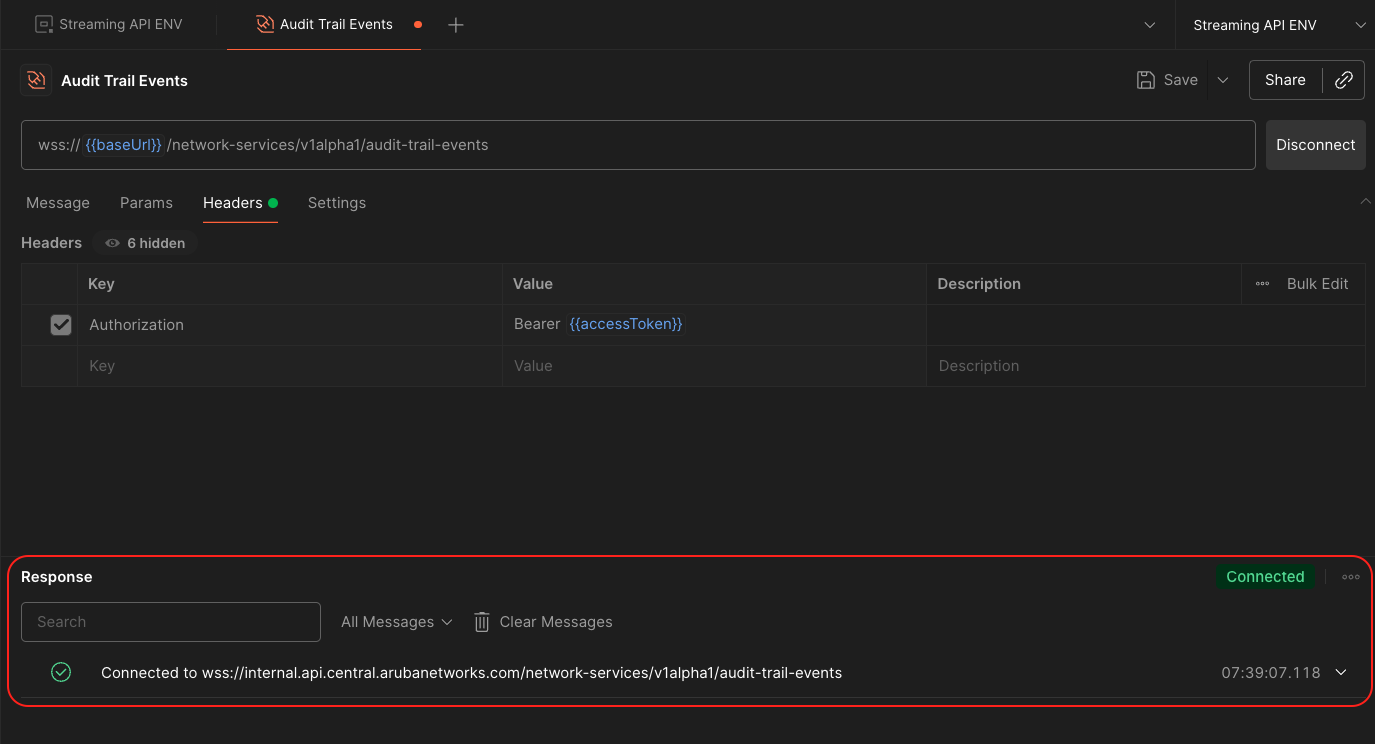
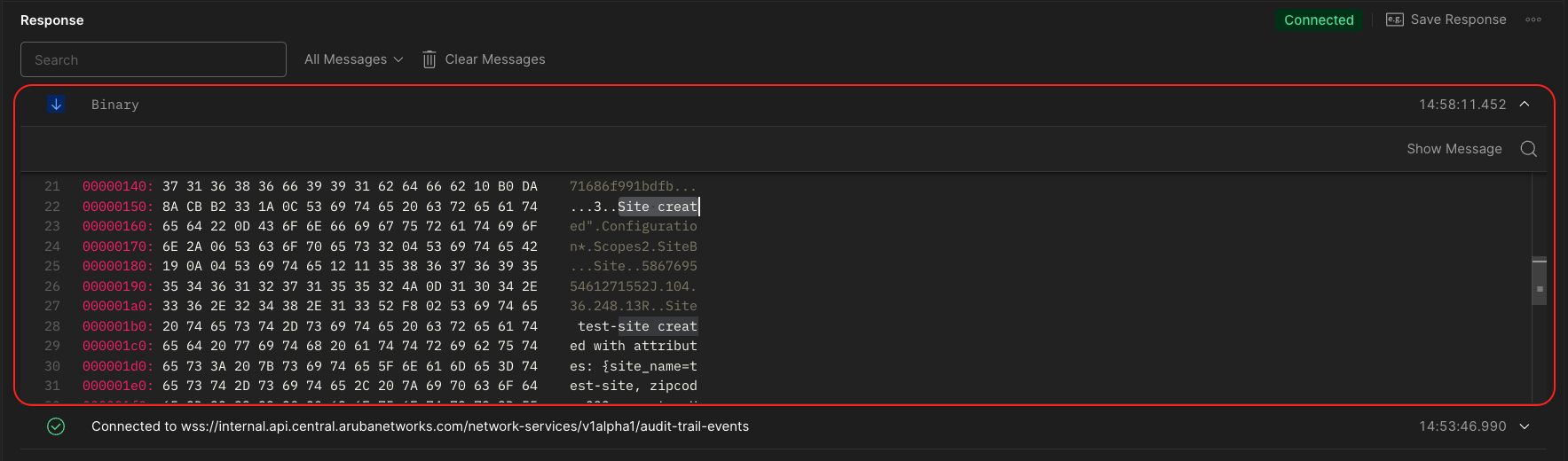
Example Successful Connection
When the connection is successful:
- The WebSocket status shows Connected
- Incoming messages appear automatically in the response panel
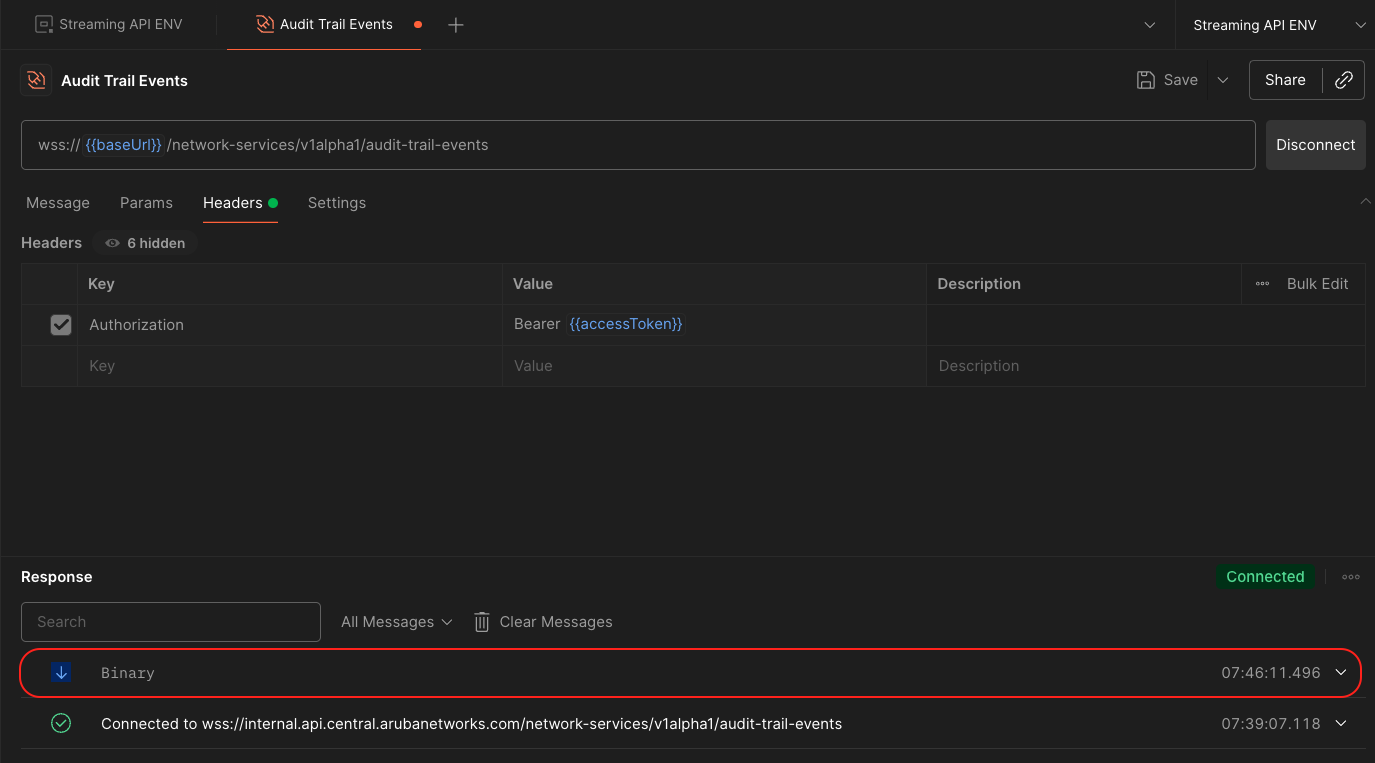
- Each message represents an individual audit trail event
Tip: Triggering an Audit EventOne of the easiest ways to validate a Streaming API connection is by triggering an Audit Trail event.
You can do this by performing a simple configuration change in Central, such as creating a new site.
This action generates an Audit Trail event, which is immediately streamed over the active WebSocket connection and appears in the Postman response panel.
Filtering
Streaming APIs support event-specific filters that allow you to control which events are streamed over the WebSocket connection.
The Postman collection already includes the event-types query parameter for each event. By default, this parameter is present but disabled.
To apply filters:
- Open the WebSocket request for the selected event in Postman.
- Navigate to the Params tab.
- Enable the event-types query parameter.
- Update the value with one or more supported event types.
Example
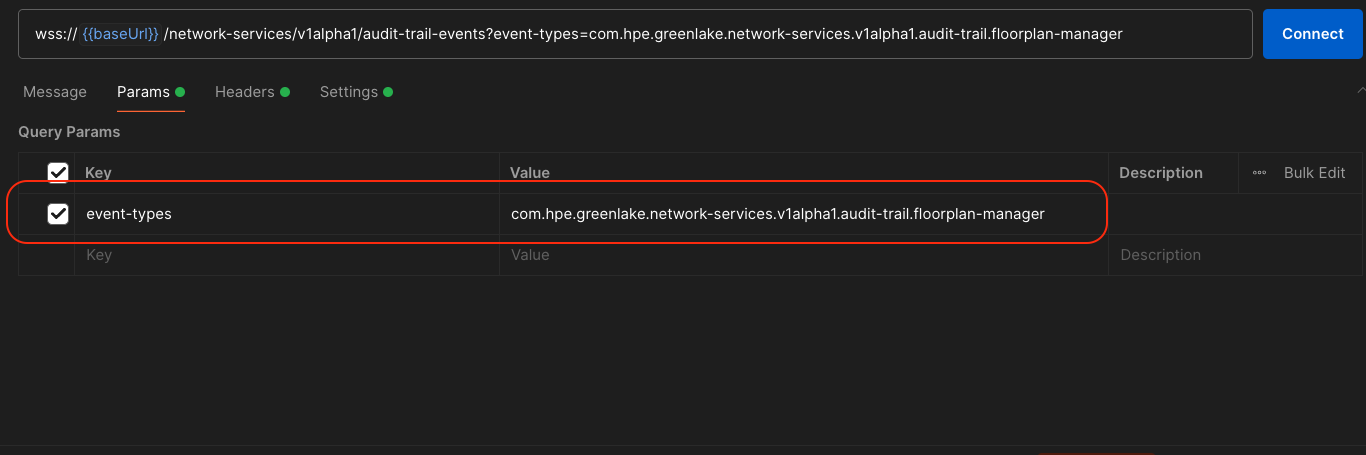
In the screenshot above, the event-types parameter is enabled and set to filter Audit Trail floor plan events:
event-types = com.hpe.greenlake.network-services.v1alpha.audit-trail.floorplan-managerTo filter for multiple event types, provide them as a comma-separated list in the same parameter value:
event-types = com.hpe.greenlake.network-services.v1alpha.audit-trail.floorplan-manager,com.hpe.greenlake.network-services.v1alpha1.audit-trail.configuration
WarningIf an unsupported event type is provided, the WebSocket connection may fail or be disconnected.
To view the supported event types for a event, refer to the event-specific documentation within CloudEvents.
For this example, see the Audit Trail Events guide for the full list of supported Audit Trail event types.
Disconnecting
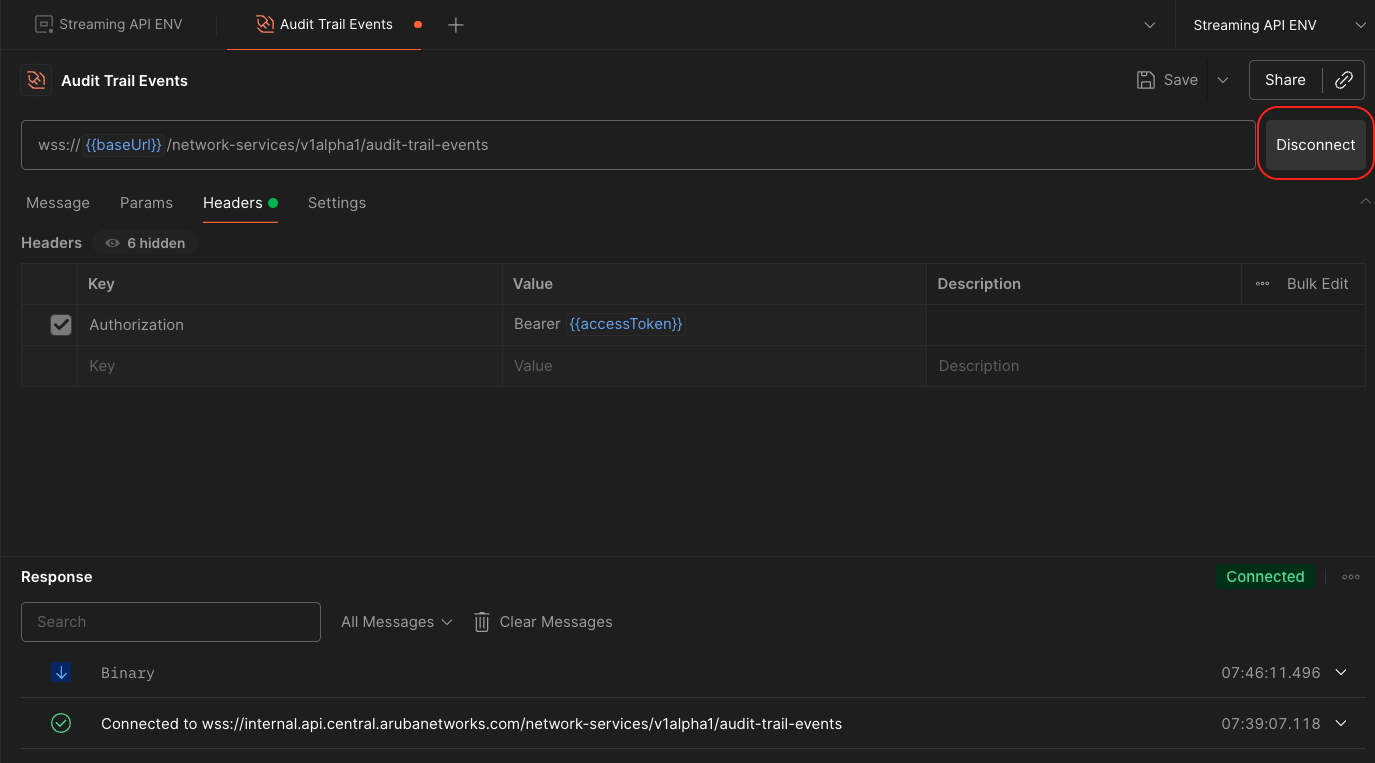
To stop streaming, click Disconnect in the WebSocket tab. The connection does not automatically reconnect.
Updated 2 months ago