
Setup: Claude Code
Connect the Central MCP Server to Claude Code, Anthropic's terminal-based AI assistant, to query your Central network from the terminal using natural language.
Before You Begin
Complete Find Your Base URL & API Credentials from the main setup guide first.
Register the Server
Run this command once to register the Central MCP Server with Claude Code:
claude mcp add central-mcp \
  -e CENTRAL_BASE_URL=your-central-base-url \
  -e CENTRAL_CLIENT_ID=your-client-id \
  -e CENTRAL_CLIENT_SECRET=your-client-secret \
  -- uvx --prerelease=allow central-mcp-server
Replace all placeholder values with your actual credentials.
Credential security
Optional: Code Mode (DYNAMIC_TOOLS)
DYNAMIC_TOOLS)DYNAMIC_TOOLS is an optional environment variable that changes how the server exposes tools to Claude Code:
- Not set (default): The server exposes all 14 tools from the tool catalog directly.
- Set to
true: The server starts in Code Mode and exposes three meta-tools (Search,GetSchemas,Execute) instead of the full catalog.
Code Mode is recommended when you have multiple MCP servers running, as it reduces the number of tools in your context window. If central-mcp is your only MCP server, leave this unset.
Note: The variable name is strict — use
DYNAMIC_TOOLS(plural).DYNAMIC_TOOLis silently ignored.
To enable Code Mode, add -e DYNAMIC_TOOLS=true before the -- separator:
claude mcp add central-mcp \
  -e CENTRAL_BASE_URL=your-central-base-url \
  -e CENTRAL_CLIENT_ID=your-client-id \
  -e CENTRAL_CLIENT_SECRET=your-client-secret \
  -e DYNAMIC_TOOLS=true \
  -- uvx --prerelease=allow central-mcp-server
Configuration Scope
By default, claude mcp add registers the server at the user level. This means that the Central MCP server will be available across all your projects. To scope it to a single project only, add -s project to the command before the server name:
claude mcp add -s project central-mcp \
  -e CENTRAL_BASE_URL=your-central-base-url \
 -e CENTRAL_CLIENT_ID=your-client-id \
 -e CENTRAL_CLIENT_SECRET=your-client-secret \
 -- uvx --prerelease=allow central-mcp-server
Verify the Registration
claude mcp listThe output should include central-mcp with a Connected status if the server is correctly configured & connected to Central.
If Code Mode is disabled, Claude Code will have access to all 14 central_* tools directly. If Code Mode is enabled, Claude Code will instead use Search, GetSchemas, and Execute to work with the same Central data.

Run Your First Query
One-shot query:
claude -p "Which sites have poor health scores right now?"
Or start an interactive session:
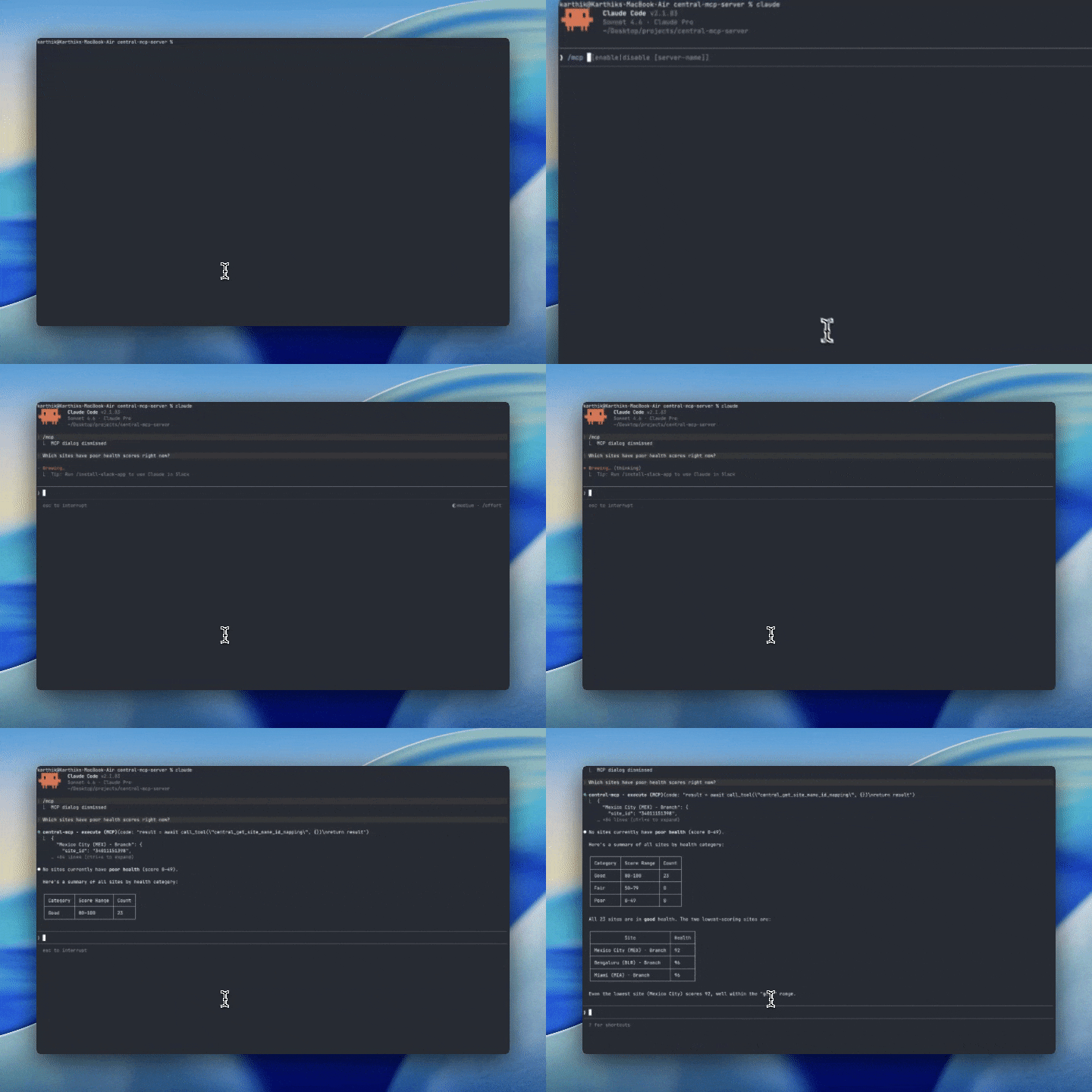
A successful response retrieves live site data from your Central instance. You'll see tool call activity in the terminal as the AI searches available tools to find and call the appropriate Central APIs & provide a response.
Updated 4 months ago