
Add Devices to MSP Inventory
Add new devices to your MSP workspace inventory by serial number and MAC address
Source CodeYou can find the full source code and documentation for this workflow on GitHub: MSP Workbench
Use the Add devices to inventory task in MSP Workbench to add devices to your MSP workspace's HPE GreenLake inventory by serial number and MAC address. Once the devices are in inventory, you can assign them to tenants. Complete MSP Workbench Setup first.
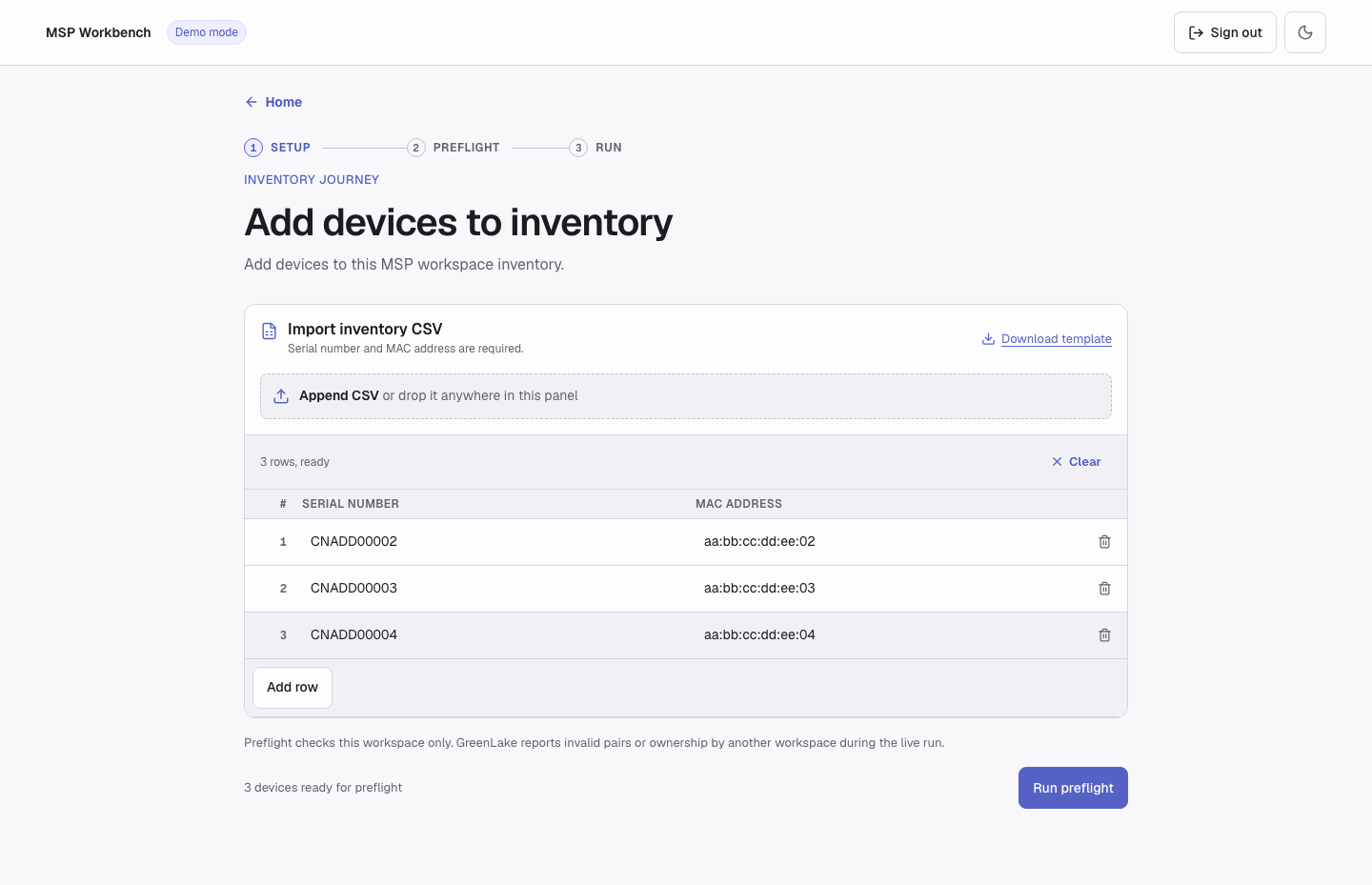
Add devices to inventory
Input
Each device needs two values:
| Field | Rules |
|---|---|
serial_number | Exactly 10 letters or digits (case doesn't matter) |
mac_address | 12 hexadecimal digits; colons, hyphens, and dots are accepted as separators |
A run takes 1 to 1,000 devices, and each serial number and MAC address can appear only once.
In the web UI, Download template gives you a CSV file with this header:
serial_number,mac_address
CNADD00001,aa:bb:cc:dd:ee:01
CNADD00002,aa:bb:cc:dd:ee:02
The serial column can also be named serial, serial_no, or serialnumber, and the MAC column mac or macaddress. Header case and other columns are ignored.
Try it in demo modeIn demo mode, import
samples/add_devices.csv.CNADD00001shows as Already in inventory, andCNADD00002is added.
Execution
Live runs change your MSP inventoryOutside demo mode, confirming adds the devices to your real GreenLake inventory.
1. Enter Your Devices
On the hub, click Add devices to inventory. Type or paste serial number and MAC address pairs into the table, or click Append CSV to add rows from a file. Errors appear under the affected row, and Run preflight stays disabled until they are fixed.
2. Review and Confirm
Click Run preflight. The review reads your MSP inventory and shows each device as:
- Ready to add: not in your inventory yet.
- Already in inventory: the same serial number and MAC address are already there. Nothing is written for it.
The review doesn't check whether a pair is valid or owned by another workspace. Those devices fail during the run with add_failed.
Click Add N devices to inventory to start the run.
3. Watch the Run
After the last batch, the workbench checks every device again. Any device not found with its planned MAC fails with device_not_present_after_sync. To stop the run, download reports, or retry, see Run a Job.
When every device is added, Assign devices to tenants takes you to the next task.
Command Line
Write a manifest with mode: add. samples/add_devices.yaml is an example:
version: 2
mode: add
devices:
  - serial_number: CNADD00001
    mac_address: aa:bb:cc:dd:ee:01
  - serial_number: CNADD00002
    mac_address: aa:bb:cc:dd:ee:02
Check the plan, then run it. The sample uses demo serials, so keep --demo or replace them with your own devices:
uv run python workbench.py --demo plan samples/add_devices.yaml
uv run python workbench.py --demo run samples/add_devices.yaml
In the plan, each device is add or already_satisfied. run asks for confirmation unless you pass --yes. For global flags and exit codes, see Command Line.
Output
The run table shows each device as Added, Already in inventory, Failed, or Skipped, with a note on each failure. The run ends as succeeded, completed_with_errors, failed, or stopped. For reports, see Run a Job.
Troubleshooting
For sign-in, server, and common run errors, see Troubleshooting and Run a Job.
| Error | Meaning | Fix |
|---|---|---|
invalid_serial | The serial number is not exactly 10 letters or digits | Copy the serial number again from the device label or order |
invalid_mac | The MAC address is not 12 hexadecimal digits | Check for typos, missing digits, or spaces inside the address |
duplicate_identifier | A serial number or MAC address appears on more than one row | Keep one row per device |
invalid_header | No serial or MAC column was found, or one appears twice | Use one serial_number and one mac_address column |
invalid_encoding, empty_csv, invalid_csv, invalid_row | The file is not a readable UTF-8 CSV, or a row has the wrong number of columns | Export the file again as UTF-8 CSV from a spreadsheet tool |
add_failed | HPE GreenLake rejected the serial: the pair is not valid, or another workspace owns the device | Check the pair against the device label. If it is correct, release the device from the other workspace, then add it again |
device_not_present_after_sync | The device was not in inventory with the planned MAC when the run finished | Check the serial number and MAC address, then add it again |
API Calls
| Step | Service | Method | Endpoint | Description |
|---|---|---|---|---|
| 1 | GLP | GET | devices/v1/devices | Checks which serials are already in the MSP inventory |
| 2 | GLP | POST | devices/v1/devices | Adds devices |
| 3 | GLP | GET | devices/v1/async-operations/{transaction_id} | Polls each add until it completes |
| 4 | GLP | GET | devices/v1/devices | Checks the added devices during and after the run |
Support
- Automation Team: [[email protected]](mailto:[email protected])
- Workflow Issues: GitHub Issues
- PyCentral Library: PyCentral Issues
Updated 21 days ago