
Assign Inventory to Tenants
Assign MSP-owned devices and subscription keys to existing tenants
Source CodeYou can find the full source code and documentation for this workflow on GitHub: MSP Workbench
Use the Assign devices to tenants task in MSP Workbench to move devices from your MSP-owned inventory into existing tenants and apply a subscription key to each one. Complete MSP Workbench Setup first. To get devices into MSP inventory, see Add Devices to MSP Inventory.
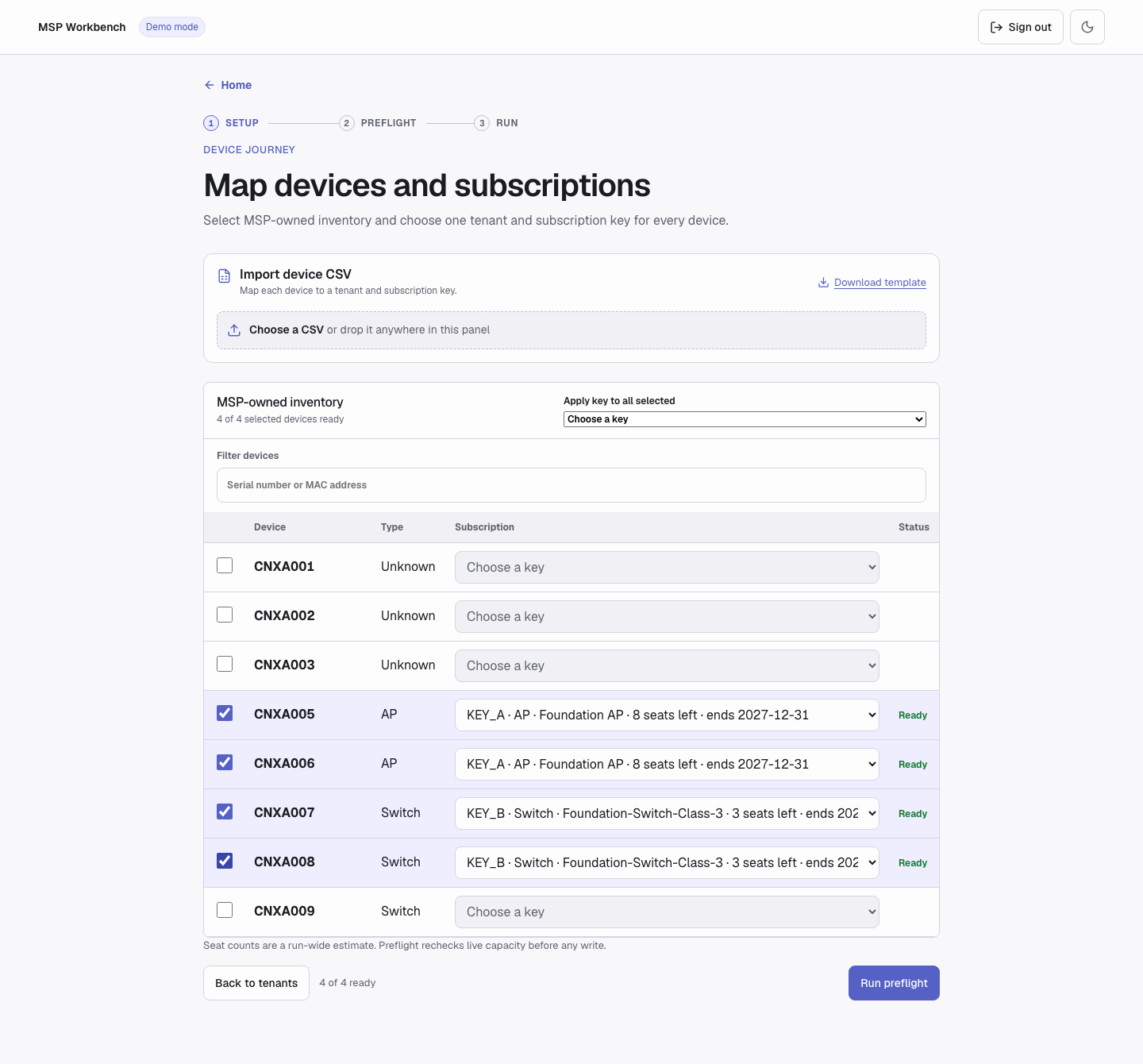
Map devices and subscriptions
Input
| Item | Field | Rules |
|---|---|---|
| Tenant | name, workspace_id | An existing tenant and its 36-character workspace ID |
| Tenant | service (optional) | service_manager_id and region; needed only when the tenant has more than one Central application |
| Device | serial_number | An MSP-managed device in your inventory, not assigned to another tenant |
| Device | tenant | The name of a tenant in this run |
| Device | subscription_key | An active device subscription key that fits the device type and has a free seat |
A run takes 1 to 50 tenants and 1 to 1,000 devices. Every tenant needs at least one device.
The CSV template (Download template in the web UI) uses this header. tenant must match a tenant you selected:
serial_number,subscription_key,tenant
SERIAL_001,SUBSCRIPTION_KEY_A,Example tenant
Try it in demo modeIn demo mode, select Acme Corp, map
CNXA005andCNXA006toKEY_AandCNXA007andCNXA008toKEY_B, then click Run preflight.
Execution
1. Choose Tenants
On the hub, click Assign devices to tenants, then select one or more tenants under Existing tenants.
To also list devices that are already in a selected tenant but have no subscription, turn on Include devices already in this tenant without a subscription. For those devices, the run only applies the key.
Click Continue to devices. If a tenant has more than one Central application, choose one. If it has none, deselect it or provision Central first.
2. Map Devices and Subscriptions
In the MSP-owned inventory table, select each device for the run and choose its Subscription key. If you selected more than one tenant, choose a Tenant per device. Each list shows only keys that fit the device type, with seats left and end date.
To give several devices the same key, select them and pick a key from Apply key to all selected. Devices the key does not fit keep their current key.
To import mappings instead, click Choose a CSV in the Import device CSV panel, or drop a file on it. Errors appear under the affected line.
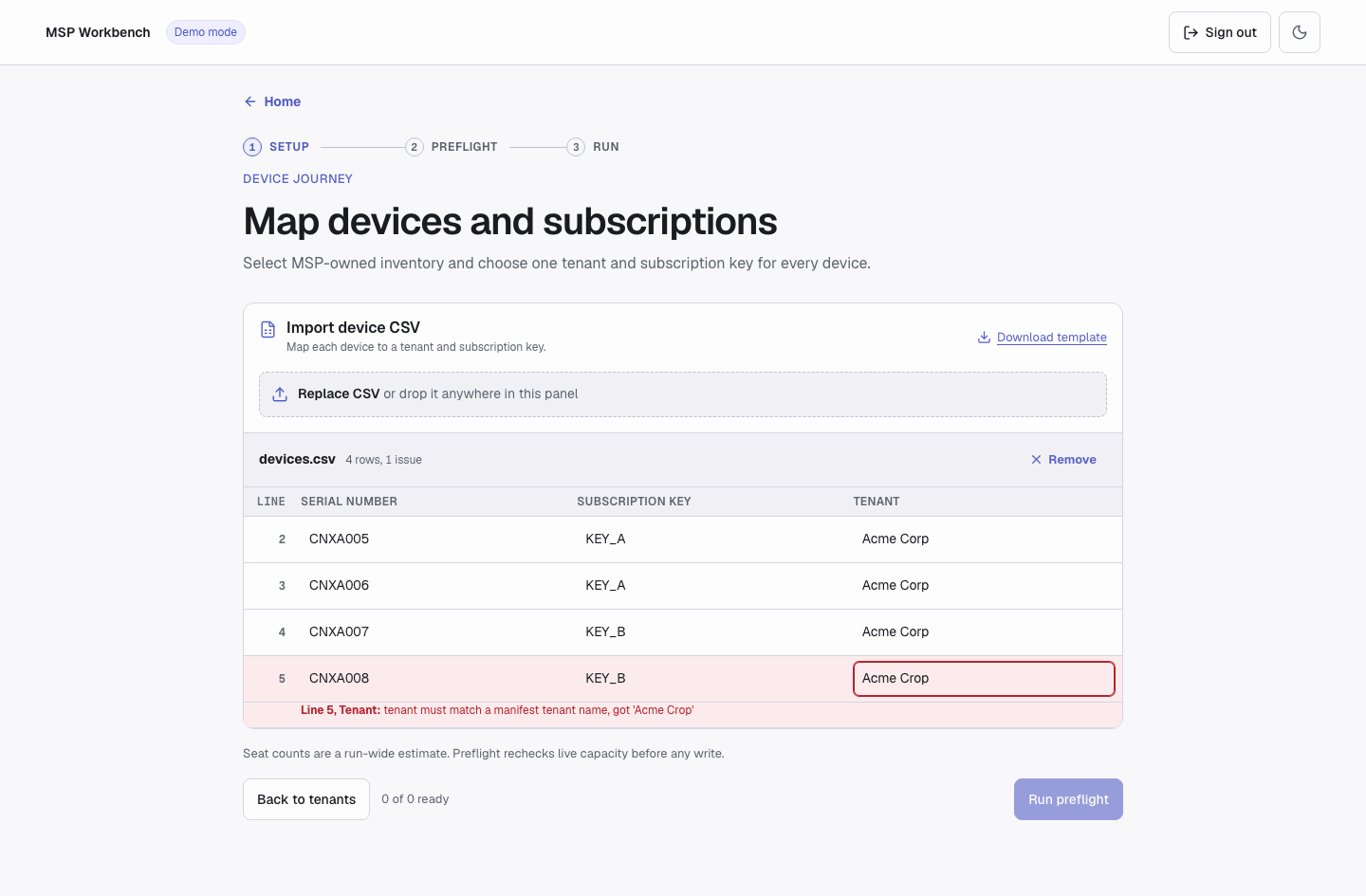
Import device CSV panel
Run preflight is enabled once every selected device has a tenant and an eligible key.
3. Review and Confirm
Click Run preflight. The review shows the seat capacity for each key in use, and one card per tenant with its Central application, device count, and Ready or Will not run. Blocking problems are listed at the top; click Back to devices to fix them.
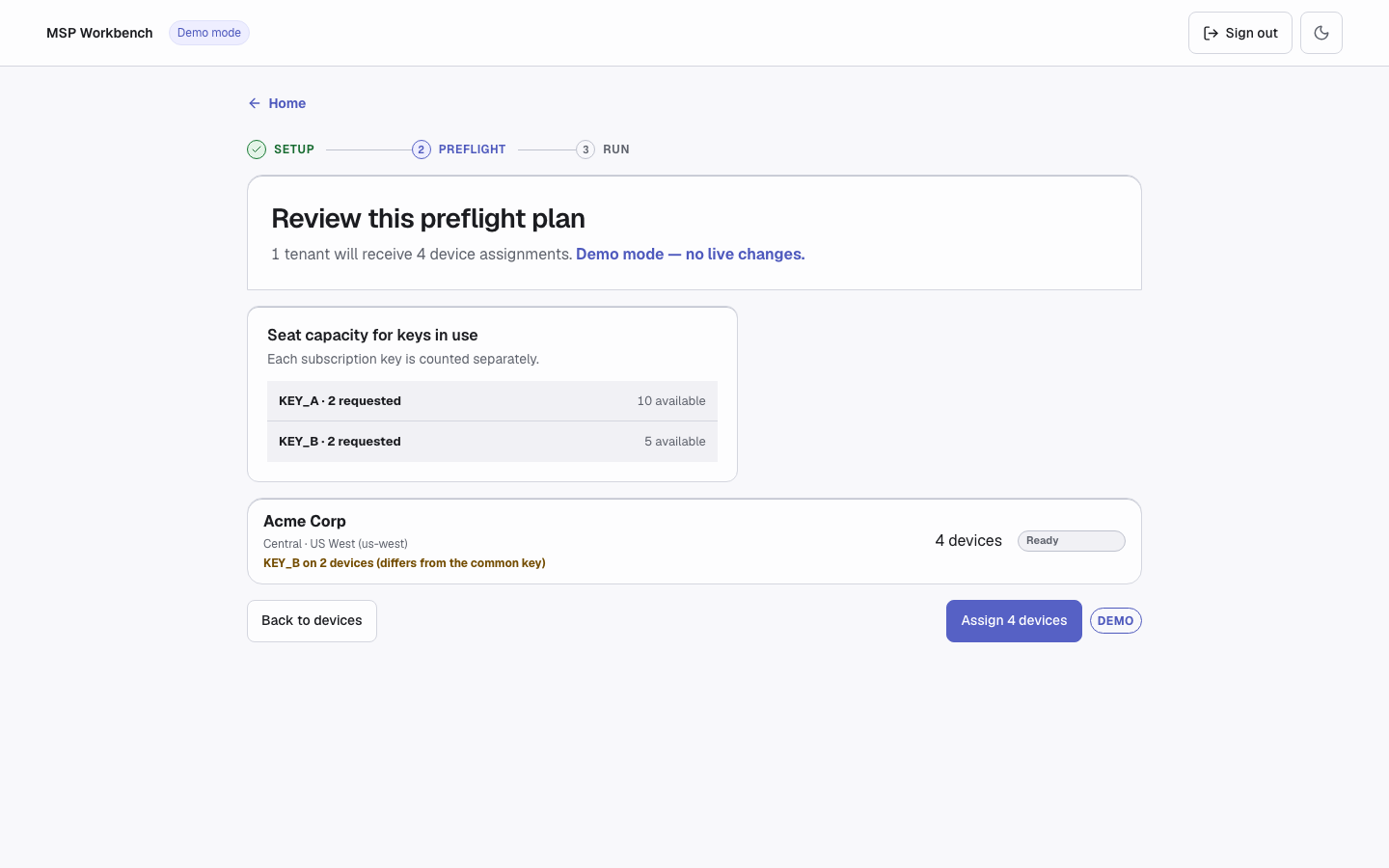
Preflight review
Click Assign N devices to start the run.
4. Watch the Run
The run assigns each device to the tenant's Central application, applies its key, and verifies the result. To stop the run, download reports, or retry, see Run a Job.
To retry with the failed-devices CSV, select only the tenant those devices belong to, then import the file.
Command Line
Copy samples/existing_tenant.yaml and fill it in with values from list tenants, list devices, and list subscriptions. Keep the service block, with values from list services, only if a tenant has more than one Central application:
version: 2
mode: existing
tenants:
  - name: Demo West Tenant
    workspace_id: aaaaaaaa-0001-0001-0001-000000000001
    service:
      service_manager_id: bbbbbbbb-0001-0001-0001-000000000001
      region: us-west
devices:
  - serial_number: CNXA001
    tenant: Demo West Tenant
    subscription_key: KEY_A
Check the plan, then run it. The sample values work only in demo mode:
uv run python workbench.py --demo plan samples/existing_tenant.yaml
uv run python workbench.py --demo run samples/existing_tenant.yaml
run asks for confirmation. Pass --yes only after you review the plan. For global flags and exit codes, see Command Line.
Output
The run table shows each device's Assign tenant and Assign subscription status, with notes on any failure. A device that already had the planned tenant or key shows Already satisfied. The final status is succeeded, partial, completed_with_errors, failed, or stopped. For reports, see Run a Job.
Troubleshooting
For sign-in, server, and common run errors, see Troubleshooting and Run a Job.
| Error | Meaning | Fix |
|---|---|---|
insufficient_capacity | The key has fewer free seats than the devices mapped to it, across all tenants | Remove devices from that key or split them across keys |
subscription_expired | The key is outside its validity period | Choose a current key |
subscription_not_started | The key is not active yet | Choose an active key, or wait until it starts |
subscription_type_mismatch | The key is for a different device type, such as a switch key on an AP | Choose a key that matches the device type |
device_not_available | The device is in another tenant or workspace, or already has a subscription | Free the device in HPE GreenLake, or remove it from the run |
device_not_found | HPE GreenLake could not find the device | Check the serial; if it is new, add it to MSP inventory first |
recovery_tenant_required | A failed-devices CSV was imported without exactly one tenant selected | Select only that tenant, then import again |
invalid_header, other CSV errors | The file is not a UTF-8 CSV with the template header, or a row has the wrong number of columns | Use the template header exactly and re-export the file as UTF-8 CSV |
API Calls
| Step | Service | Method | Endpoint | Description |
|---|---|---|---|---|
| 1 | GLP | GET | workspaces/v1/msp-tenants | Lists tenants |
| 2 | GLP | POST | {base_url}/{tenant_workspace_id}/token | Token exchange (MSP token → tenant token) |
| 3 | GLP | GET | service-catalog/v1/service-manager-provisions | Each tenant's Central applications |
| 4 | GLP | GET | devices/v1/devices | MSP inventory; also re-read before each batch and for final verification |
| 5 | GLP | GET | subscriptions/v1/subscriptions | Subscription keys, seats, and dates |
| 6 | GLP | PATCH | devices/v1/devices | Assigns devices to the tenant's Central application |
| 7 | GLP | PATCH | devices/v1/devices | Applies the subscription key |
| 8 | GLP | GET | devices/v1/async-operations/{transaction_id} | Waits for each write to complete |
Support
- Automation Team: [[email protected]](mailto:[email protected])
- Workflow Issues: GitHub Issues
- PyCentral Library: PyCentral Issues
Updated 21 days ago