
Setup: GitHub Copilot in VS Code
Connect the Central MCP Server to GitHub Copilot Chat to query your HPE Aruba Networking Central directly from VS Code in agent mode.
Requirements
Before you begin, confirm you have all of the following:
| Requirement | How to verify |
|---|---|
| VS Code 1.99 or later | Help → About, or code --version |
| GitHub Copilot Chat extension (not just base Copilot) | Extensions panel — search "GitHub Copilot Chat" |
"chat.mcp.enabled": true in VS Code settings | Settings UI → search "chat mcp" or add to settings.json |
| Central credentials from the main setup guide | CENTRAL_BASE_URL, CENTRAL_CLIENT_ID, CENTRAL_CLIENT_SECRET |
uv installed | uv --version in terminal |
ImportantWithout
"chat.mcp.enabled": truein your VS Code settings, VS Code silently ignores the.vscode/mcp.jsonfile. This is the most common reason MCP tools don't appear in Copilot Chat. Set this first before adding the config file.
To enable MCP in VS Code settings:
- Open Settings (Ctrl/Cmd+,), search for
chat.mcp, and toggle Chat: MCP Enabled to on - Or add directly to
settings.json:"chat.mcp.enabled": true
Create the MCP Config File
Create .vscode/mcp.json in your workspace root (the file and directory won't exist by default):
{
  "servers": {
    "central-mcp": {
      "type": "stdio",
      "command": "uvx",
      "args": ["--prerelease=allow", "central-mcp-server"],
      "env": {
        "CENTRAL_BASE_URL": "your-central-base-url",
        "CENTRAL_CLIENT_ID": "your-client-id",
        "CENTRAL_CLIENT_SECRET": "your-client-secret"
      }
    }
  }
}
Replace all placeholder values with your actual credentials.
Credential security
Optional: Code Mode (DYNAMIC_TOOLS)
DYNAMIC_TOOLS)DYNAMIC_TOOLS is an optional environment variable that changes how the server exposes tools to Copilot Chat:
- Not set (default): The server exposes all 14 tools from the tool catalog directly.
- Set to
true: The server starts in Code Mode and exposes three meta-tools (Search,GetSchemas,Execute) instead of the full catalog.
Code Mode is recommended when you have multiple MCP servers running, as it reduces the number of tools in your context window. If central-mcp is your only MCP server, leave this unset.
Note: The variable name is strict — use
DYNAMIC_TOOLS(plural).DYNAMIC_TOOLis silently ignored.
To enable Code Mode, add DYNAMIC_TOOLS to the env block in your .vscode/mcp.json:
{
  "servers": {
    "central-mcp": {
      "type": "stdio",
      "command": "uvx",
      "args": ["--prerelease=allow", "central-mcp-server"],
      "env": {
        "CENTRAL_BASE_URL": "your-central-base-url",
        "CENTRAL_CLIENT_ID": "your-client-id",
        "CENTRAL_CLIENT_SECRET": "your-client-secret",
        "DYNAMIC_TOOLS": "true"
      }
    }
  }
}
VS Code uses a different JSON schema
VS Code's MCP config uses "servers" (not "mcpServers") and requires "type": "stdio" for each server entry. This is different from other MCP clients like Claude Desktop using the wrong schema will cause the server to be ignored silently.
Add mcp.json to .gitignore
The config file contains your credentials and must not be committed to version control. Add it to your .gitignore:
.vscode/mcp.jsonIf your workspace doesn't have a .gitignore yet, create one at the workspace root with this line.
After saving, reload the VS Code window: Ctrl/Cmd+Shift+P → Developer: Reload Window.
Approve Tool Calls
On the first time a Central MCP tool is used, VS Code will prompt you to approve it. Click Allow to proceed. You can also set tools to always allow from the same dialog.
[GIF: VS Code tool approval dialog appearing when a Central MCP tool is called, showing Allow / Allow Always / Deny buttons, user clicking Allow Always]
Verify the Connection
Open the Copilot Chat panel (View → GitHub Copilot → Open Chat). Switch to Agent mode using the mode selector at the top of the panel.
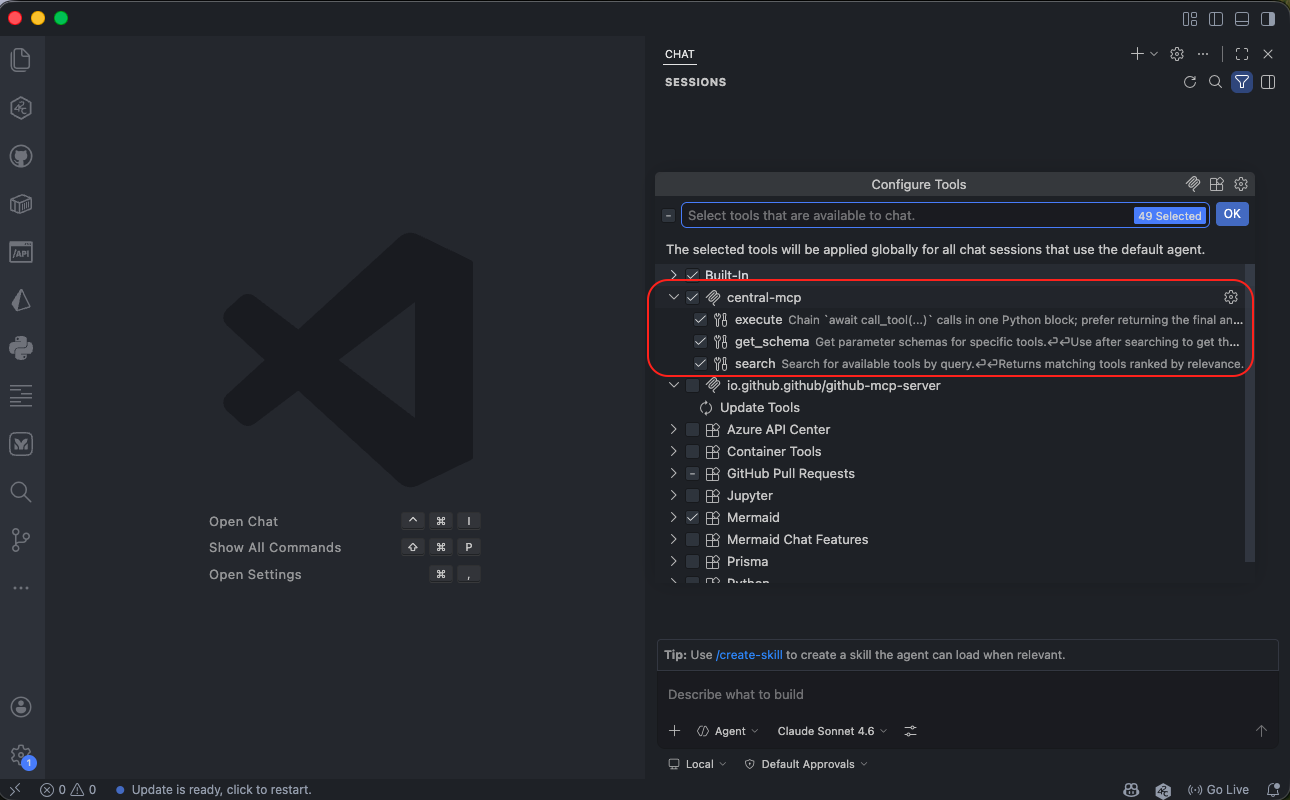
Click the tools icon to expand the tool list. What you see depends on whether Code Mode is enabled:
- Default (no
DYNAMIC_TOOLS): All 14 tools are listed individually —central_get_sites,central_get_devices,central_get_ap_wlans,central_get_clients, and so on. - Code Mode (
DYNAMIC_TOOLS=true): Three meta-tools are listed:Search,GetSchemas, andExecute.
Either confirms the server is connected and ready.
Run Your First Query
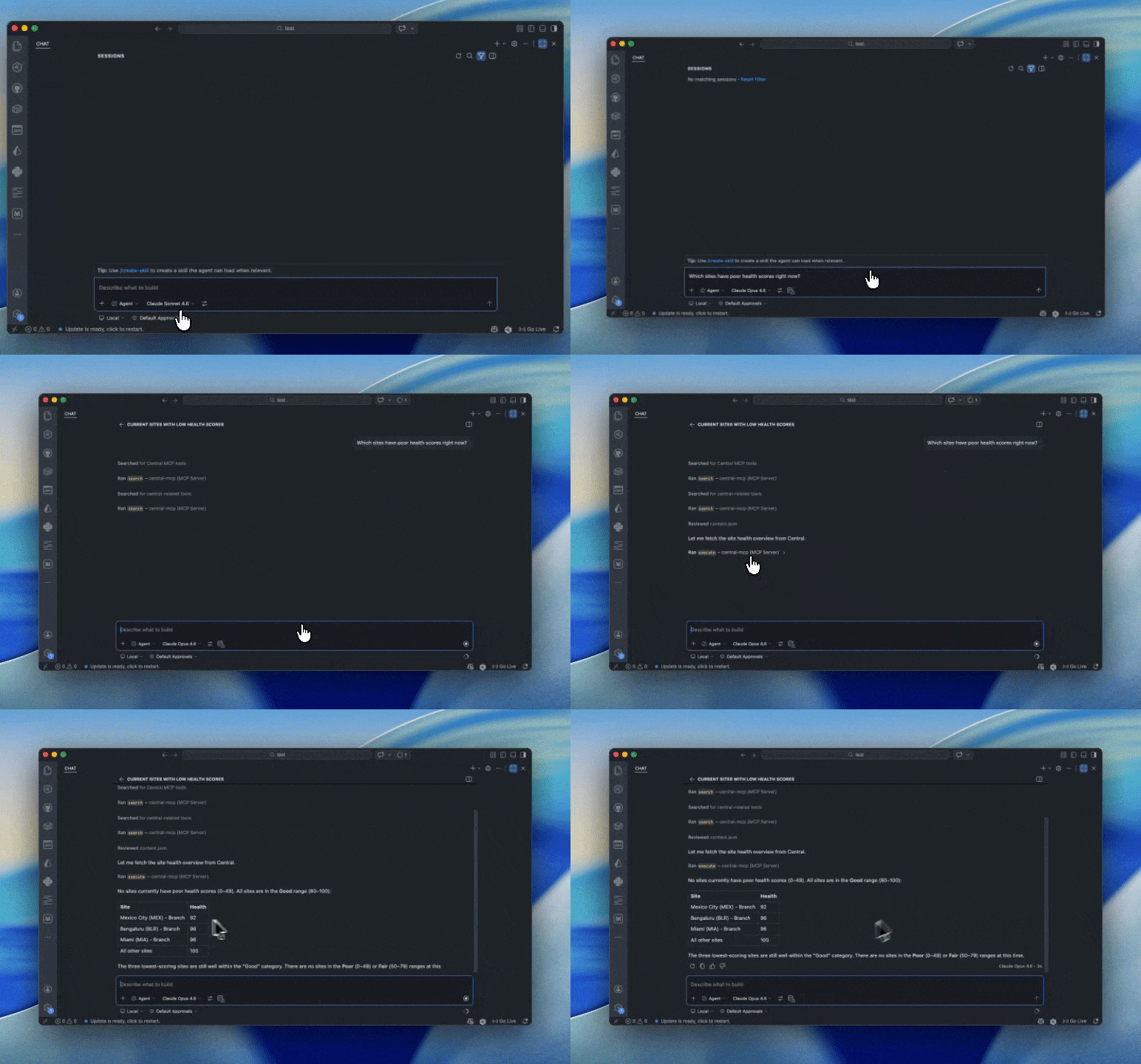
In the Copilot Chat panel (Agent mode), ask:
Which sites have poor health scores right now?A successful response retrieves live site data from your Central instance. If Copilot runs tool calls and returns a structured response, the connection is working.
Updated 4 months ago