
Authentication
PyCentral requires credentials for each platform your script will call. You only need to configure the platforms you're actually using — New Central, GLP, or both.
Choosing an Authentication Method
PyCentral supports two authentication methods for Central & GLP:
| Method | Best For | Token Expiry |
|---|---|---|
| Client ID & Client Secret (Recommended) | Automation & long-running scripts | Auto-renews - New tokens are generated automatically by SDK upon expiry |
| Access Tokens | Quick tests & one-time API calls | Manually need to update token upon expiry |
Which method should you use ?If you want a hassle-free setup use Client ID & Secret. The SDK will automatically generate a new token whenever required with this method. Setup is minimal and this is our recommended method.
If your script needs both GLP and New Central, prefer unified credentials. They let you authenticate once with your GLP credentials and
workspace_id, then reuse the same token for both platforms. This is the most flexible option and reduces the number of credentials you need to manage.
Get Your Credentials
New Central
Gather the following:
- Base URL or Cluster Name (Choose one): Identifies your Central Account's API gateway. Both options function identically. Use whichever is convenient:
- Base URL — Base of the URL for requests to your Central API Gateway. For instructions on how to locate your Base URL, see Finding Your Base URL in Central.
- Cluster Name — Name of the cluster where your account is provisioned. A table detailing all cluster names can be found here.
- API Credentials (Choose one):
GLP
For GLP authentication:
-
No base URL required — GLP's endpoint is fixed
-
API Credentials (Choose one):
- Client ID & Client Secret (Recommended)
The SDK automatically generates new tokens when they expire, so you don't have to manage them manually. Create a Personal API Client on HPE GreenLake by following these steps - Access Token
Manually, retrieve an access token here(Tokens expire in 15 mins)
- Client ID & Client Secret (Recommended)
Classic Central
For Classic Central authentication, see the Classic Central documentation
Configure Your Credentials
For new setups, prefer a single unified block. It gives you one flexible credential set instead of separate glp and new_central blocks, which means fewer credentials to manage when your script uses both GLP and New Central.
Unified credentials (recommended)
ImportantUnified Credentials are supported only from PyCentral version 2.0a18 and above
Use a single unified block when you want one configuration that can support GLP only or GLP + New Central.
- Provide GLP
client_id,client_secret, andworkspace_idonce. - The SDK creates one GLP access token and reuses it for both GLP and New Central API calls.
- Add
base_urlorcluster_nameonly when your script will also call New Central APIs.
| Field | Required | Description |
|---|---|---|
client_id | Yes | GLP client ID |
client_secret | Yes | GLP client secret |
workspace_id | Yes | HPE GreenLake workspace ID |
base_url or cluster_name | Only for New Central calls | Identifies the Central API gateway |
access_token | No | Existing token; if omitted the SDK generates one automatically |
To use unified credentials, copy your workspace_id from your HPE GreenLake workspace details. Please see the following steps:
- Log in to https://common.cloud.hpe.com
- Navigate to Manage Workspace
- Copy the Workspace ID value shown on the page
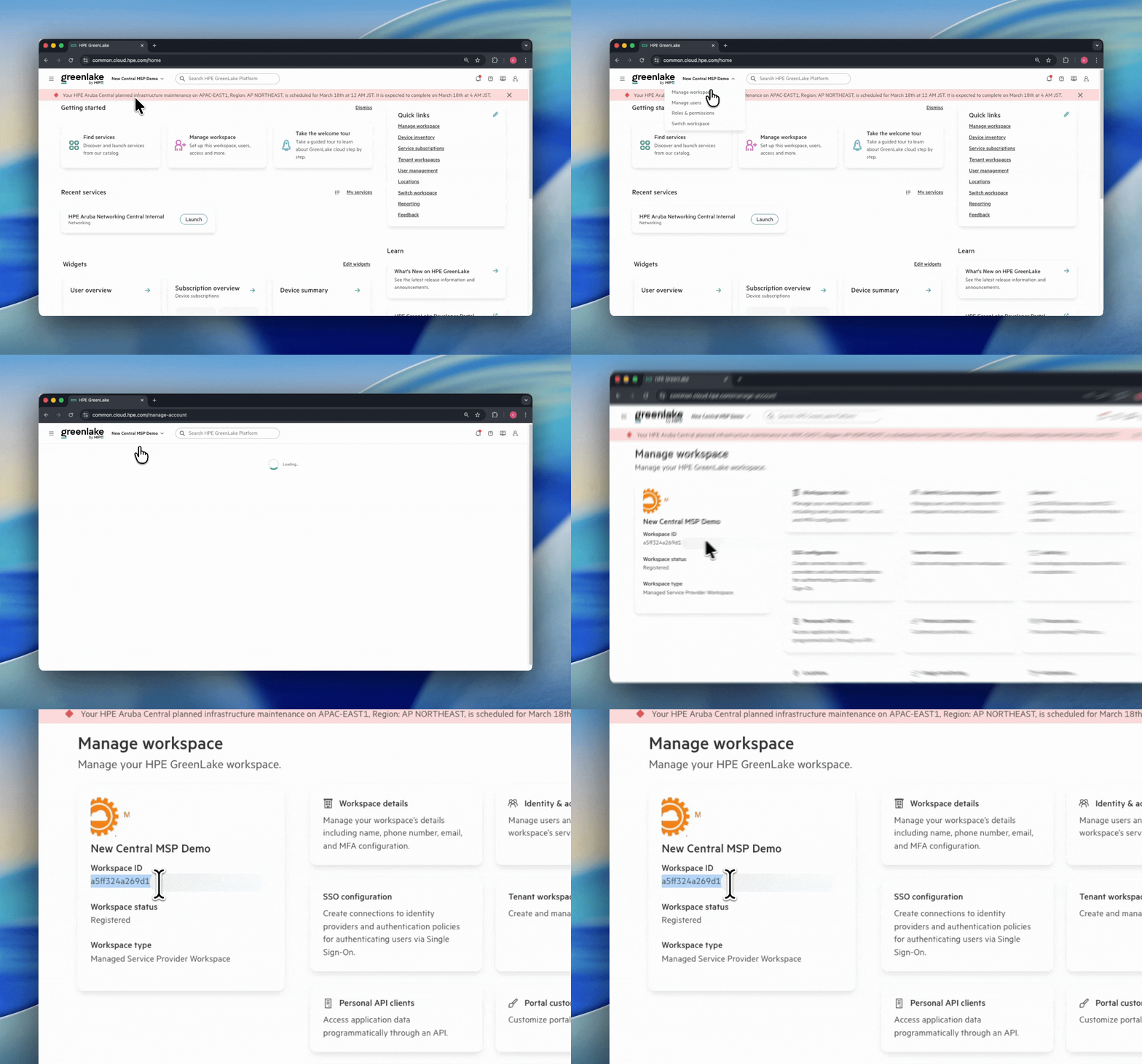
Steps to find Workspace ID on GLP Platform
Option 1 — token.yaml file (recommended for getting started)
Create a token.yaml file in the same directory as your script.
Unified (GLP + New Central):
unified:
  client_id: <your-glp-client-id>
  client_secret: <your-glp-client-secret>
  workspace_id: <your-workspace-id>
  base_url: <your-api-base-url>
  # cluster_name: <your-cluster-name>  # alternative to base_url
Unified (GLP only):
unified:
  client_id: <your-glp-client-id>
  client_secret: <your-glp-client-secret>
  workspace_id: <your-workspace-id>
Security warningNever commit
token.yamlwith valid credentials to version control. It's recommended to add it to your.gitignoreimmediately:echo "token.yaml" >> .gitignore
Once your token.yaml is ready, pass the file path to NewCentralBase using the with context manager. You can find an example for this option below
Option 2 — Python dict (recommended for CI/CD and production)
Pass credentials directly as a dict built from environment variables. No file on disk, no risk of accidentally committing secrets.
Set the environment variables in your shell or CI/CD pipeline before running your script:
export GLP_CLIENT_ID="your-glp-client-id"
export GLP_CLIENT_SECRET="your-glp-client-secret"
export GLP_WORKSPACE_ID="your-workspace-id"
export CENTRAL_BASE_URL="https://us5.api.central.arubanetworks.com"
# export CENTRAL_CLUSTER_NAME="US-WEST-5"  # alternative to CENTRAL_BASE_URL
If you only need GLP APIs, omit CENTRAL_BASE_URL / CENTRAL_CLUSTER_NAME.
Examples
See how each credential option translates into a working script.
The following examples assume you are using the unified configuration shown above.
from pycentral import NewCentralBase

with NewCentralBase(token_info="token.yaml") as conn:
    resp = conn.command(
        api_method="GET",
        api_path="network-monitoring/v1/device-inventory"
    )
    if resp["code"] == 200:
        print(resp["msg"])
    else:
        print(f"Error {resp['code']}: {resp['msg']}")
import os
from pycentral import NewCentralBase
credentials = {
"unified": {
"client_id": os.environ["GLP_CLIENT_ID"],
"client_secret": os.environ["GLP_CLIENT_SECRET"],
"workspace_id": os.environ["GLP_WORKSPACE_ID"],
"base_url": os.environ["CENTRAL_BASE_URL"],
# "cluster_name": os.environ["CENTRAL_CLUSTER_NAME"], # alternative to base_url, e.g. US-WEST-5
}
}
with NewCentralBase(token_info=credentials) as conn:
resp = conn.command(
api_method="GET",
api_path="network-monitoring/v1/device-inventory"
)
if resp["code"] == 200:
print(resp["msg"])
else:
print(f"Error {resp['code']}: {resp['msg']}")Updated 4 months ago
What’s Next
Once your credentials are configured, head to the Quickstart guide to install PyCentral and make your first API call.