
Monitor Tenants
View site, device, client, and alert health across your tenants with one MSP credential
Source CodeYou can find the full source code and documentation for this workflow on GitHub: MSP Workbench
The Monitor tenants page in MSP Workbench shows Central health for your tenants: sites, devices, and open alerts. Open a tenant to browse its sites, devices, clients, and alerts. The page is read-only, and you don't need per-tenant credentials. Complete MSP Workbench Setup first.
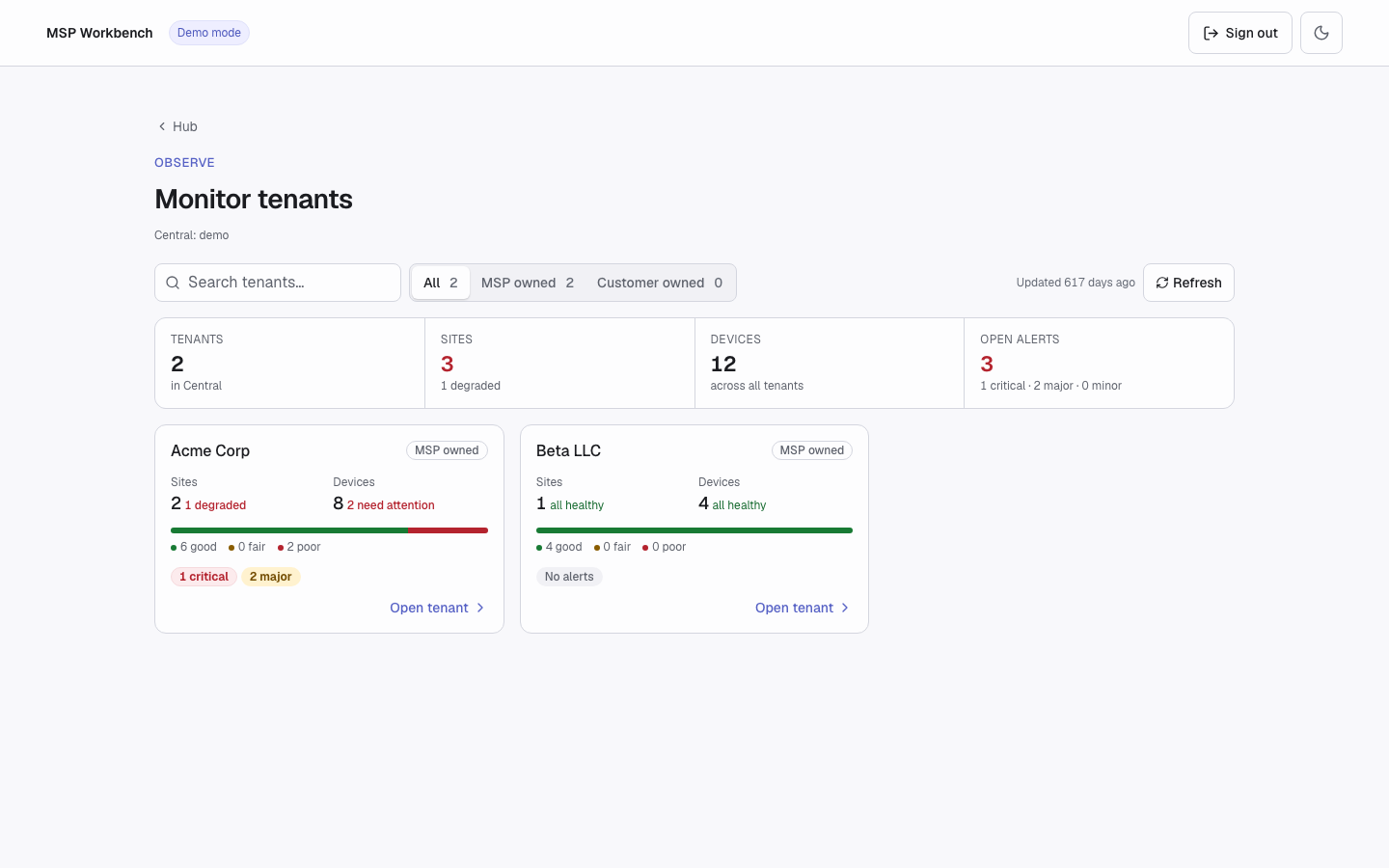
Monitor tenants overview
Input
There is no manifest or CSV. Sign in, then pick a tenant on screen.
Central cluster. The workbench detects your Central clusters after sign-in and lists them under the page title, for example Central: US-2.
Tenant choice. Narrow the list with Search tenants… and the All / MSP owned / Customer owned filter. On the command line, name a tenant by its exact workspace name or workspace ID. Use the ID if two tenants share a name.
Try it in demo modeIn demo mode, open Acme Corp to see a degraded site and open alerts.
Execution
1. Open the Overview
On the hub, under Observe, select Monitor tenants. The page detects your clusters, then loads tenants and their health. You see:
- Totals: tenants, sites (and how many are degraded), devices, and open alerts by severity.
- One card per tenant: ownership, sites with N degraded or all healthy, devices with N need attention (fair plus poor), a good / fair / poor health bar, and alert counts.
2. Open a Tenant
Select a card. The first time, a dialog shows the token exchange into that tenant. Turn on Don't show this again to skip it in this browser.
3. Browse the Tabs
The tenant page has four tabs. Only the tab you select is read.
| Tab | Shows |
|---|---|
| Sites | Location, health and health reasons, device, client and alert counts |
| Devices | Name, serial, type, model, site, status, firmware, IPv4 |
| Clients | Name, MAC, IP, site, wired or wireless (with WLAN), SNR |
| Alerts | Severity, name, summary, device type, status, age |
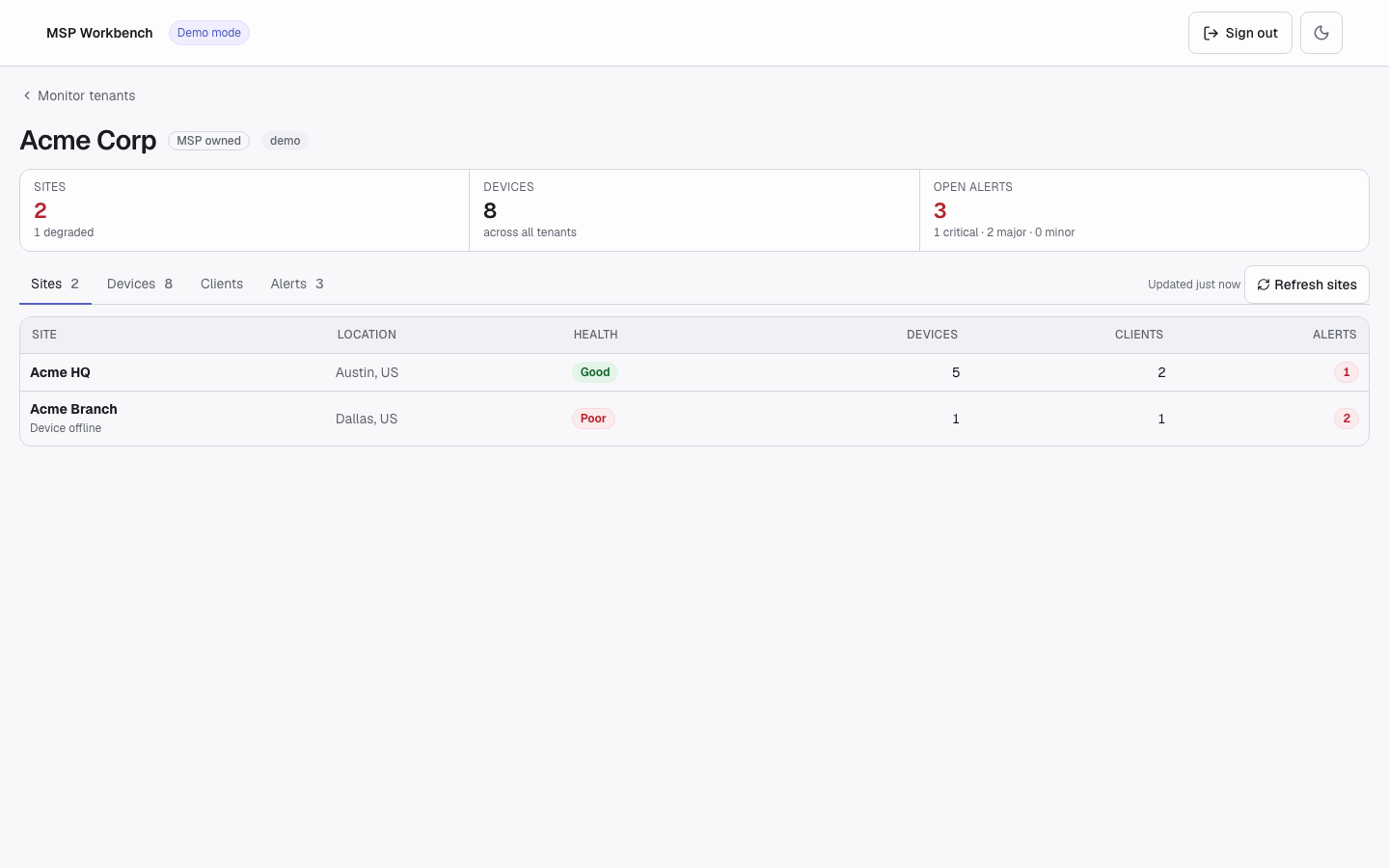
Tenant detail, Sites tab
4. Refresh
Data does not refresh on its own. Select Refresh to read it again; Updated shows its age. On a tenant page, Refresh reads only the current tab again.
Command Line
uv run python workbench.py --demo monitor overview
uv run python workbench.py --demo monitor tenant "Acme Corp" --sites --alerts
uv run python workbench.py --demo monitor export --format csv --out tenants.csv
monitor overviewprints every listed tenant with its health and the totals.monitor tenant NAME_OR_IDprints the tenant's sites, devices, clients and alerts. Add--sites,--monitored-devices,--clientsor--alertsto fetch only those sections.monitor exportwrites the overview as JSON (the default) or CSV, with one row per tenant: sites, degraded sites, total devices, and critical alerts. Export is command-line only.
For global flags and exit codes, see Command Line.
Output
The web UI shows the overview and tenant tabs described above. It writes no files.
A tenant is listed only when its GreenLake workspace name exactly matches a Central tenant health rollup. A card marked ambiguous is left out of the totals.
If a Central cluster can't be read, or a tenant name is ambiguous, a coverage warning appears. When a cluster fails, the totals show Unavailable; hover over it to see which cluster.
Troubleshooting
For sign-in and server problems, see Troubleshooting.
| Error | Meaning | Fix |
|---|---|---|
no_central_provision | GreenLake shows no provisioned Central application for this workspace. | Check that Central is fully provisioned on the MSP workspace, then select Try again. |
no_cluster_answered | No Central cluster in the region accepted your workspace. | Check that the API client belongs to the MSP workspace, then select Try again. |
cluster_unreachable | A candidate cluster did not answer. Clusters that did answer are still used. | Check your network, then select Try again. |
unmapped_region | Central is provisioned in a region the workbench does not recognise. | Contact the Automation Team with the region from the message. |
| ambiguous on a card | More than one tenant or Central rollup has this name. | Give each tenant a unique name, then Refresh. |
| Tenant not listed | No Central health rollup has exactly this workspace name. | Check that the tenant has Central provisioned and that the names match exactly. |
tenant_exchange_refused | GreenLake refused a token for this tenant. Your MSP sign-in is still valid. | Check the API client's access to the tenant, then select Try again in the dialog. |
tenant_not_found (exit 3) | monitor tenant found no tenant with that exact name or ID. | Use a name suggested in the error's hint, or one from monitor overview. |
API Calls
| Step | Service | Method | Endpoint | Description |
|---|---|---|---|---|
| 1 | GLP | GET | service-catalog/v1/service-manager-provisions | Finds the regions where Central is provisioned (after sign-in) |
| 2 | Central | GET | network-msp/v1/list-tenants | Probes candidate clusters when a region has more than one |
| 3 | GLP | GET | workspaces/v1/msp-tenants | Lists managed tenants |
| 4 | Central | GET | network-msp/v1/list-tenants | Tenant health rollup for the overview |
| 5 | GLP | POST | {base_url}/{tenant_workspace_id}/token | Token exchange (MSP token → tenant token) |
| 6 | Central | GET | network-monitoring/v1/sites-health | Sites tab |
| 7 | Central | GET | network-monitoring/v1/device-inventory | Devices tab |
| 8 | Central | GET | network-monitoring/v1/clients | Clients tab |
| 9 | Central | GET | network-notifications/v1/alerts | Alerts tab |
Support
- Automation Team: [[email protected]](mailto:[email protected])
- Workflow Issues: GitHub Issues
- PyCentral Library: PyCentral Issues
Updated 21 days ago