Active and Recent Flows
Most used tab for troubleshooting any traffic going over the fabric!
- Able to see “one way” flows (server/client not responding/traffic dropped)
- Able to see route/Segment/ZBFW dropped traffic in the fabric
- Able to see Boost performance (if licensed and configured)
- Use Flow detail to confirm routing/boost/NAT/FW Zones and Segment
- Fine granularity on Filtering for traffic.
- Ability to save frequently used filters
- Yellow indicates suggested basic search fields and settings.
- Setting "Bytes" to total is helpful to prevent confusion when looking at longer living flows. and when troubleshooting one way flows(below)
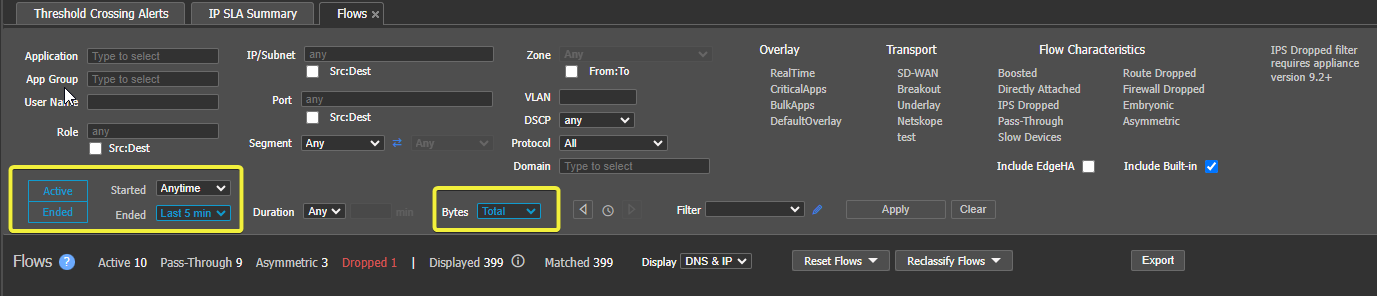
Flow filter suggestions
Can select multiple EC in the left tree to view cross fabric flows at the same time!This allows you view the flow from:
- Datacenter/hub to the Spoke
- Spoke to Spoke in a mesh network
- Spoke > Hub > Spoke in Hub and Spoke (example below)

Example of flow from SPOKE>HUB>SPOKE
Traffic you filter for all the time? Save a filter !
- Filter Drop down includes built in and custom filters
- Add custom filters, filter for the traffic you want, then click edit type filter name
- click +Add
- Click save
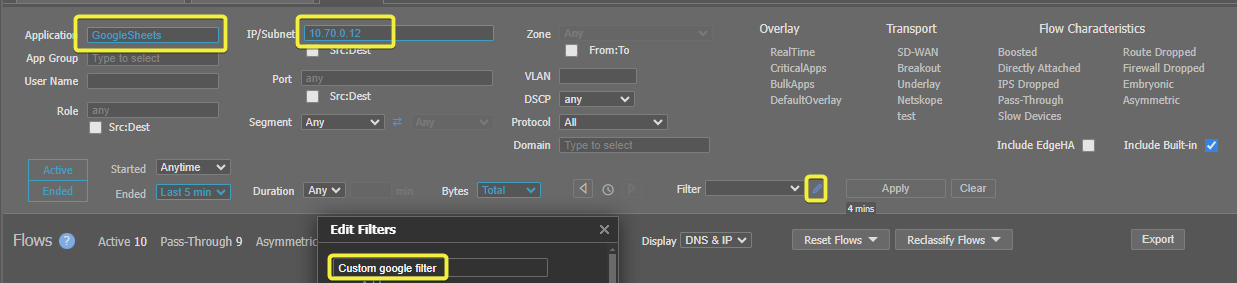
Creating Flow filter
- Flow Filter is now in quick access drop down
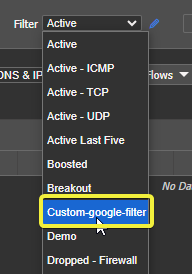
Selecting flow filter example
Note: no fields are mandatory “application: Googlesheets” is just an example. you can get very granular to find your traffic. - This is why saving a filter is very helpful to prevent having to type out/remember every time you need to find this traffic.
Checkbox for Src:Dst IP address/Port
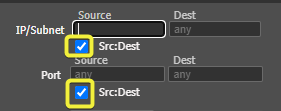
Ip and port filter source and destination checkbox
Note flow direction (perspective)OUTBOUND = From LAN > To WAN
INBOUND = From WAN > To LAN
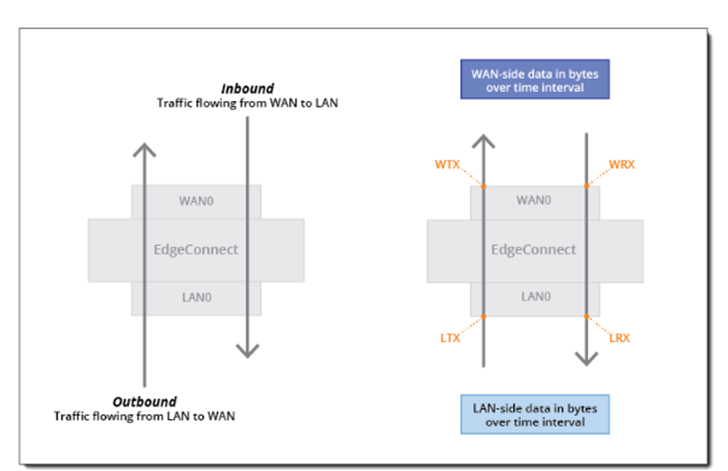
EC Flow direction
One way flows, why they are important! Usually show a possible problem! Example:
- We see that 10.60.0.1 is a healthy flow (yellow), if traffic is not returning to the EC most likely the loss/block is external to the Edge Connect Fabric (RED).
- In this case “10.60.0.2” does not exist but let’s assume it is just server we are trying to reach.
- Using the flow direction above we see inbound traffic from the WAN and no outbound traffic(red) to the WAN
- We did not receive and return traffic on the LAN to our ICMP ping. So, we have no return traffic to send to the WAN.
- Device off the network
- Vlan mismatch/trunk config
- IP config error
- Power
- Security policy
- LAN Firewall
- Client Firewall/security agent
- Routing
- LAN routing
- No return route to EC
- incorrect return route - send away from EC
- Critical to understand this – to outside groups it looks like an issue with the EC/SD-WAN Fabric but is a LAN/endpoint issue.
- Can confirm with EC packet capture.

One way Flow example
Flow detail
Note: Flow direction - It is a little confusing
Route section
Train your eyes to the Information in the yellow boxes below.
- Flow Direction = Inbound (came from tunnels/WAN)
- WAN Routing = none (no packet came back so no routing)
- LAN routing = ARP (The EC sent a "who has 10.60.0.2" ARP message out LAN0)
Stats section
-
Inbound LAN packets & Inbound WAN packets (showing 1 packet)
- This packet is coming from tunnels (from WAN) and going to the LAN - as shown above, this packet is dropped because ARP is failing.
- From the LAN port level - yes- this "outbound" but our system always uses the higher level perspective above.
-
The Outbound LAN/WAN - the LAN port is waiting on the return flow/packet (to send to the WAN) but no packet arrives. Because no device is replying to ARP messages we can conclude the problem exists on the LAN/client as outlined above.
-
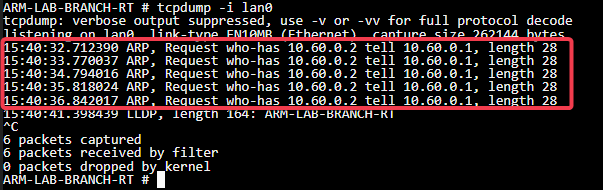
TCPDUMP example - no reply to ARP from EC.
This can be confirmed with TCP dumps (above example) or packet captures in the following guide pages.
-
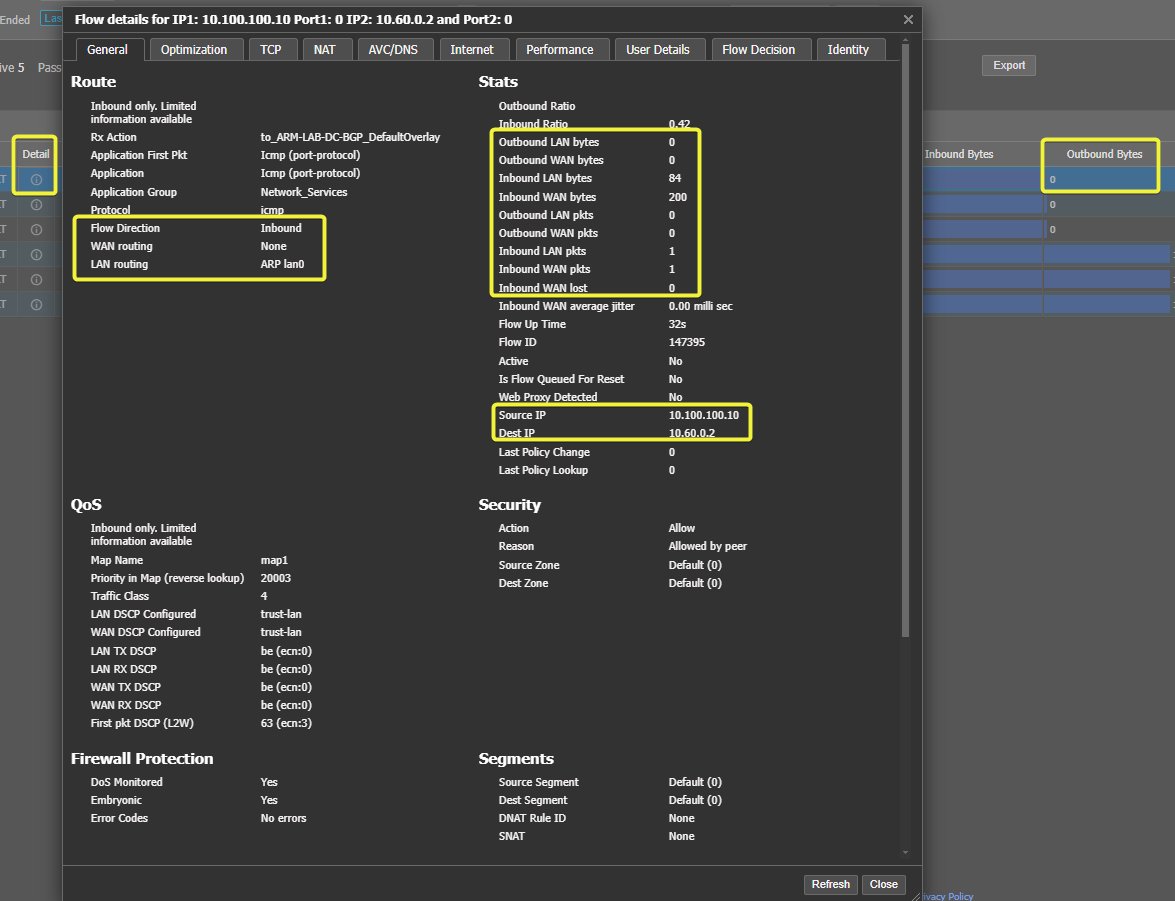
Flow detail and what to look for.
Zone filter: must select segment (segment cannot be “any”)
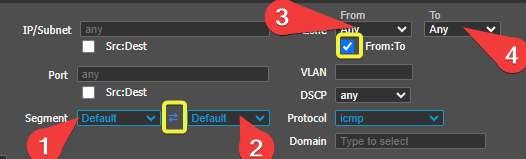
Using from/to Firewall zone.
More Flow References
Updated 4 months ago