
Packet Captures
Packet Capture
- Packet capture is a powerful tool that can be used to troubleshoot applications flowing through the SDWAN fabric. It is typically employed to gather information for other groups to assist them in troubleshooting. Packet capture "clears the network" because traffic can be captured at multiple devices simultaneously.
- We can see the packet enter and exit the Fabric. Note that "Active and Recent Flows" also shows this information, no need to pack capture!
- Flows details even shows packet timings and such as well.
- We can see the packet enter and exit the Fabric. Note that "Active and Recent Flows" also shows this information, no need to pack capture!
- Can be used to troubleshoot SDWAN tunnels, however CLI is usually faster to gather the information needed to troubleshoot down tunnels if problem is not obvious in data orch provides.
• Used as in-depth troubleshooting tool, ORCH has many tools and graphs to save time rather than diving into the packets.
• EC packet capture from ORCH > type “packet” in search menu,
May select many appliances at the same time (all interfaces captured)
May select many interfaces at the same time (Single appliance selected)
Selecting no interfaces on single appliance will capture on all EC interfaces
-
Setup extended capture with storage limits
- To capture troubles that are intermittent
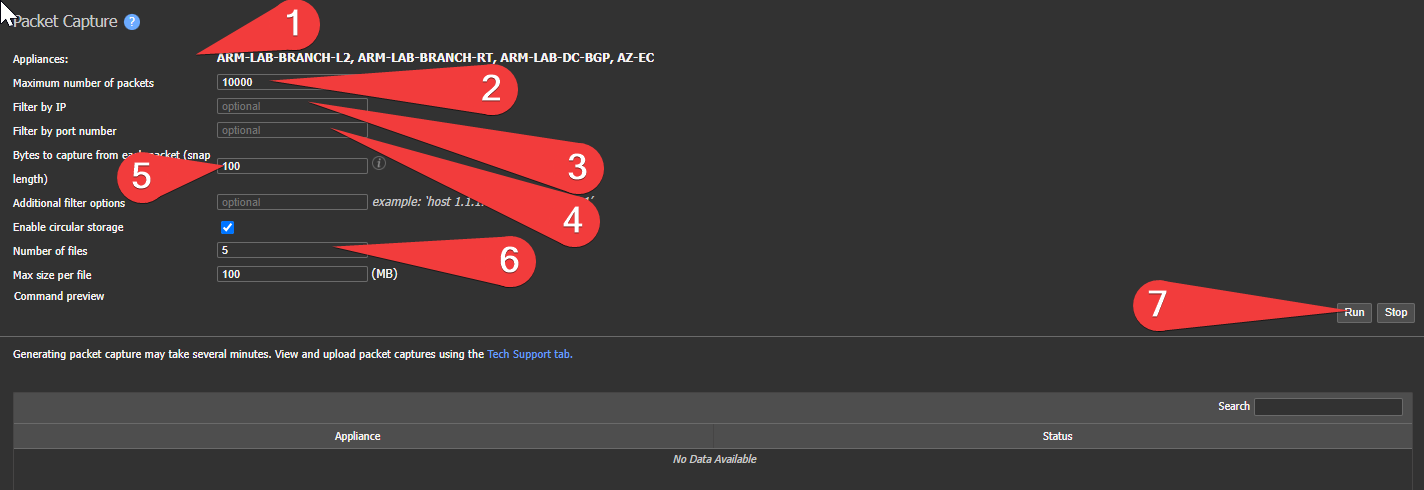
- (1)Select device(s) in tree - confirm selection here
- (2)If doing a large capture set max packets much higher than 10,000 defaults can set to 2-3-10 million, “Max size per file” and “number of files” protect from large files and filling up the disk
- (3)IPs to Filter, suggest at least a signal source IP
- (4) Port filter Suggest destination ports
-
Best Practice: Uncheck "Enable circular storage" if you do not need a long packet capture!
- (5)Bytes to capture from each packet
- If payload not required 100 default is fine
- Typically, any application encrypted traffic payload is not needed unless application vendor is requesting it.
- HTTPS - requires ~256 byte to capture the URL in the header.
- DNS - will need full 1500 packet to see URLS if that is needed.
- Headers only- 60 bytes will capture all IPV4 header
- Typically, any application encrypted traffic payload is not needed unless application vendor is requesting it.
- If payload not required 100 default is fine
- If you select many devices, Captures on automatically on all on all interfaces (interface field disappears)
-
Best practice: (6) Set the number of file to store - recommend two
-
Best Practice: Set max size per file depending on hardware below
Ultra small: 25
10104: 50
Xtra Small: 50
10106: 50
10108: 75
Small: 75
Medium: 100
Large: 100
XL: 100
Virtual -Depends on the storage given at VM build: 25-50
Circular storage changes the file extension for the PCAP files, you will need to change this back or associate your PCAP software with the file extensions. Turning off this option will ensure you have ".pcap" extensions.On - files will show as name.pcap0, name.pcap1, name.pcap2.....etc

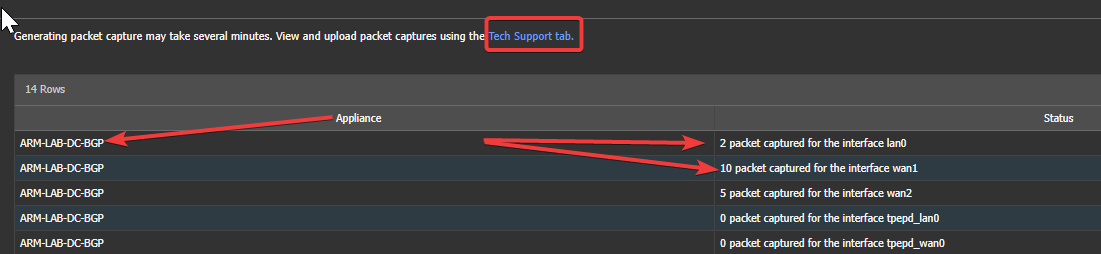
When complete Click stop.
Downloading File to your desktop
-
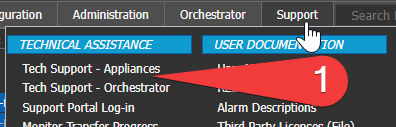
Navitage Support > Tech support > Appliances
-
Three Options to download the files:
- “Download to Orchestrator” (Preferred)
- Upload to support (to send to a TAC ticket)
- Web direct to appliance and download file directly (less preferred)
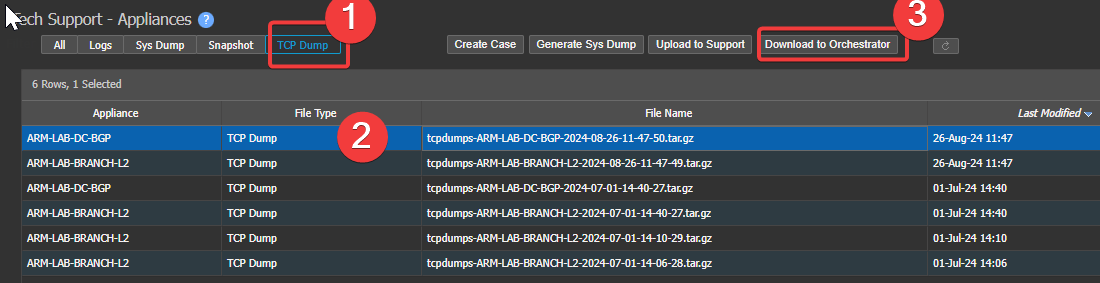
Upload to Orch steps
• Once complete > Support> Tech support Orchestrator
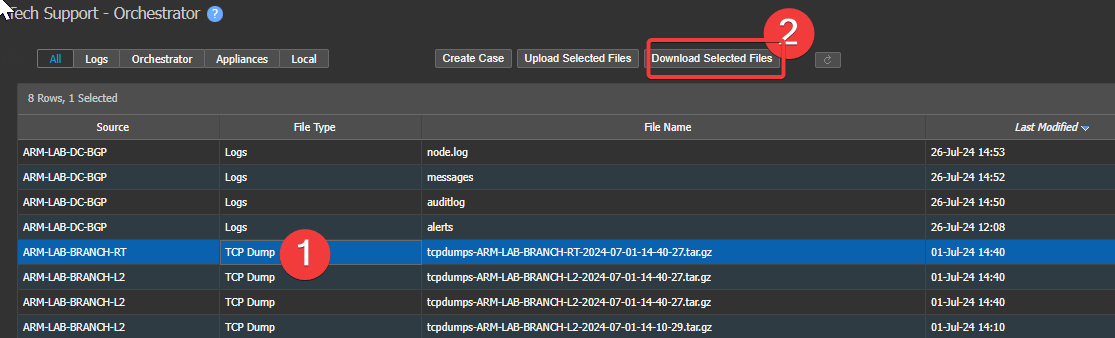
File Download steps
After Download you will have to extract the file two timesAfter second extraction the pcaps listed per-interface

PCAP LIST
- Open with preferred PCAP software
• WAN interface traffic encrypted, only the external tunnel headers are seen.
• LAN traffic is captured at the LAN port and not yet encrypted by Edge Connect
• Packet capture from SRC/DST appliance can be useful for verifying SDWAN and tracking down source latency or packet loss.
• Shows lost ICMP at source appliance and shows latency over the tunnels for completed ICMP.

PCAP open in Wireshark
Merging captures from several EdgeConnects
When you capture the same traffic at several points, for example on the LAN side of each EdgeConnect in the path, and merge the files, Wireshark sees every packet once per capture point. It flags the extra copies as retransmissions and duplicate ACKs, which buries the real ones.
These steps keep each capture point separate, so Wireshark flags only real retransmissions. In testing, the merged file then showed exactly the same flags as opening each capture on its own.
Tested on Wireshark 4.6.9 on Windows.
Before you start
- Get one capture file per EdgeConnect.
- Put the files in one folder with no other .pcap files in it.
- Number the file names in path order, for example 1-spoke-a.pcap, 2-hub-a.pcap, 3-hub-b.pcap, 4-spoke-b.pcap. Wireshark numbers the capture points in alphabetical file-name order, starting at 0.
Step 1 - Merge the files with mergecap
Do not use File > Merge or drag-and-drop in Wireshark. Wireshark's own merge folds identical-looking captures into one, so you can no longer tell the capture points apart.
Windows
- Open the folder in File Explorer.
- Click the address bar, type pwsh, and press Enter. A PowerShell window opens in that folder.
- Paste this command and press Enter:
& "C:\Program Files\Wireshark\mergecap.exe" -I none -w merged.pcapng (Get-ChildItem *.pcap).Name
macOS (not yet tested)
- Open Terminal, type cd with a space after it, drag the folder onto the Terminal window, and press Enter.
- Paste this command and press Enter:
/Applications/Wireshark.app/Contents/MacOS/mergecap -I none -w merged.pcapng *.pcap
Either way, the result is merged.pcapng in the same folder.
- -I none is the part that matters. It keeps each file as its own capture point.
- It is safe to run again. Each run overwrites merged.pcapng and never reads it back in as an input.
Step 2 - Create a profile for merged captures (one time)
The setting in Step 3 changes how Wireshark reads every capture, so keep it in its own profile.
- Go to Edit > Configuration Profiles.
- Click + and name the new profile Merged captures.
- Select it and click OK.
The active profile is shown at the bottom right of the status bar. Click it to switch profiles.
Step 3 - Separate the capture points (one time, in that profile)
- Go to Edit > Preferences > Advanced. On macOS, Preferences is under the Wireshark menu.
- Type deinterlacing in the Search box.
- Double-click the value of protocols.conversation_deinterlacing_key and choose .MI.
- Click OK.
| Value | Keeps traffic apart by |
|---|---|
| NONE | Nothing. This is the default. |
| .MI | MAC address and capture point. Use this one. |
| VM. | VLAN and MAC address |
| VMI | VLAN, MAC address and capture point. Use this when the captures carry VLAN tags. |
Step 4 - Open merged.pcapng
Open merged.pcapng with the Merged captures profile active. The retransmission and duplicate-ACK flags now match what each capture shows when opened on its own.
To view a single capture point, filter on its number, for example frame.interface_id == 0.
If you only have a file that is already merged
A merge saved as .pcap, or made in Wireshark, has already lost track of which capture point each packet came from. Get the separate files and merge them again with Step 1.
If you can't get the separate files:
- Set the key to VM. This separates capture points that see different MAC addresses. Points that see the same pair of MAC addresses stay combined, so some false flags remain.
- Last resort: turn off TCP's "Analyze TCP sequence numbers" preference. This removes the false flags, but it also hides the real retransmissions.
Updated 6 days ago