Adding appliance to Orch
Rack stack and power on the appliance.
Best practice: HUB/MESH appliances should have direct Public Static IP addresses or MPLSStatic/1:1 NAT required behind a Firewall
See: Circuit Guidance
It is best practice to not place the EC WAN interfaces behind a firewall for performance and availability reasons
If there is a firewall north of the EC WAN interface, ensure that the firewall policy is configured to allow UDP ports configured in tunnel port settings or the default 12000 and 12010. The port increments by 10 for each additional appliance sharing a site name, so open the full range the cluster needs.
- General Steps (physical devices, virtual devices covered in another article)
- Access Orchestrator (Cloud or on prem needs to be ready)
- One “branch appliance”, and one “HUB” appliance”
- Plug a device WAN0, WAN1 or MGMT0 into the internet. (note network needs DHCP server)
- Power on device
- In a few minutes you will see the device “pop” in orch with a flashing banner.
MGMT0 - This interface should not be plugged into a direct internet connection, plug into a network behind Firewall or Cable modem is fine for onboarding a device.
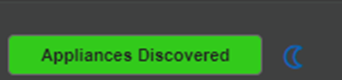
Appliances discovered - only shows when appliances are discovered
Click "Appliances Discovered"

Discovered appliances list

Approve and deny discovered device options
Click "Approve"
• Complete wizard – upgrade if needed.
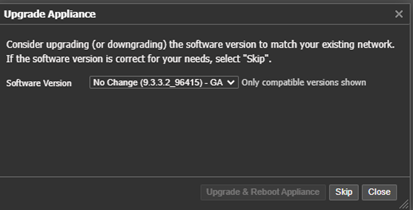
Wizard - Upgrade appliance option
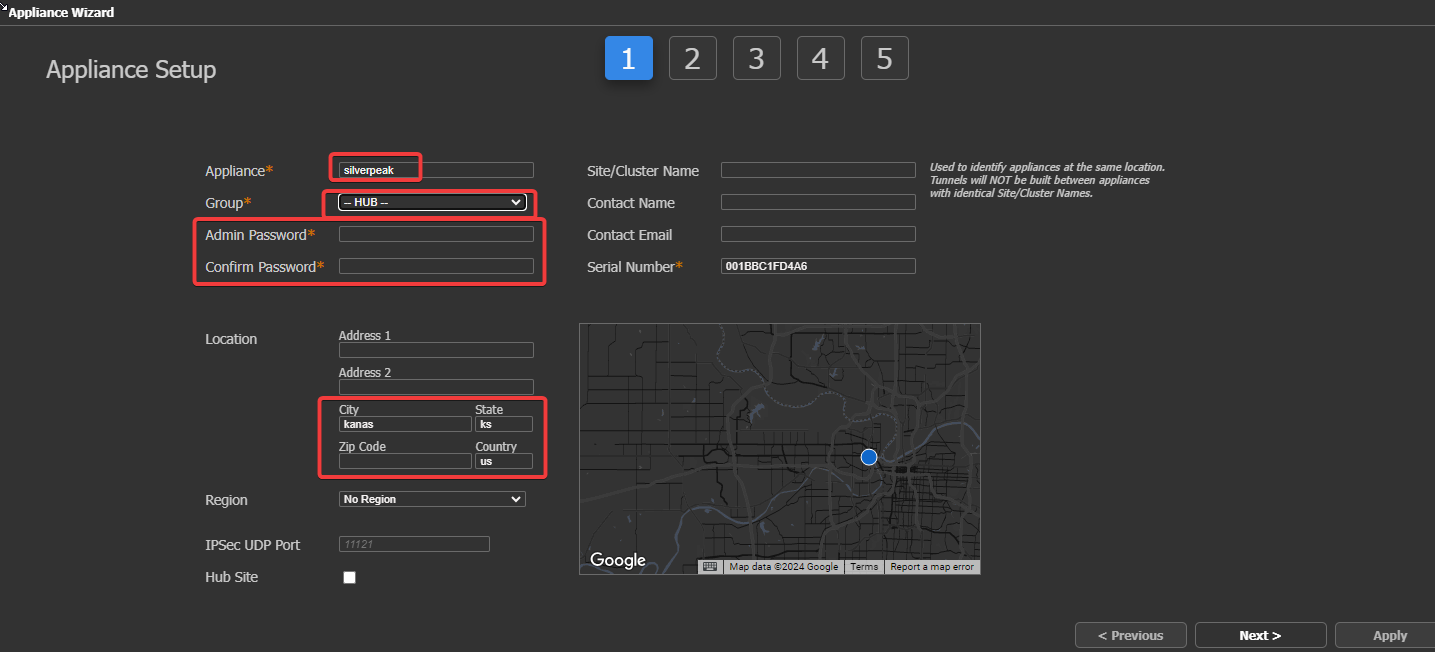
- Next- Name appliance, provide an admin password (can be in template but you need to type something here)
- Location – is GEO IP you can put the address of the location (display properly on the map) (can update anytime)
- HUB Site? If so click the Hub site Box (Can add this to hubs later)
- Click Next
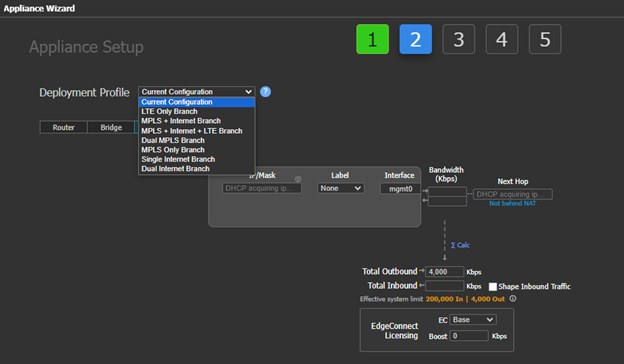
Deployment profiles – Default Prebuilt options are listed; you can make your own profiles or start from scratch (type everything out). You can change the setting later.
Selected a single internet branch for this example.
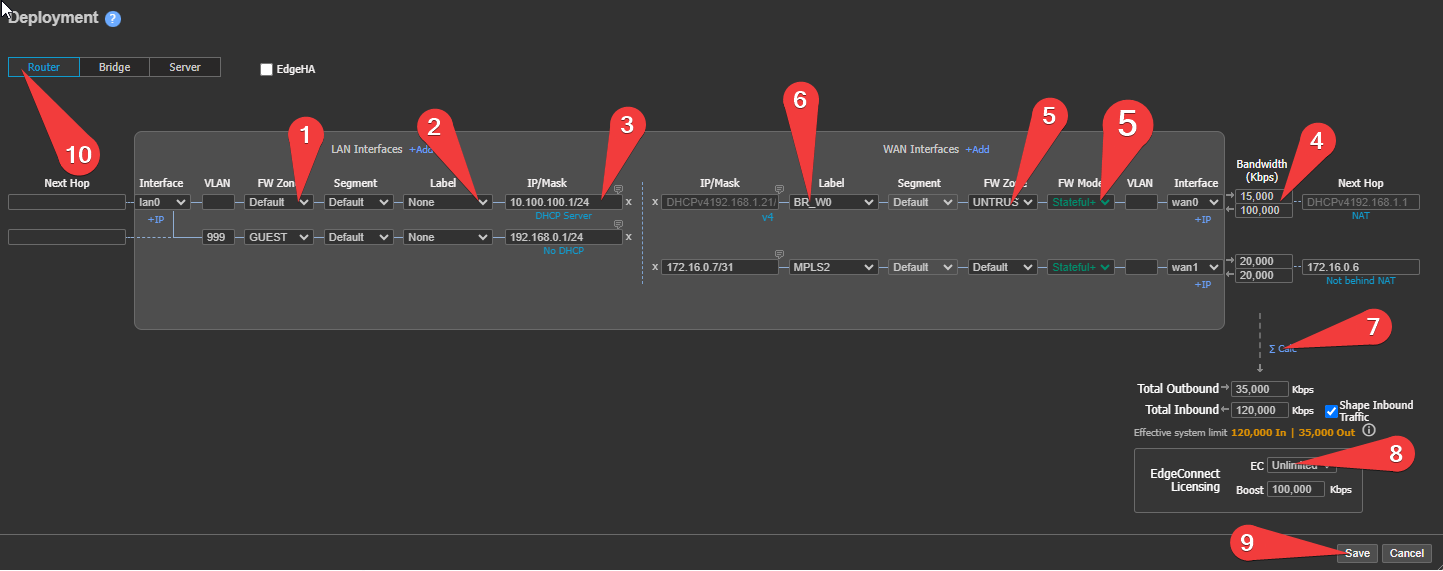
Best Practice: – For security and FunctionWAN "FW Zone" Should be Set to "Untrust" Label (5)
“FW MODE” to “Stateful + SNAT”.
- Set LAN “FW Zone” For the LAN interface/VLANS
- Set LAN label
- Set LAN IP/MASK
- Set Circuit Bandwidth
-
Best Practice: Set to Circuit BW (max BW) you pay for.
Setting Fiber/MPLS/DIA to MINUS 1-5% is preferred, 100Mbps set to 95-99Mbps
Cable and similar set 90%, 100Mbps set to 90Mpbs
Goal: Set the BW to the maximum BW you can transfer without packet loss. Our "Link Integrity Test" can help you figure this out, however, is advanced for this article, following the above guidelines is a perfect starting point in most cases. This prevent you from hitting ISP shapers and dropping your traffic in a harsh and uncontrolled manner.Never set Deployment BW higher then Circuit, Never set to "burstable" limits.What if Circuit BW is higher than my License?See Shaper Config Our system automatically set the shaper to the License limit!
-
- Select FW Zone "Untrust" for your WAN circuits
- (5) Set the "FW Mode" for WAN to "Stateful+SNAT"
- Set WAN Labels (this will builds tunnels base on the BIO)
- If you are not ready for tunnels for whatever reason select "none"
Do not use the same WAN label on different WAN interfaces, includes HA Pairs.see label examples - make a INET-HA and INET-HB label for your HA spoke sites.
An alarm will generate and Tunnels will not build until this is corrected!
- Click the sigma calc to calculate WAN BW
- Select the license you want for this EC
- Enter boost BW if you have boost BW license
- After ensure #10 is Router mode, Click Save.
Best Practice: Router Mode (10)Bridge and Server mode will discontinue in future versions.
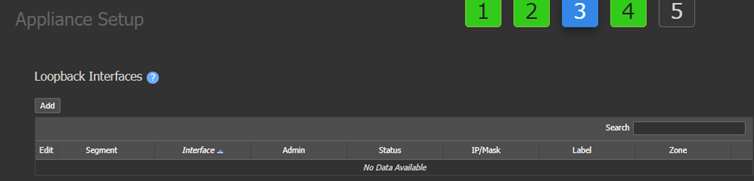
- Define a loopback – if using loopback orchestration – click next (a loopback will automatically be assigned with loopback orchestration.)
- click next
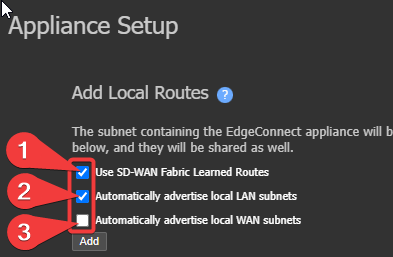
- “Add local Routes” – typically the first two boxes will need checked.
o Select the overlays (tunnels) and templates (configs) shown here is a default/new orchestration setup, in this case we will select all and click APPLY. (can change later)
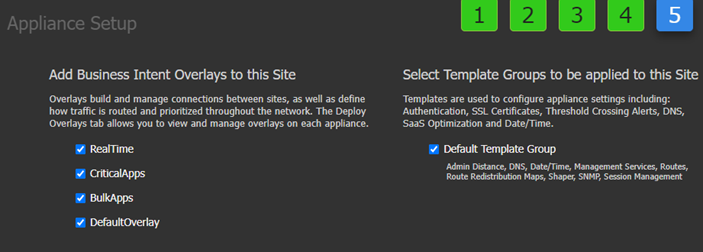
o Once completed you can close the screen.
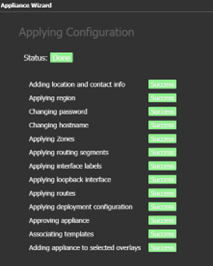
o Please note, depending on the overlay and templates the above process can take a few minutes.
o The device will show up in your tree please give it a few minutes and sometimes up to 10 minutes to be ready, depending on configuration, devices sometimes require a reboot.
o The devices grayed out with “?” means they are not talking to Orch/Cloudportal.

No internet access on WAN0/1 or MGMT0.
Firewall/Network security blocking traffic
No DHCP on network WAN0/1 or MGMT0 is plugged into
Power
o After few minutes
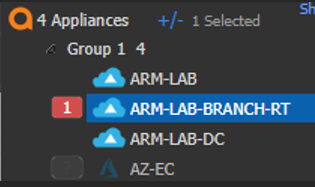
o Right click device and select “connectivity.”
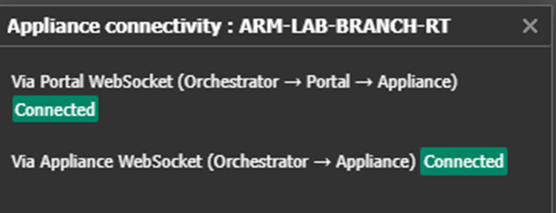
o Repeat process for a 2nd device
Updated 2 months ago