When setting up an EdgeConnect SD-WAN for the first time it is important to keep the configuration as simple as possible, and only introduce the features and functionality based on the initial customer requirements.
Accessing Orchestrator
📘
Where do I go to begin?
The first step in bringing up your EdgeConnect SD-WAN network is to login to your Orchestrator. The Orchestrator comes in two different flavors,
Orchestrator-as-a-Service - Recommended
Orchestrator-as-a-Service (OaaS) is provided by HPE Aruba Networking as a cloud-based service.
This service is entirely managed by HPE Aruba Networking, covering network and application security, configuration backups, resource management, and monitoring within our cloud infrastructure. You can manage software upgrades through the Orchestrator user interface, choosing the software version for your SD-WAN fabric while we take care of the rest.
Self-Hosted
Self-Hosted Orchestrators can be set up as a virtual machine either on-premises, such as in your data center, or in your own Virtual Private Cloud (VPC) within a public cloud environment (AWS, Azure, GCP, OCP, etc.).
The management of Self-Hosted Orchestrators is the customer’s responsibility. This includes all lifecycle management tasks for the underlying Linux OS, such as patches and updates, as well as database backups for the Orchestrator. During the initial setup, you will be prompted to create local OS-level admin and root credentials. It is crucial to save these credentials for future upgrades and maintenance of the Orchestrator VM.
Note: Ensure that Self-Hosted Orchestrators are secured with appropriate Layer 3 Access Control Lists (ACLs) or firewall rules to protect against network intrusions.
Orchestrator First Login
Regardless of the type of Orchestrator you have, the initial step is to access the Orchestrator through your preferred web browser. For Orchestrator as a Service (OaaS) instances, you will find the URL in your email. All OaaS URLs will end with silverpeak.cloud.
For self-hosted instances, simply enter the Orchestrator IP address into your browser's address bar and press enter.
First login to new Orchestrator
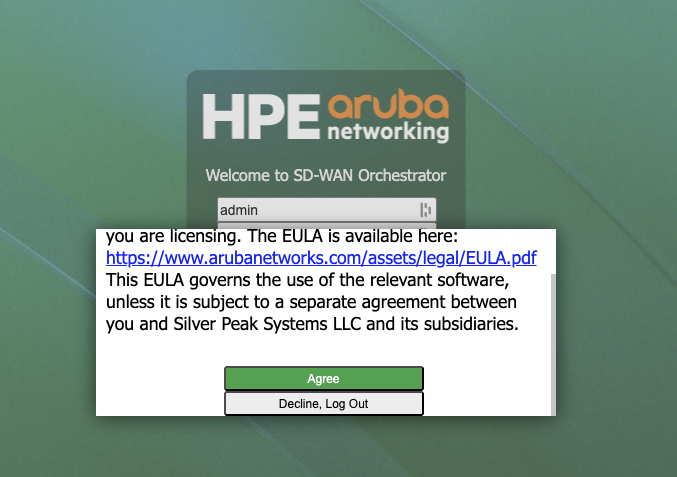
Note: When you log into the Orchestrator for the first time, you will see a pop-up for the End User License Agreement (EULA) acceptance. This pop-up will include a link to the EULA for you to review. If you agree to the terms, simply click "I agree." This pop-up will only appear during your initial login to the Orchestrator.
EULA Agreement
Navigating Orchestrator
📘
Help me, I’m blinded by the light!
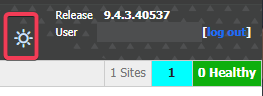
Starting with Orchestrator 9.3+ a fully featured "dark mode" has been introduced. Click the "sun" icon in the upper right corner, left of username. Your optometrist will thank you.
"Toggle Dark Mode"
👍
Finding Anything
When you are new to the Orchestrator UI it can be initially a bit tricky to remember which menu contains the items you are looking for. To avoid struggling, use the search menu. Start typing keywords you are looking for. (see example in time zone below)
Search Menu
❓
What does this button/screen do?
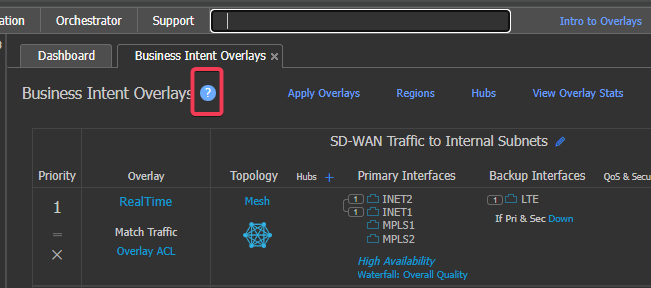
Throughout the product you will notice the "?" icon. This icon will link you to the context sensitive help documentation hosted directly within your Orchestrator.
For example, if you are on the Business Intent Overlay tab, clicking the "?" icon will open a new window with the help section for "Business Intent Overlays"
Help Shortcut question mark.
Set up availability Time (optional but helpful)
👍
Must have one EC added to Orch to set this up!
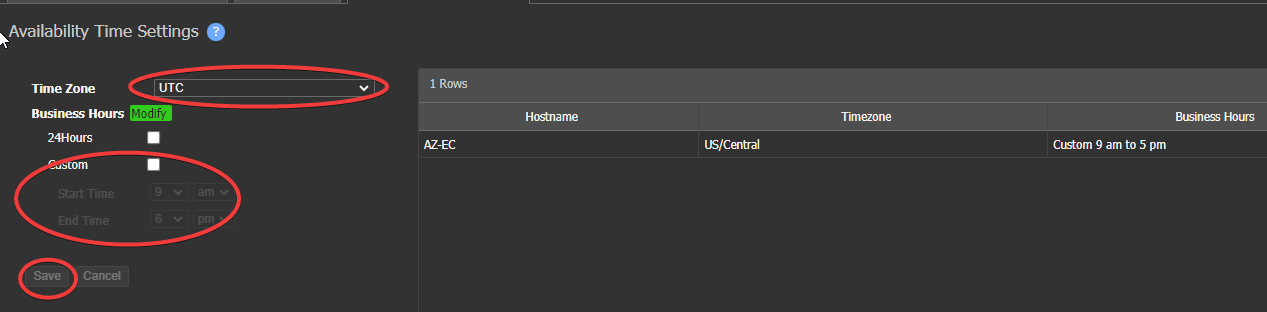
o This tab lets you configure the business hours and time zone for each appliance. The orchestrator will collect availability data based on each appliance’s time setting.
o Select appliance(s) in the tree you want to set. Click custom or 24 hours, click save.
Availability time setup
🚀
Best Practice: Make all changes in Orch unless necessary.
• Do not drop to the Appliance Manager or CLI unless necessary
• All appliance-level changes should be handled via template unless it is on the deployment page.
Orchestrator > User Management
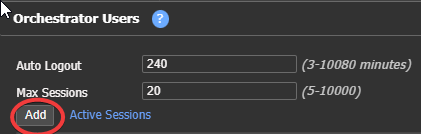
Add users here.
Add users to orchestrator
📘
Leave password blank for new users added, Users will set a password with the link they click on in the welcome email.
🚧
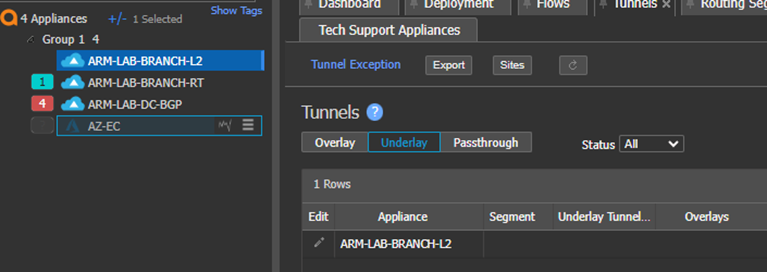
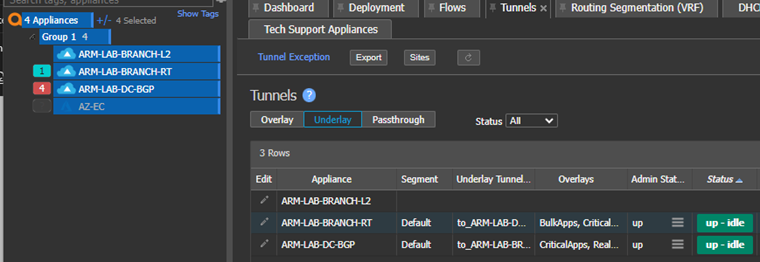
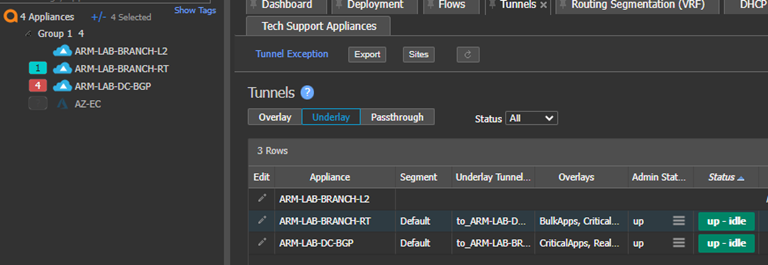
NOTE: Selecting ALL or Nothing is the SAME in the tree. Having nothing selected means everything selected!
One device selected.
One device in tree selected
All selected
All devices in tree selected
None selected. (same as all)
No devices in tree selected
What is this flashing “ETA”?
This means the Orch is pushing configs to the appliances:
Orch Pushing configs, blue flashing status
📘
You can Click the Blue to see status and prioritize an appliance.
Verify Time for jobs
Location to set time for Orch Jobs
🚧
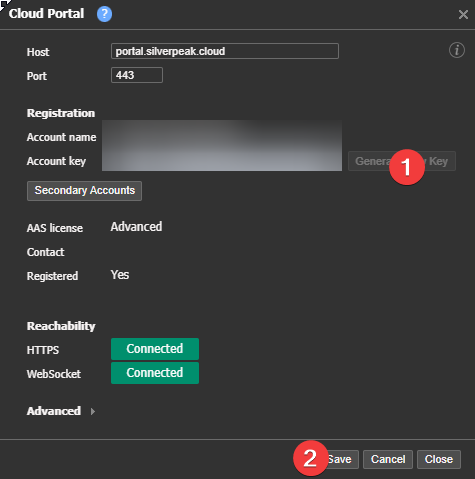
Cloud Portal
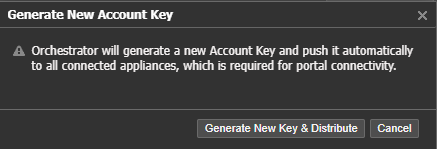
Generate new Account Key
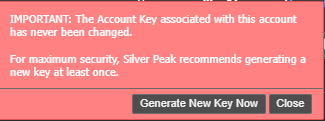
The original Cloud key is emailed best security practice is to generate new key
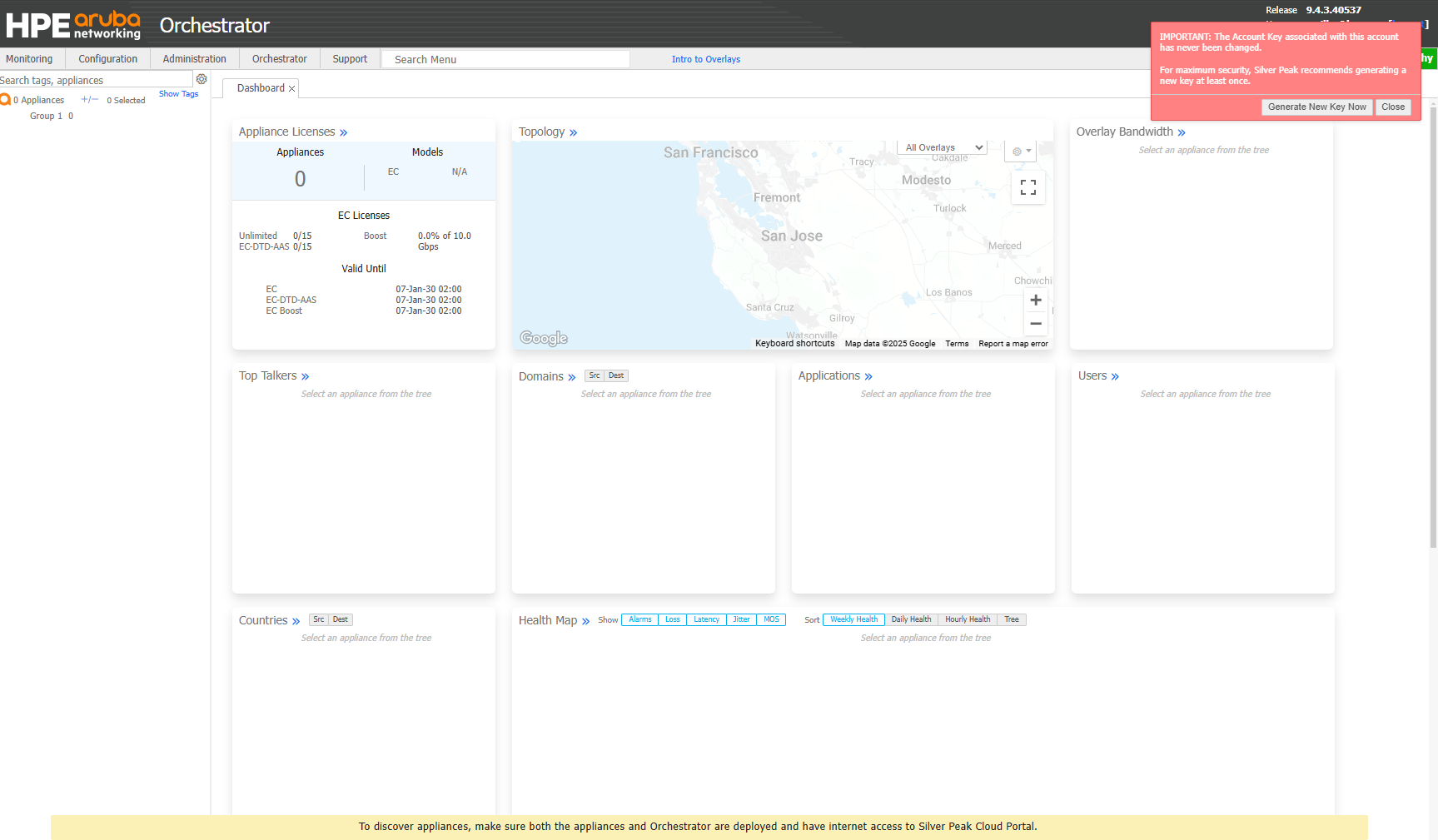
Where to change account key
You can click on the link in the pop up on first login, refresh page if you dismissed it.
Updated 4 months ago
What’s Next
Great work, you are off to an excellent start. Now proceed to Orchestrator Backup.