
Shaper/QOS Policy
Best Practice: Change the default shaper and apply as template
QOS is very environment dependent; the Following is strictly a starting point.
Best Practices: Shaper
- Inbound and Outbound Should match (at least as a starting point)
- Use “Min Bandwidth %” auto calcs to each locations BW!
- All unused TC(s) (traffic Class/Queues) set as the example below shows
Shaper
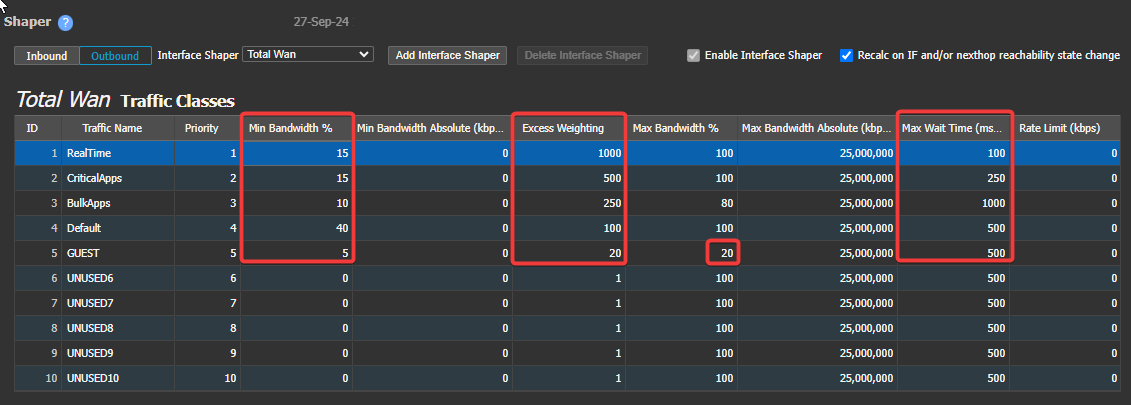
Outbound Shaper
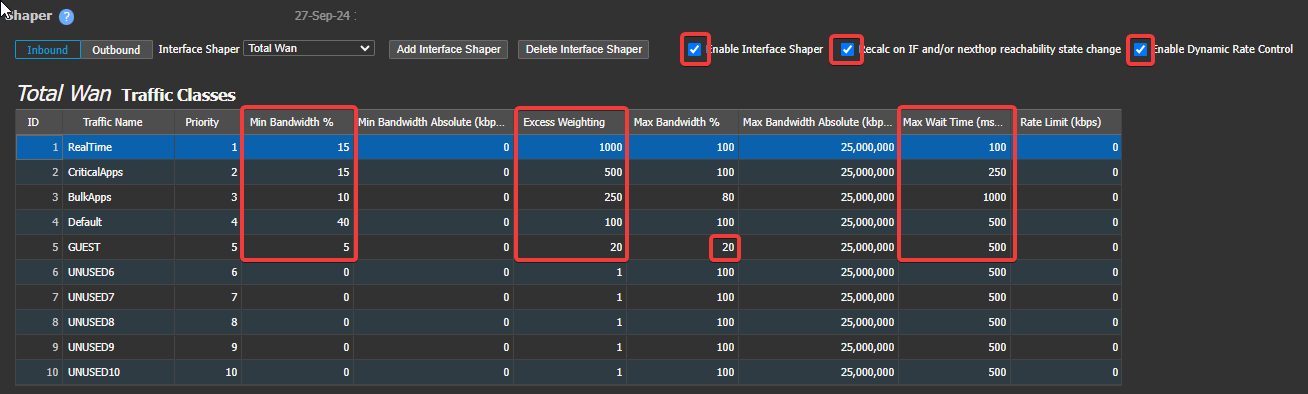
Inbound Shaper
- “Guest” added here as an example to limit BW – the BIO/QOS policy Guest pointed at this TC (can also use QOS Policy (below) to do this if not using dedicated BIO for traffic). Not required to add this, showing an example of capability here.
- Use Monitoring > QOS
QOS Policy
Best Practice: Add Template - even if blank - for later use.
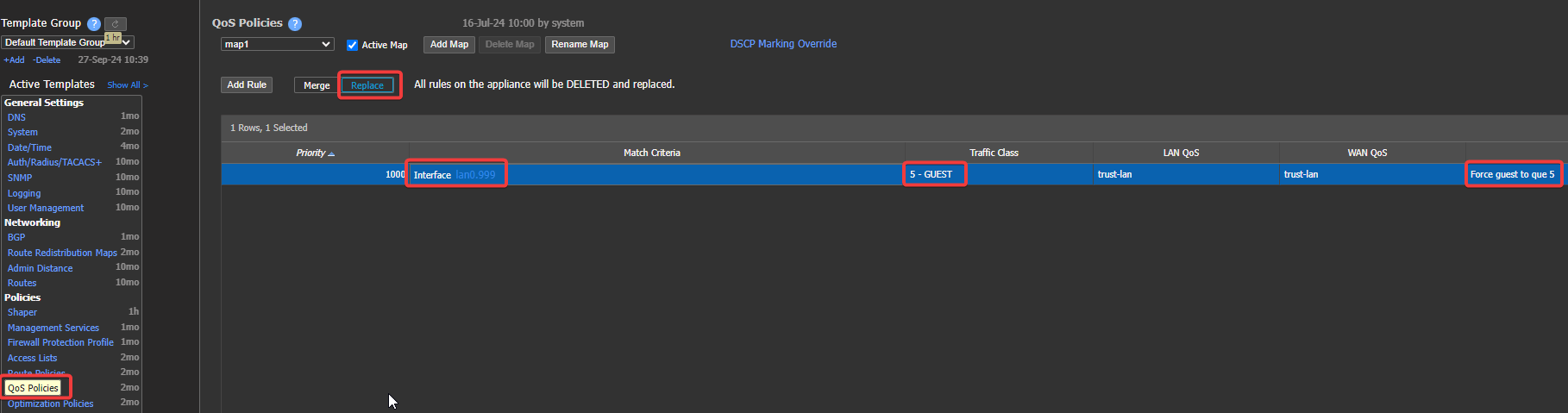
The Above example correlate to the "Guest" in the previous section - in this Lab "interface" was used, in Prod environment a "Label" or Segment should be used. Other options are IP address group to identify the Guest traffic.
The Label is better because it will not matter what the interface is
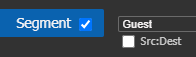
If segmenting, you could also use segment "Guest" to ID the traffic.
Deployment bandwidth, License, and Shaper relationship.
Best Practice: Set deployment bandwidth to Circuit available bandwidth
Below in Red shows the MAX BW % for the inbound shaper - this automatically calculated the shaper, shapers with 100% "Max BW" show 200Mbps of BW - the license limit
Shaper template will not show these calculations! You must view the shaper on the device with the shaper template applied to view this calculation for the individual EC.
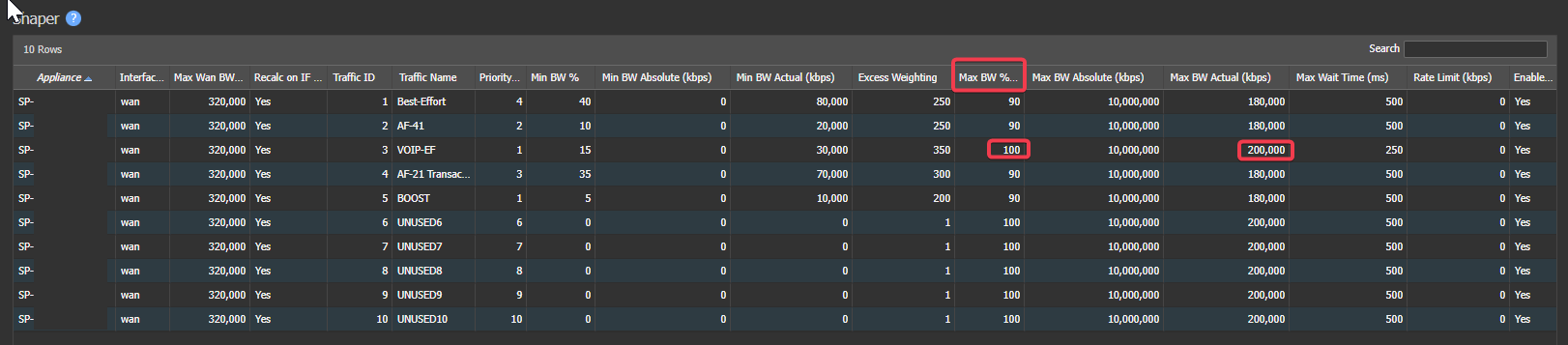
The deployment Shows 290Mbps+ 30Mbps of inbound bandwidth and only a 200 Mbps license.

System automatically sets the shaper to the maximum license BW, if BW > license.
Best Practice: Set Circuit bandwidth to actual BW!
Shaper Calculator examples
Below is simulated where TC 1-3 are using exactly what is expected, and default is borrowing all excess.
100Mb total WAN BW for these examples
(note currently 75% is guaranteed to TC that means 25% is always free)
- Current usage is 10Mb more than "total WAN BW"
- EC is shaping all 100Mb
- Default shaper is 10mb short of demand
- Calculated BW in these TC can use from:
- Calculated BW TC can use based off "Excess weighting"
- Calculated BW TC can use based off FIFO
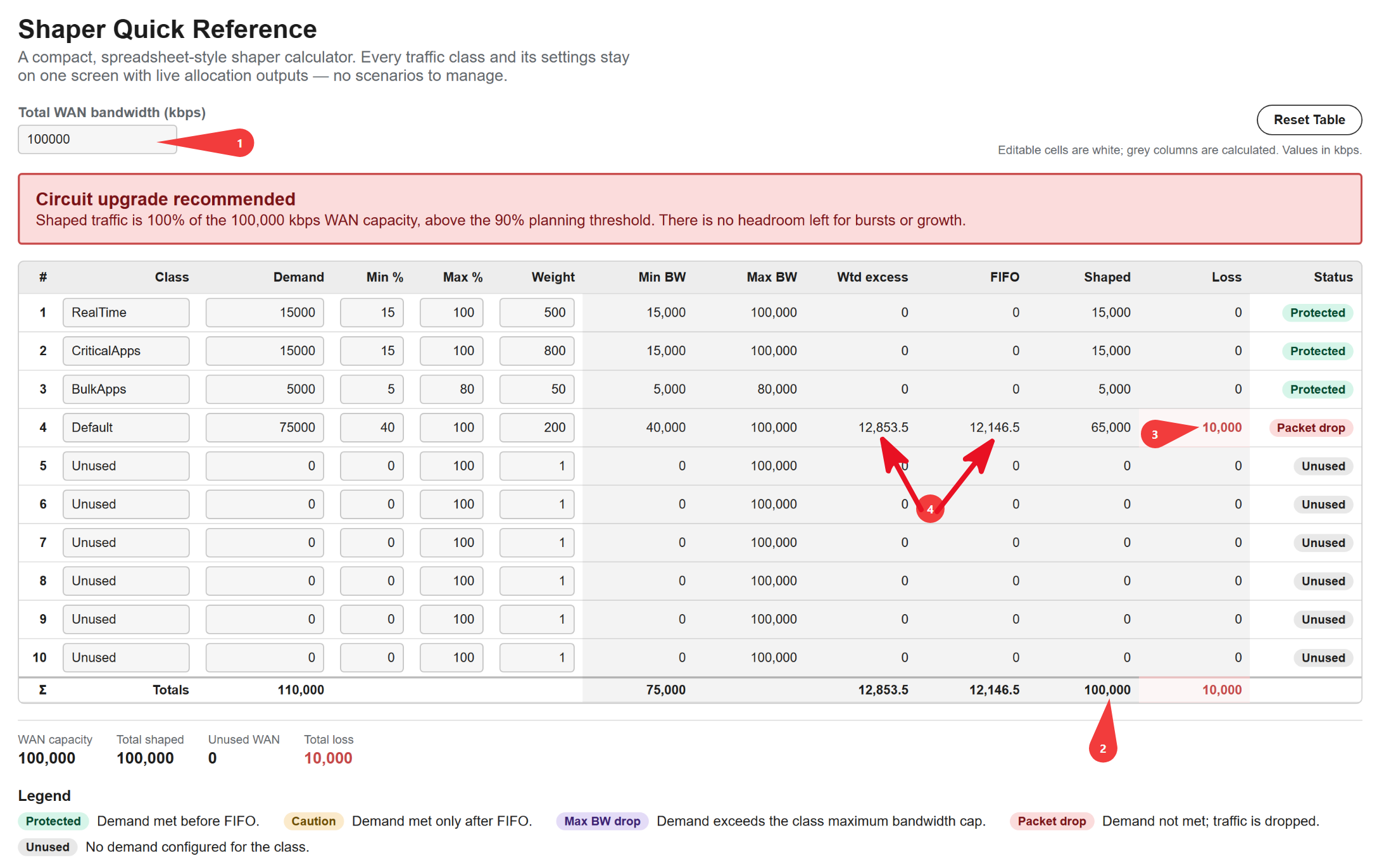
example BW usage and result
Critical has surge of traffic
- Critical BW surge of 50Mb
- All excess BW moves to Critical to meet demand
- Default is left with 40Mb guaranteed as configured
- Only 40Mb of the 50Mb demand can be met.
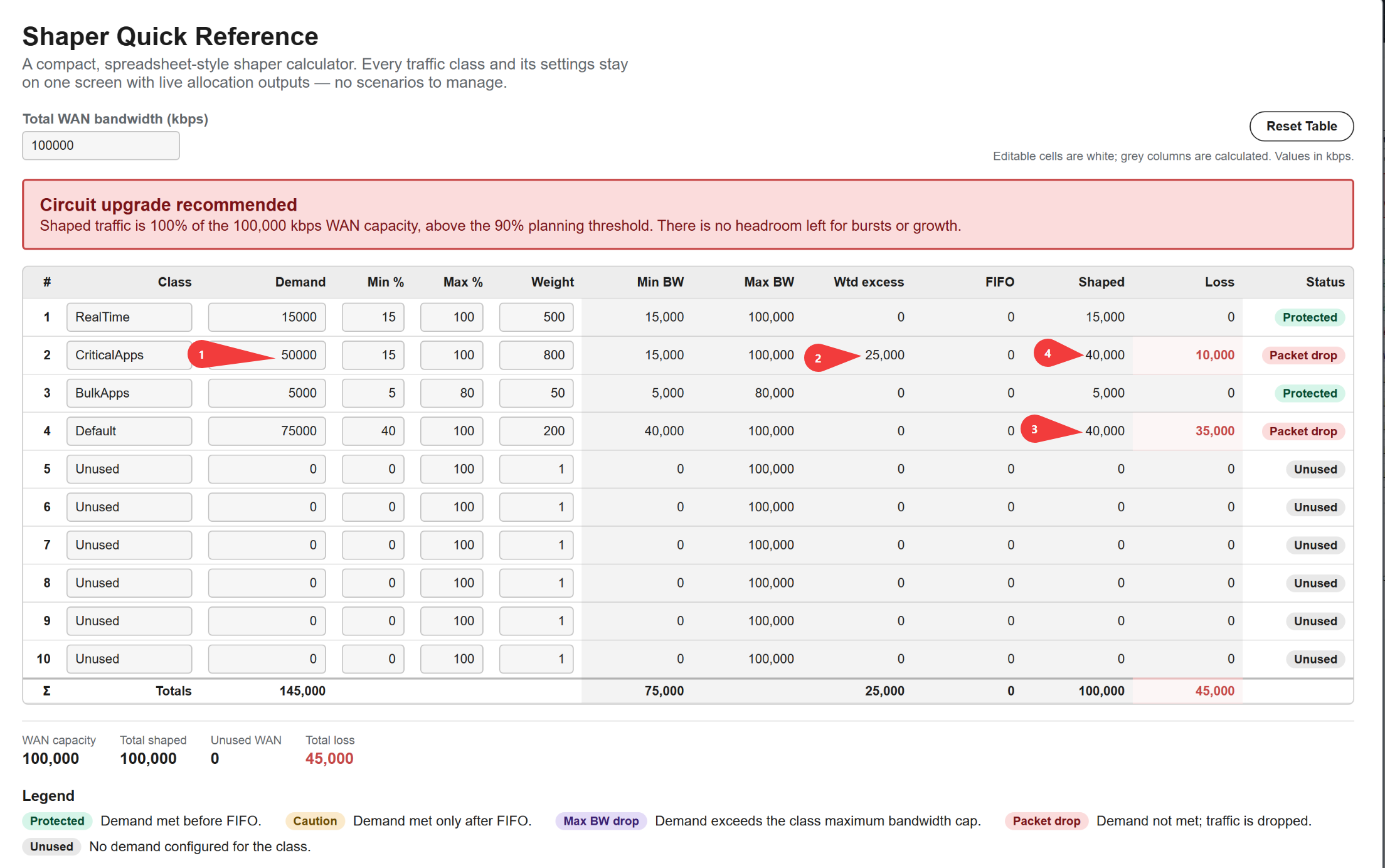
Example with 50Mb surge in Critical
FAQ
I should have 50Mb in "Shaped" for Critical why am I not getting it?
- Because all TC are using the guaranteed BW, there is nothing else to borrow, only the 25% free can be borrowed.
Options and actions to adjust?
Because all TC being maxed is unlikely the following can be used. note that in situation above even increasing the EXW DOES not give more BW to the Critical que (just simply is not anymore to give). Here are options in no order, as this is dependent on need and environment, however the most likely fix is #3 short term and #5 long term.
- Increase Excess Weighting for critical to handle this situation
- Increase Critical "Min BW%"
- Decrease "min BW%" in other TC to free up space
- Verify traffic in the Critical should be there via BIO/QOS policy config
- Get a bigger boat (order more BW for the site)
- Make Scavenger TC and move very low priority traffic to this TC, then adjust #2 or #3 above to free up some BW example:
- make a TC - use QOS policy to move traffic.
- this network engineer had the best day of his career and was able to move over half the traffic and make some space in Default :)
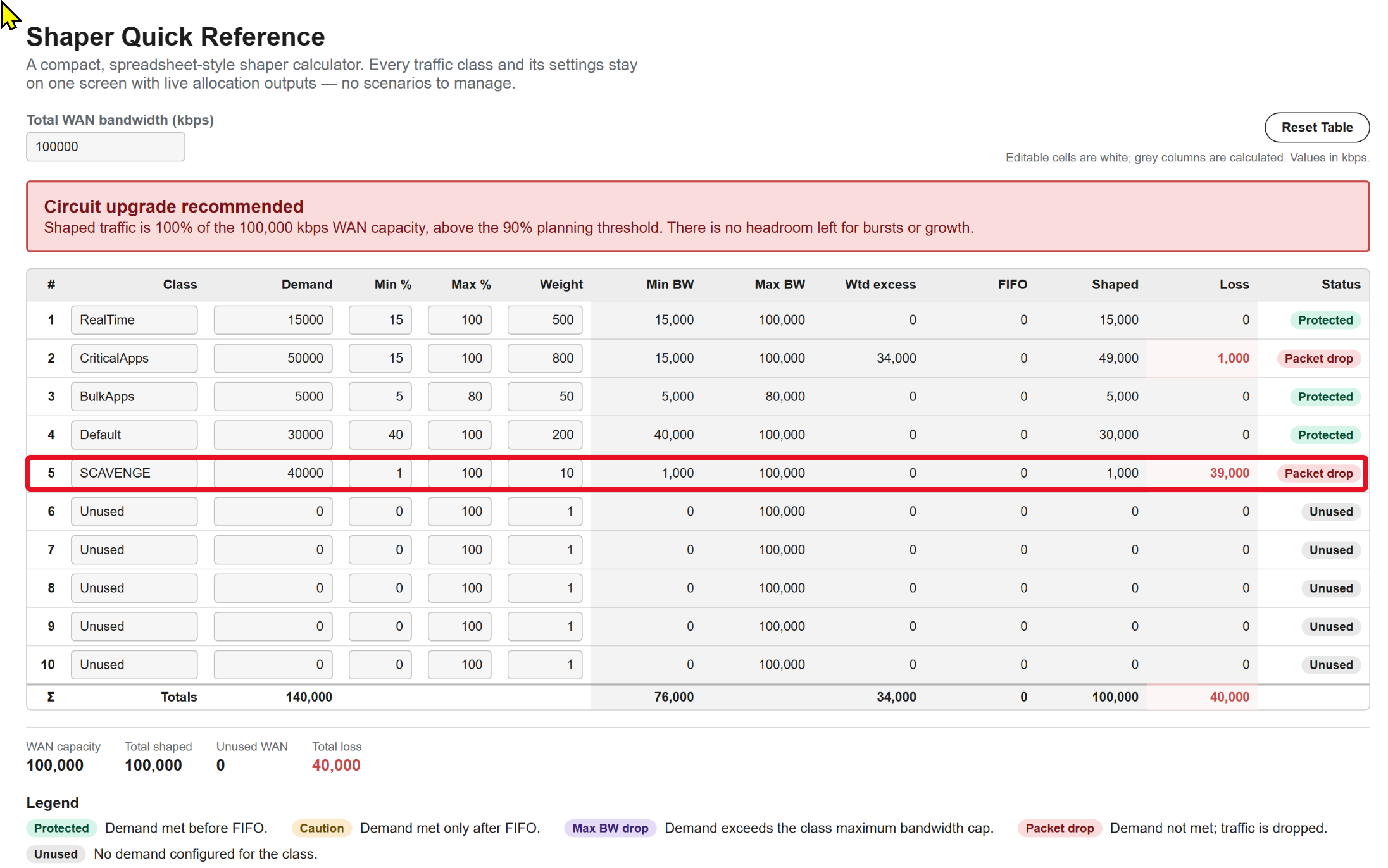
Shaper calc showing traffic moved to SCAVENGE
Shaper Calculator access
The calculator is provided below for your convenience. If you would like an offline version, please reach out to your Systems Engineer for an Excel copy. This is also recommended as a fallback in the event that the interactive tool below is temporarily unavailable due to updates.
Updated 2 months ago