
BIO - Business Intent Overlays
Best Practice: HUB and Spoke
• Click This area for each overlay 1-2-3-4
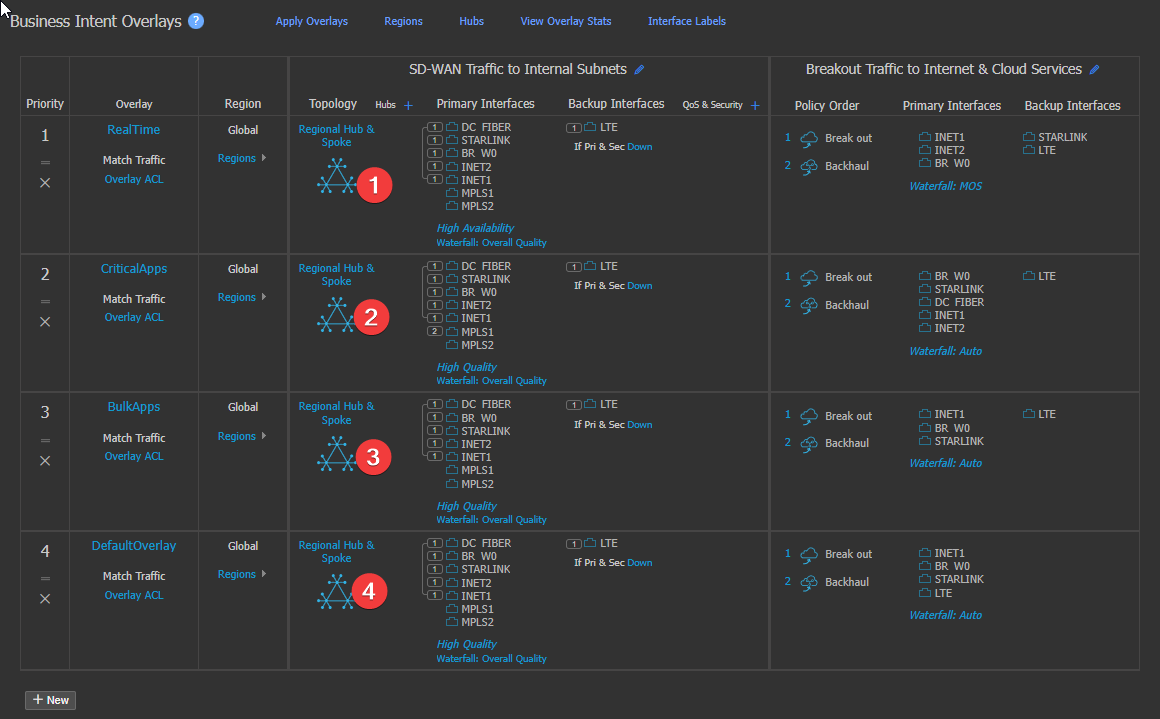
Business Intent Overlays. Click the topology area on each of the four overlays - RealTime (1), CriticalApps (2), BulkApps (3) and DefaultOverlay (4).
Note that even if not using regions, you still have one Global region
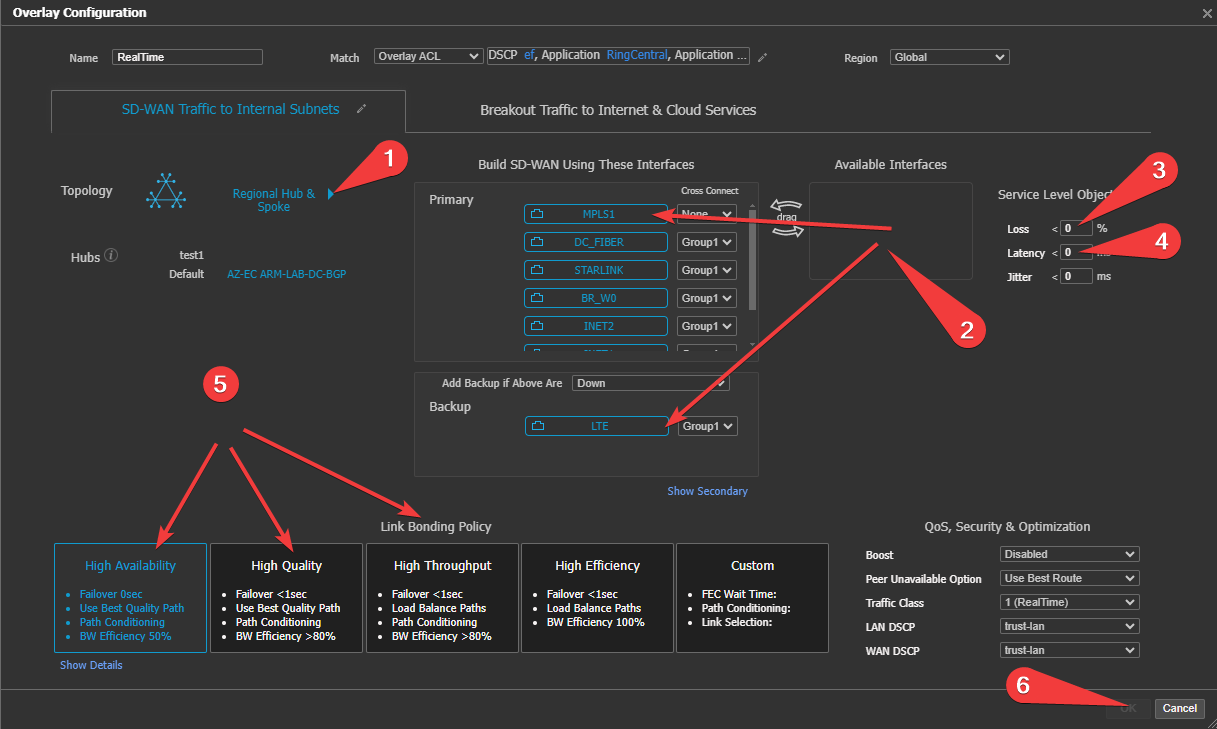
- Select the drop down, pick “Regional Hub and Spoke.” For all overlays.
- Drag required WAN labels to Primary, Secondary, and Backup.
- Secondary and Backup function the same, this is to give more options to failover order.
- Failover from primary link to secondary or backup is approximately 2 seconds
- Only keep alive traffic is sent down Backup and Secondary links unless "Add backup if above are: (Down or not meeting service levels." is triggered.
- Set loss and latency for the overlay! Suggested: (3-4)
- Realtime and "HA" overlays 5% and 150ms (international traffic may need higher setting or leave zero)
- Other overlays: 8-12% and 200-300ms
- (5) Select the link bonding policy.
-
Best Practice: Realtime "HA", all other overlays "HQ"
(6) Click "OK"
Click "Save and apply Changes to Overlays"(1)
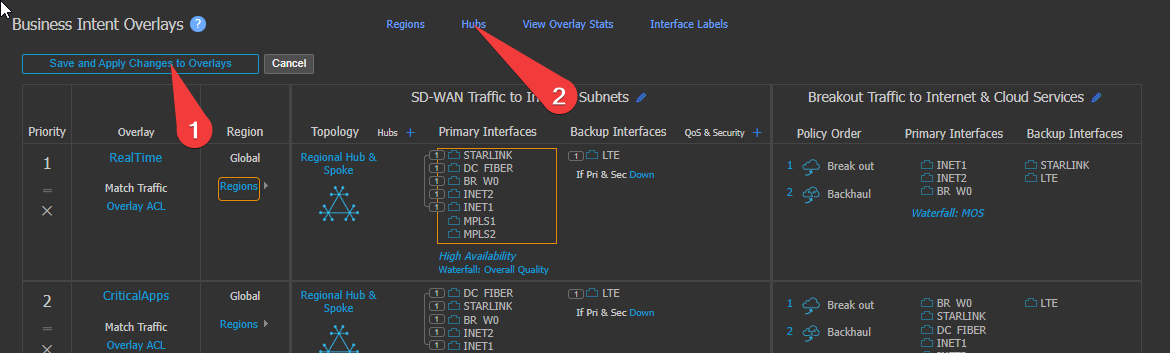
Click "Hubs" (2)
Configure HUB
Type and select your HUB appliance
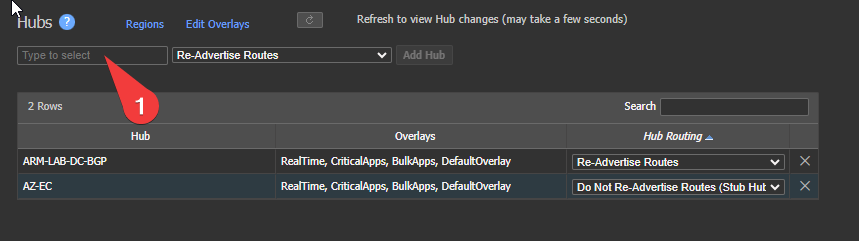
Once you add and HUB and Spoke device or two mesh devices:
• You will notice that it Orchestrates.
• Tunnels will try to establish!
See Next section for Tunnels
Updated 2 months ago
What’s Next
Did this page help you?